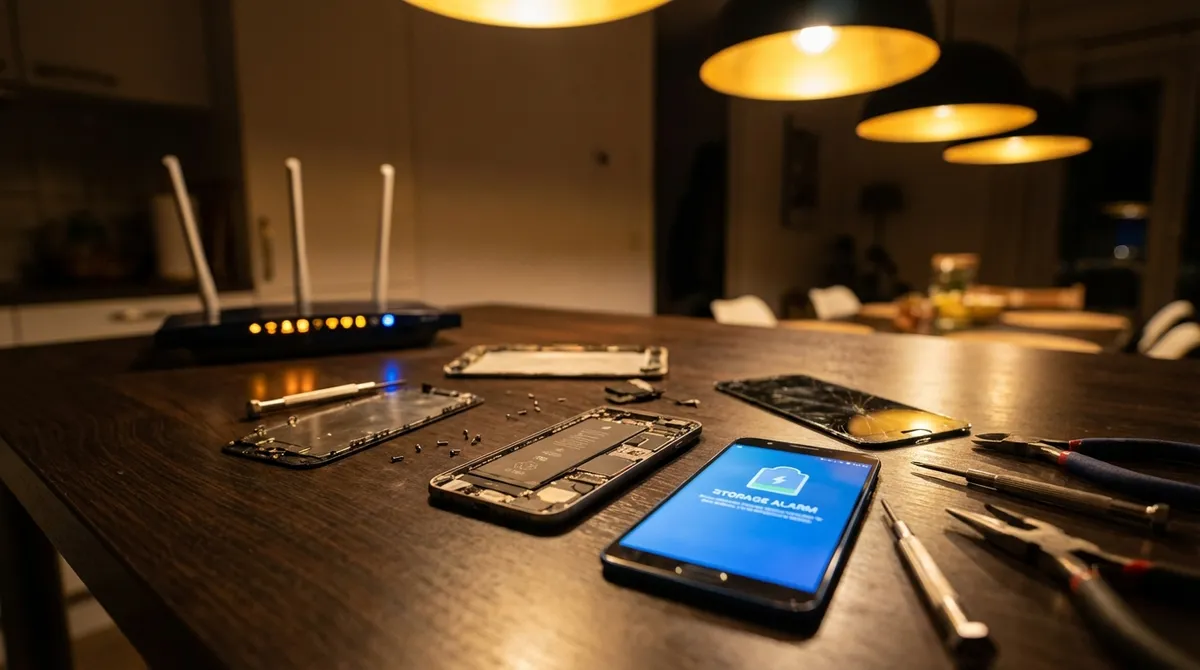
Smartphones typically fail in a handful of predictable ways: they slow down, overheat, lose signal, drain battery, or refuse to charge. The symptoms look random, but underneath are specific subsystems misbehaving—modems, radios, storage, power management ICs, and thermal controls. This guide walks through five core troubleshooting paths that target those components, step by step. You’ll get practical, technical instructions you can actually follow, plus when to stop and hand the device to a professional.
1. When Your Phone Feels Sluggish: Performance and Storage Path
A “slow” phone is usually a combination of three factors: constrained RAM, nearly full internal storage, and a CPU throttled by either heat or background processes.
Technical Checks
Check free storage and RAM usage
- On Android:
- On iOS:
- Aim to keep at least 10–20% of internal storage free. Below that, the OS struggles with caching, app updates, and temporary files.
- Per-app cache:
Settings → Storage and Settings → Developer options → Running services (or Memory on some skins).
Settings → General → iPhone Storage.
Clear cache and unload background processes (Android)
Settings → Apps → [Select App] → Storage → Clear cache.
Focus first on browsers, social media apps, and streaming apps (they accumulate large caches).
- Remove or disable unused bloatware:
Settings → Apps → [Select App] → Disable/Uninstall.
Disabling manufacturer or carrier bloat reduces background services hitting CPU and network.
Evaluate background refresh and startup items
- Android:
Settings → Battery → Battery usageto see which apps are waking the device.Settings → Apps → [App] → Battery → Restrict background usage(wording varies by OEM).- iOS:
Settings → General → Background App Refresh→ disable for apps that don’t need it.- Turn off auto-play videos and unnecessary sync in individual app settings.
- If performance drops mainly during gaming or video recording, the SoC may be throttling due to heat.
- Use a CPU monitoring app (Android) to observe clock speeds under load. If speeds drop sharply while device feels hot, the slowdown is thermal protection, not a “bug.”
- Make sure the OS is current:
- Android:
Settings → System → System update. - iOS:
Settings → General → Software Update. - Avoid aggressive “RAM cleaner” apps. Modern OS memory management is designed to keep RAM full; forcing kills can increase CPU load and battery usage due to constant process restarts.
Check for thermal throttling
System-level optimization
When to Escalate
If performance remains poor even after freeing storage, reducing background load, and updating the OS, suspect:
- Failing eMMC/UFS storage (symptom: random freezes, failed installs, or reboots during write-heavy tasks).
- Defective RAM or SoC (symptoms: frequent app crashes across multiple apps, OS reboot loops).
At that point, a service center diagnostic or board-level repair is usually required.
2. Battery That Won’t Last the Day: Power and Battery Path
Rapid battery drain is usually either software (rogue apps, poor signal), configuration (power-hungry settings), or hardware (aged battery, degraded charger/port).
Technical Checks
Inspect battery health (where supported)
- iOS:
Settings → Battery → Battery Health & Charging. - If Maximum Capacity is under ~80%, the cell is significantly degraded.
- Some Android OEMs (e.g., Samsung, OnePlus) provide battery health in their support or diagnostics apps; otherwise, third-party tools can estimate via charge cycle data, though readings are less exact.
- Android:
Settings → Battery → Battery usage(or similar). - iOS:
Settings → Battery→ check usage by app over last 24 hours and 10 days. - Look for:
- Apps with disproportionate “Background” time vs on-screen time.
- Apps keeping high “Cellular” activity despite minimal use.
Analyze per-app battery usage
Disable or uninstall offenders, or for critical apps, aggressively limit background refresh.
Radio and signal-related drain
- Poor cellular signal makes the modem increase transmit power.
- If you spend long periods in weak coverage (1–2 bars or “Extended”), expect faster drain.
- Mitigations:
- Enable Wi‑Fi Calling if supported and you have stable Wi‑Fi.
- Use Airplane Mode + Wi‑Fi during long periods in dead zones (e.g., in basements, on planes with Wi‑Fi).
- Lower brightness or enable adaptive brightness. OLED panels consume much more power at higher luminance.
- Reduce screen timeout (e.g., 30 seconds).
- Limit high refresh rate if battery is critical (Android:
Settings → Display → Motion smoothnessor similar). - Review sync-heavy features:
- Auto-upload of photos to cloud, frequent mail fetch, live wallpapers, and continuous location access all add up.
- Use a known-good, quality cable and adapter—preferably from the device manufacturer or a certified brand.
- Observe if the phone heats excessively while charging or charges very slowly (e.g., less than 5–10% per 30 minutes on a fast charger), which might indicate:
- Degraded battery chemistry
- Faulty power management IC (PMIC)
- Dirty or damaged USB/Lightning port (check for lint and bent pins using a flashlight; clean carefully with a non-metallic tool if needed).
Optimize screen and sync settings
Charging behavior and cables
When to Escalate
- Battery health is clearly degraded (under manufacturer’s threshold, often 80%) and the device drains quickly even on light use: request a battery replacement.
- Device shuts off at high percentages (e.g., 30–40%) or jumps suddenly from 30% to 0%: this is typically battery cell imbalance; replacement is the correct fix.
3. Overheating or Unexpected Shutdowns: Thermal Management Path
Modern smartphones tightly control temperature to protect the CPU, battery, and RF front-end. Overheating isn’t just “annoying”—it’s a hardware protection response.
Technical Checks
Identify the thermal zone
- Heat near the top back of the phone often points to the SoC or modem under load (e.g., gaming, streaming, 5G usage).
- Heat concentrated near the charging port suggests:
- Fast charging at high current
- Poor/dirty contacts causing resistance heating
- Defective cable or adapter
- Streaming 4K video over mobile data, gaming at 120 Hz, or recording 4K/8K video are CPU/GPU-intensive tasks. Some heat is expected.
- Problematic signs:
- Heat during idle conditions (screen off, no apparent use).
- Thermal warnings at low workloads.
- On Android, use a thermal monitoring app to confirm if the device is approaching 40–50°C under normal usage; consistently high readings at idle may indicate a rogue process.
- Repeat the battery usage inspection from the previous section; apps that constantly use network, location, or CPU can hold the device out of low-power states.
- Check for:
- VPNs or ad-blockers that keep the network stack active.
- Misconfigured email or chat apps stuck syncing or reconnecting.
- Temporarily disable or uninstall potential culprits to observe thermal changes.
- Avoid charging under pillows, in direct sun (e.g., on a car dashboard), or while running intensive apps.
- If the device gets hot while charging:
- Test with another certified charger and cable.
- Reduce fast charging settings if your device allows (some have “Optimized charging” or “Slow charge” options).
- Case heat: thick or non-breathable cases trap heat; test without a case for a day to see if thermal behavior improves.
- Install OS and carrier updates; they often include modem firmware and power/thermal tuning improvements.
- A buggy baseband/modem firmware can cause the radio to run inefficiently, generating excess heat especially with 5G.
Check workload versus temperature
Inspect background processes
Charging and environment
System updates and modem firmware
When to Escalate
Seek professional service if:
- The phone shuts down abruptly due to heat with only light usage.
- You consistently see thermal warnings after a factory reset and minimal apps.
- The device is physically warped, the back glass is lifting, or you feel “hot spots” near the battery area—this could indicate battery swelling and is a safety issue. Power down and do not continue using it.
4. No Signal, Dropped Calls, or Wi‑Fi Problems: Radio & Network Path
Connectivity failures trace back to either misconfiguration, physical radio problems (antennas, modems), or external network conditions.
Technical Checks
Confirm the scope of the problem
- Is it cellular only, Wi‑Fi only, or both?
- Affects all apps or just one (e.g., messaging app servers down vs full network issue)?
- Test another device on the same network:
- If multiple devices fail on the same Wi‑Fi, suspect router/ISP.
- If only this phone fails across multiple networks, suspect the phone’s hardware or configuration.
- Toggle Airplane Mode on, wait 10–15 seconds, then off. This forces a modem detach/attach on the cellular network.
- Check SIM:
- Power off the device.
- Remove SIM, inspect for scratches or dirt, reseat carefully.
- If dual-SIM capable, try the SIM in the other slot.
- Check network mode:
- Android:
Settings → Network & Internet → Mobile network → Preferred network type(5G/4G/3G). - Temporarily lock to 4G/LTE only to see if 5G-specific issues are causing drops.
- iOS:
Settings → Cellular → Cellular Data Options → Voice & Data. - Forget and re-add network:
- Android/iOS:
Settings → Wi‑Fi → [Network] → Forget, then reconnect and re-enter password. - Disable any MAC randomization quirks:
- Some older routers misbehave with randomized MAC addresses; on Android/iOS Wi‑Fi settings, switch from “Randomized MAC” to “Device MAC” for testing.
- Check IP/DNS:
- Ensure the phone is obtaining an IP via DHCP (no APIPA 169.254.x.x addresses).
- Try using a known DNS (e.g., 8.8.8.8) if your router allows manual override and you suspect DNS issues.
- For Wi‑Fi:
- Move closer to the router; 5 GHz and 6 GHz bands drop off faster with distance and walls.
- Temporarily disable mesh/AP steering on your router to avoid constant roaming between access points.
- For cellular:
- Note if issues occur in certain buildings or locations only—heavy concrete/metal structures and low basements attenuate signals.
- Switching to Wi‑Fi Calling indoors can sidestep poor in-building coverage entirely.
- Install carrier settings updates (iOS typically prompts with “Carrier Settings Update Available”).
- On Android, carrier customizations are often bundled in system updates.
- If your phone is region-locked or imported, check that it supports the correct LTE/5G bands for your carrier; incompatible bands result in weak or inconsistent service.
Cellular troubleshooting
Wi‑Fi troubleshooting
Interference and router-level issues
Carrier and firmware
When to Escalate
- No cellular network even with known-good SIMs, across locations, after resets: suspect RF front-end or baseband hardware failure.
- Wi‑Fi works for all other devices but this one repeatedly fails to see or join networks: could be defective Wi‑Fi/Bluetooth combo chip or antenna path; needs hardware diagnostics.
5. Charging, USB, and Data Port Failures: Power & I/O Path
Charging and USB issues often come down to cable quality, port contamination, negotiation between charger and device, or internal power management hardware.
Technical Checks
Baseline with a known-good charger and cable
- Use an original or manufacturer-recommended adapter and cable (e.g., Apple, Samsung, Google).
- Avoid unbranded or extremely cheap power bricks; they often fail to negotiate proper USB-PD or proprietary fast-charge protocols and can be unsafe.
- Power off the phone.
- Use a flashlight to inspect the USB-C/Lightning port:
- Look for lint, dust, or corrosion.
- Gently clean with:
- A wooden or plastic toothpick, or a dedicated port-cleaning tool.
- Avoid metal objects to prevent pin damage and shorts.
- After cleaning, test if the connector seats more firmly—loose connections cause intermittent charging and data dropouts.
- On Android, when connecting to a PC:
- Pull down the notification shade → tap “USB for charging” → select File Transfer (MTP) if you need data access.
- For very slow or non-charging:
- Observe the status: “Charging,” “Fast charging,” “Super fast charging,” or “Not charging.”
- If it only ever shows “Charging” even with capable chargers, the fast-charge handshake might be failing (cable, charger, or port issue).
- Many devices reduce charging speed or stop charging briefly if the battery or SoC is too hot or too cold.
- If charging pauses frequently:
- Remove the case during charging.
- Avoid high-load tasks (gaming, 4K video recording) while plugged in.
- Update to the latest OS firmware; some devices receive charging control improvements over time.
- Occasionally, the OS’s battery gauge drifts from the battery’s actual state of charge.
- Calibration method:
- Charge to 100% and keep it connected for another hour.
- Use the phone normally until it reaches ~10–15%.
- Charge uninterrupted back to 100%.
- If charging/data issues persist:
- Back up your data.
- Perform a factory reset to rule out OS-level corruption or misconfiguration affecting power management.
Inspect and clean the port
Check charging mode and data path
Thermal and software constraints
Battery calibration and system resets
When to Escalate
- Phone does not respond at all to any charger/cable combination and shows no charging indicator: likely port, PMIC, or battery failure.
- Visible corrosion, bent pins, or physical damage in the port: professional repair or board-level microsoldering may be required.
- Frequent “Moisture detected” warnings in a dry environment: may indicate a failing port sensor; seek service.
Conclusion
Most recurring smartphone problems map to a limited set of subsystems: storage and memory, power management, thermal control, radios, and USB/charging hardware. By approaching issues along these structured troubleshooting paths—performance, battery, overheating, connectivity, and charging—you can isolate whether you’re dealing with a misbehaving app, a configuration issue, or a deeper hardware fault.
Use the steps above to observe, measure, and adjust before you reset or replace your device. When symptoms persist after you’ve eliminated obvious software and usage factors, that persistence is itself a diagnostic signal: it’s time to involve a repair technician or your device manufacturer’s support. Targeted troubleshooting not only saves time and frustration—it also gives you a clear technical story when you do escalate the problem.
Sources
- Apple – Maximizing Battery Life and Lifespan - Official guidance on iPhone battery behavior, health, and charging best practices
- Google – Pixel Phone Battery & Performance Help - Android-focused tips on diagnosing battery drain, overheating, and performance issues
- Samsung – Galaxy Device Battery and Charging FAQ - Details on fast charging, overheating protection, and port-related problems for Galaxy devices
- FCC – Smartphone Performance and Signal Tips - Background on wireless performance, coverage issues, and factors that affect cellular connectivity
- NIST – Battery Safety and Performance Research Overview - Research context on lithium-ion battery behavior, degradation, and safety considerations
Key Takeaway
The most important thing to remember from this article is that this information can change how you think about Smartphone Issues.