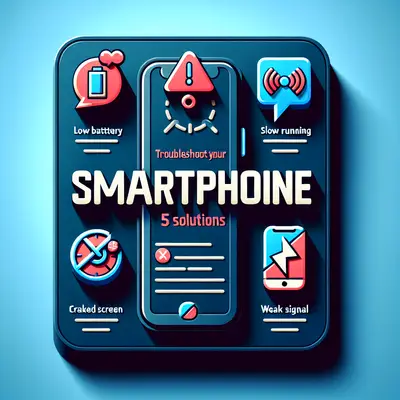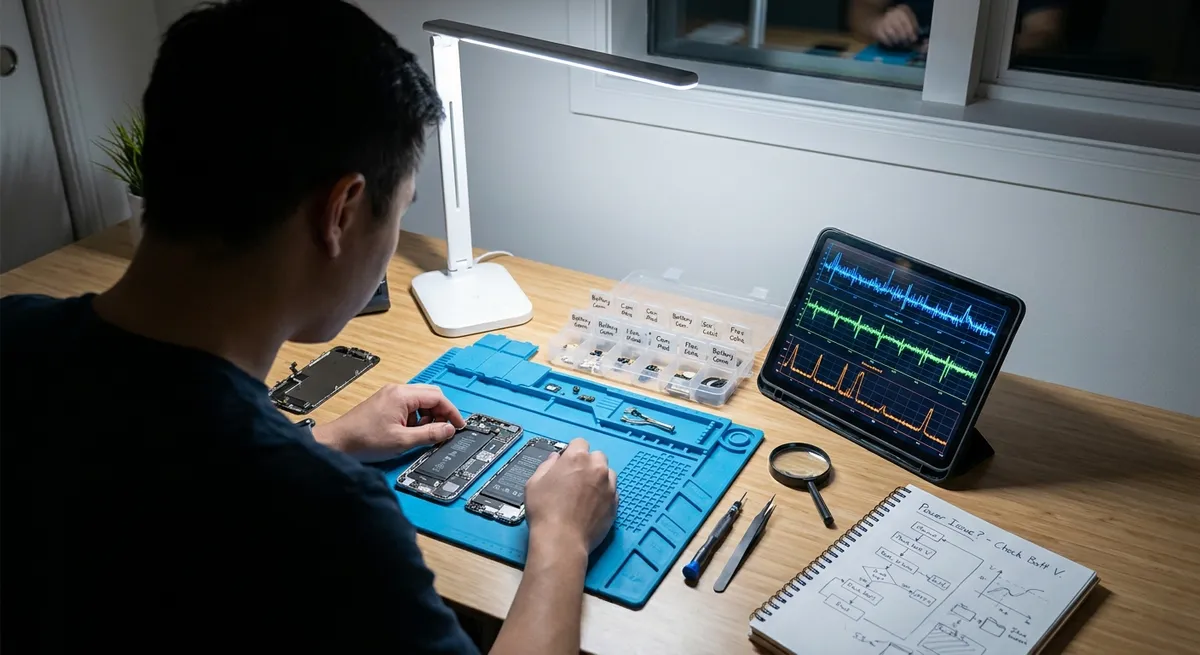
Smartphones rarely “just break.” Most common issues are the result of predictable failure paths: thermal problems, storage constraints, software conflicts, power delivery faults, or radio connectivity glitches. This guide walks through five technical troubleshooting solutions you can apply methodically, so you’re not just guessing—you're isolating root causes and applying targeted fixes.
Stabilizing Overheating and Thermal Throttling
Thermal issues don’t only make your phone hot; they silently reduce performance, drain battery faster, and can corrupt data if severe. Modern smartphones rely on dynamic frequency scaling (CPU/GPU throttling) and thermal sensors to protect hardware. When temperatures exceed threshold limits, the OS cuts performance and may shut down apps or the entire device.
First, verify the conditions: does the phone heat up under specific workloads (gaming, camera use, video calls, wireless charging) or even when idle? If heating is load-specific, you’re likely experiencing normal thermal responses pushed to extreme by heavy tasks, poor ventilation, or a case that traps heat. Remove any thick or insulated case and test again under similar workload. Avoid using the device in direct sunlight or on soft surfaces like beds or couches that block heat dissipation.
Next, check for runaway processes. On Android, go to Settings → Battery → Battery usage (exact path may vary) and look for apps with abnormally high usage relative to screen-on time. On iOS, open Settings → Battery and inspect the last 24 hours/10 days view. Uninstall or force stop apps consistently pegging CPU, especially those with background sync, VoIP, or poorly coded widgets. Also disable unnecessary background refresh (Android: restrict background usage per app; iOS: Settings → General → Background App Refresh).
Make sure the OS and apps are updated—thermal management logic and GPU drivers are often tuned in updates. If overheating occurs only during charging, inspect the charger, cable, and port: warped connectors, debris, or cheap third-party adapters can cause excessive resistance and heat. Clean the port with a non-metallic tool (wood or plastic) and a bright light; never blow moisture into it. If the device overheats even at idle, in airplane mode, with no case, and after a clean boot (e.g., Safe Mode on Android), you may be facing a hardware defect (battery or PMIC—power management IC) that requires professional diagnostics.
Recovering Storage-Constrained and Lagging Devices
When internal storage approaches capacity (commonly under 10–15% free), flash memory performance can degrade significantly. Modern flash storage relies on wear-leveling and garbage collection; when nearly full, these processes have less free space to work with, increasing write amplification and latency. The user experience: UI lag, delayed app launches, camera shutter delay, and even app crashes.
Begin by auditing storage. On Android: Settings → Storage; on iOS: Settings → General → iPhone Storage. Look at what is consuming space—apps, media (photos/videos), cached data, system data. Target large, low-priority items first: offload videos and photos to a cloud service (Google Photos, iCloud, OneDrive) or a computer. For media-heavy messaging apps (WhatsApp, Telegram, etc.), use their internal storage management tools to delete large files, forwarded media, and old backups.
Next, clear app caches safely. On Android, under Settings → Apps → [App] → Storage, choose Clear cache instead of Clear data where possible to avoid logouts or data loss. On iOS, some apps offer “Offload App” which removes the app binary but preserves documents and data, reclaiming substantial space. Uninstall rarely used apps—games and social apps with embedded media often occupy hundreds of megabytes to multiple gigabytes.
Also check for orphaned downloads: open your file manager/Files app and review Downloads, Screen recordings, and any folders from old apps no longer in use. Offload or delete these from the internal storage. Once you regain at least 15–20% free space, reboot the device to allow the OS to perform maintenance tasks and re-index data.
If performance remains poor, look at background processes and animations. On Android, enable Developer Options (tap Build number 7 times under About phone) and reduce animation scales (Window, Transition, Animator) to 0.5x or off. On both platforms, limit live wallpapers and heavy home screen widgets. Persistent lag after storage cleanup and OS updates suggests deeper issues: failing storage (NAND flash) or a corrupted OS image, which may require a full backup and factory reset, or in worst cases, board-level repair.
Restoring Battery Health and Power Delivery Reliability
Power issues are not only about capacity (how long the battery lasts), but also about delivery (how stable the voltage is under load). Lithium-ion batteries degrade over charge cycles, high temperatures, deep discharges, and time. As internal resistance increases, sudden drops in voltage cause unexpected shutdowns, rapid percentage swings, and throttling under load.
First, gather battery health data if your device supports it. On iOS, go to Settings → Battery → Battery Health & Charging and check the Maximum Capacity and whether Peak Performance Capability is supported or has been limited due to shutdown events. On some Android devices (Pixel, Samsung, etc.), vendors provide a battery diagnostics section; otherwise, you may use reputable OEM-aligned diagnostic tools or service menus if documented by the manufacturer.
Analyze power usage patterns: in the battery usage screen, identify apps disproportionately consuming power, especially in the background. Disable unnecessary push notifications and background sync for non-critical apps; consider using system-level optimizations like Android’s adaptive battery. Be cautious with third-party “battery saver” apps—many duplicate OS functions or add overhead instead of helping.
For charging problems (slow charging, intermittent charging, or no charge), methodically isolate each component:
- Test with a known-good OEM or certified cable and charger.
- Try a different power source (another outlet, a different power strip, or direct wall power).
- Inspect and clean the USB-C/Lightning port as noted earlier.
- Check for foreign objects or corrosion; any signs of burning or persistent arcing sensations when plugging in warrant immediate professional attention.
If the device supports fast charging, verify that the charger meets the correct protocol (e.g., USB Power Delivery, Qualcomm Quick Charge, proprietary Samsung/Apple standards). Using an incompatible charger often falls back to slower baseline charging, not necessarily harmful but slower than expected.
If the phone shuts down at 20–30% under moderate load, or battery health is significantly reduced (e.g., under ~80% on iOS with noticeable issues), replacement is likely the correct remediation. Many manufacturers and authorized centers offer battery replacement programs; replacing just the battery is typically more cost-effective than replacing the entire device and restores stable power delivery.
Fixing Network, Wi-Fi, and Radio Stack Instability
Connectivity issues—weak cellular signal, intermittent Wi-Fi, or Bluetooth instability—often share underlying causes in the radio stack: modem firmware, driver conflicts, interference, or incorrect configuration. Rather than repeatedly toggling Airplane Mode and hoping for improvement, systematic isolation yields more reliable results.
Start with basic scoping: does the problem occur on all networks (home, work, public Wi-Fi, different cellular areas) or only specific ones? If Wi-Fi fails only on one router, focus on that router (reboot it, update firmware, change channels, or test with another device). If all Wi-Fi networks are problematic, the issue likely resides in your phone’s Wi-Fi chipset, antenna, or OS configuration.
On both Android and iOS, first toggle Airplane Mode on for ~15 seconds, then off. This resets the radio stack without a full reboot. If problems persist, power off the device for at least 30 seconds to clear transient states. Next, reset network configurations. On iOS, go to Settings → General → Transfer or Reset iPhone → Reset → Reset Network Settings. On many Android devices, find Settings → System → Reset options → Reset Wi-Fi, mobile & Bluetooth (wording varies). Note that this will remove saved Wi-Fi networks, Bluetooth pairings, and possibly VPN/APN settings, so document those beforehand.
For cellular issues, confirm that APN settings match your carrier’s official configuration (usually published on their support site). Incorrect or outdated APN entries can break data connectivity while calls/SMS still function. Also verify you’re on a supported band and technology (e.g., 4G LTE/5G) for your plan and region, and that data roaming is enabled or disabled appropriately.
On Wi-Fi, avoid 2.4 GHz congestion when possible; if your router supports dual-band or Wi-Fi 6, try connecting to 5 GHz or 6 GHz bands. In environments with dense networks (apartments, offices), manually changing the router’s channel to a less congested one can significantly stabilize connections. Ensure your phone’s OS and baseband/modem firmware are updated—OEMs frequently fix connectivity bugs this way.
Persistent connectivity failures across all environments, especially after a drop or water exposure, may indicate physical damage to antennas, RF connectors, or the modem IC. Symptoms like “No Service” while others on the same network have signal, or Wi-Fi MAC address reading as unavailable/blank, are strong indicators that professional board-level diagnostics are needed.
Resolving OS-Level Corruption, Boot Loops, and App Crashes
Deep software issues manifest as boot loops, random reboots, persistent app crashes, or severe UI hangs that simple restarts don’t fix. These can stem from corrupted system files, problematic updates, rogue apps, or incompatible low-level modules (e.g., drivers or frameworks).
Start by differentiating between app-level and system-level failures. If only one app crashes repeatedly while others are stable, uninstall and reinstall that app, clear its cache/data, or avoid it until the developer issues a fix. Check app permissions and overlays—on Android, overly aggressive accessibility/overlay apps (e.g., screen filters, floating widgets) can cause other apps to crash or mis-render.
If multiple apps crash, or the entire UI freezes, attempt a safe/diagnostic boot. On Android, many devices support Safe Mode (typically by long-pressing “Power off” and selecting “Safe Mode,” or via button combos). In Safe Mode, only system apps load; if stability returns, a third-party app is likely the culprit. Systematically uninstall recently installed or updated apps, especially those with system-level privileges (VPNs, security tools, customization tools, launchers).
On iOS, there is no traditional Safe Mode for users, but you can try force restarting, removing recently installed apps, and updating to the latest iOS version. Crashes associated with beta OS versions may require downgrading to a stable release via iTunes/Finder and a full restore.
For boot loops or devices stuck on the logo screen, connect the device to a computer and attempt a system repair:
- Android: Many OEMs provide official repair tools (e.g., Samsung Smart Switch, Google’s device recovery methods). Some devices allow factory reset or system reinstall via recovery mode. Always prefer manufacturer tools over unofficial flashing utilities to avoid further damage or security risks.
- iOS: Use Recovery Mode or DFU Mode with Finder (macOS) or iTunes (Windows) to reinstall iOS. When possible, choose options that preserve data, but be prepared for full wipes if the OS is severely corrupted.
Before any destructive operation (factory reset, OS reinstall), create a complete backup—either encrypted local backup or cloud backup. After restoring, observe the device before installing all previous apps. If stability is good on a clean system, reintroduce apps in batches to identify any that trigger instability. If crashes persist even on a fresh OS with minimal apps, underlying hardware faults (e.g., RAM, storage, SoC) may be involved, and professional diagnostics are warranted.
Conclusion
Reliable smartphone troubleshooting hinges on a structured diagnostic mindset: isolate the layer (thermal, storage, power, network, OS), gather observable symptoms, apply controlled changes, and verify results before moving on. By breaking issues into these technical domains—thermals, storage, power, radios, and OS integrity—you can move from guesswork to repeatable, evidence-based fixes. When symptoms persist despite methodical software-level remediation, treat that as a signal, not a frustration: it usually means you’ve reached the boundary where hardware diagnostics or authorized service are the safest and most efficient next step.
Sources
- [Apple Support – If your iPhone, iPad, or iPod touch gets too hot or too cold](https://support.apple.com/en-us/HT201678) - Official Apple guidance on safe operating temperatures and thermal behavior
- [Google Android Help – Free up space on your Android device](https://support.google.com/android/answer/7431795) - Detailed instructions for managing storage and improving performance on Android
- [U.S. Department of Energy – Batteries for Electric Vehicles](https://www.energy.gov/eere/vehicles/articles/batteries-electric-vehicles) - Technical background on lithium-ion battery behavior and degradation (applicable concepts for smartphones)
- [FCC – Smartphone Wi-Fi and Network Tips](https://www.fcc.gov/general/smartphone-security-and-optimization) - Federal Communications Commission advice on connectivity, optimization, and device best practices
- [Apple Support – If your iPhone or iPad won’t turn on or is frozen](https://support.apple.com/en-us/HT201412) - Official troubleshooting steps for OS crashes, boot issues, and forced restart procedures
Key Takeaway
The most important thing to remember from this article is that this information can change how you think about Smartphone Issues.