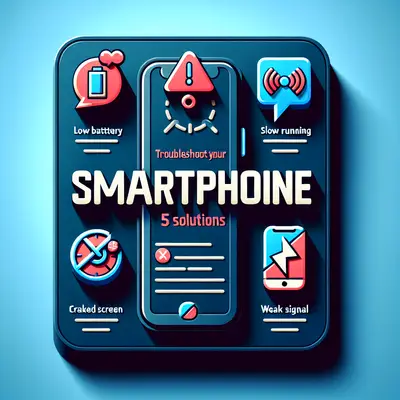
When a smartphone starts misbehaving—freezing, draining battery, dropping Wi‑Fi, or randomly rebooting—the symptoms often look random, but the root causes are usually quite logical. Treating your phone like a small computer with constrained resources makes troubleshooting more predictable and less frustrating. This guide walks through five technical troubleshooting paths that address the majority of real‑world smartphone problems, with a focus on isolating root causes instead of just applying quick band‑aids.
1. Stabilize the System: Diagnose Freezes, Lags, and Random Reboots
When your phone becomes sluggish or starts rebooting unexpectedly, you’re usually dealing with a resource contention issue (CPU, RAM, or I/O), a misbehaving app, or corruption at the OS or storage layer.
Key technical checks and fixes:
Check system resource load (CPU / RAM / storage):
- On Android, open Settings → Battery → Battery usage or Settings → Apps → See all apps and look for apps with unusually high usage or frequent crashes. - On iOS, go to Settings → Battery and check “Battery Usage by App” for processes that dominate use. - Ensure storage has at least 10–20% free space; low free space can cause I/O thrashing and slowdowns.
Clear app cache and data for suspect apps (Android):
- Go to Settings → Apps → [App] → Storage & cache. - Start with Clear cache. If issues persist, consider Clear storage / Clear data (this resets the app, so you may need to log back in). - Prioritize problematic apps (social, streaming, games, VPNs, launchers).
Boot into safe mode to isolate third‑party apps:
- Android: Long‑press the power button → long‑press Power off → tap OK when prompted for Safe mode (OEMs differ slightly). - iOS: There’s no classic “safe mode,” but you can test by disabling Background App Refresh and offloading/removing suspicious apps. - In safe mode, only core system apps run. If freezes or reboots stop, you’ve confirmed a third‑party app is causing instability.
Update OS and apps to patch known bugs:
- Install the latest OS update from Settings → System / Software update. - Open Google Play Store or App Store → update all apps. - Firmware and driver fixes (e.g., for modems, GPUs, or storage controllers) are often bundled in OS updates and can directly resolve instability.
Check for storage or file system problems (advanced):
- If the phone reports frequent “storage full” errors, hangs when installing apps, or shows corrupted photos/files, suspect flash storage degradation. - Back up data immediately (cloud + local if possible). - On Android, consider Factory reset after backup; if issues persist even on a clean system, storage hardware may be failing.
When to suspect hardware:
- Random reboots under light load (idle on table), or triggered by physical movement (picking up the phone), can hint at power rail issues or failing solder joints. - If the phone reboots at specific battery levels (e.g., jumps from 30% to 0%), this may indicate battery or power management IC (PMIC) faults. Professional diagnosis is recommended.
2. Restore Connectivity: Wi‑Fi, Mobile Data, and Bluetooth Failures
Connectivity issues are often a mix of software misconfiguration, network side problems, and RF (radio frequency) constraints. Approaching them systematically helps avoid blindly toggling settings with no clear outcome.
Structured troubleshooting steps:
Validate the environment first:
- Test another device on the same Wi‑Fi network or SIM card. If both fail, the problem may be with the router, ISP, or carrier. - Check if the issue is location‑specific—poor signal zones, heavily congested networks, or interference (microwaves, dense apartments, public venues).
Force a fresh radio stack initialization:
- Toggle Airplane mode ON → wait 10–15 seconds → OFF. This cycles the cellular and Wi‑Fi/Bluetooth radios. - Reboot the phone to re‑initialize drivers and network daemons.
Reset network configuration (software layer):
- Android: Settings → System → Reset options → Reset Wi‑Fi, mobile & Bluetooth (names can vary by OEM). - iOS: Settings → General → Transfer or Reset iPhone → Reset → Reset Network Settings. - This wipes saved Wi‑Fi networks, paired Bluetooth devices, and some APN settings, so you’ll need to reconnect and re‑pair.
Inspect Wi‑Fi and APN settings:
- Wi‑Fi: - Forget the network → reconnect and re‑enter the password. - Check that you’re connecting to the correct band (2.4 GHz vs 5 GHz) if the router exposes multiple SSIDs. - Mobile data / APN: - Go to Settings → Mobile network → Access Point Names (APN) and verify values match your carrier’s official APN configuration (available on the carrier’s website). - If you see unknown or duplicate APNs, delete and re‑add the official one.
Bluetooth pairing issues (codecs, profiles, and cache):
- Remove (“Forget”) the problematic device and re‑pair. - On Android, clear Bluetooth share app cache: Settings → Apps → Show system → Bluetooth / Bluetooth Share → Storage → Clear cache. - Check that the target device supports the needed profile (A2DP for audio, HID for keyboards, etc.). Some car systems need firmware updates from the manufacturer.
Check for RF‑related hardware issues:
- If Wi‑Fi works only when the phone is very close to the router, or Bluetooth range is abnormally short, inspect for: - Recent drop or impact that could have damaged antenna connectors. - Aftermarket metal cases or magnetic accessories obstructing antennas. - Inconsistent cellular signal with same‑network phones nearby often points to a faulty antenna module, RF front‑end, or modem—this usually requires professional repair.
3. Control Power and Heat: Battery Drain, Overheating, and Throttling
Modern smartphones aggressively manage power, but misconfigurations or problematic apps can cause runaway drain and heat. Persistent overheating also triggers thermal throttling, slowing down the device to protect components.
Methodical approach to power and thermal problems:
Profile battery usage by process:
- Check Settings → Battery (Android/iOS) for apps at the top of the consumption list, especially “Background” or “Background activity.” - Identify apps that stay active regardless of usage (social apps, poorly written widgets, certain messaging or cloud sync clients).
Tune background behaviors and permissions:
- Android: - Settings → Battery → Battery optimization / Background usage limits: restrict rarely used apps from running freely in background. - Disable “Always allow background data” for nonessential apps under Settings → Network & Internet → Data usage. - iOS: - Settings → General → Background App Refresh: disable for non‑critical apps. - Review location settings under Settings → Privacy & Security → Location Services and switch non‑essential apps to “While Using” or “Never.”
Address charging and heat sources:
- Avoid heavy use (gaming, 4K video, tethering) while charging; this compounds heat and stresses the battery. - Use certified chargers and cables (preferably OEM or standards‑compliant USB‑IF/USB‑PD); poor‑quality accessories can cause unstable current and heat. - Remove bulky or insulating cases if the phone feels hot during intensive tasks to improve heat dissipation.
Check battery health and charge cycles:
- iOS: Settings → Battery → Battery Health & Charging. “Maximum Capacity” significantly below 80% suggests noticeable degradation. - Some Android OEMs expose battery health metrics under Settings → Battery → Battery health or via manufacturer support apps. - Degraded batteries show symptoms such as: rapid drop from high percentages, shutdowns under load, or battery percentage jumping.
Run a controlled test in “clean” state:
- Reboot the phone, then: - Leave it idle on a table for 30–60 minutes with the screen off. - Observe battery drop (e.g., more than ~3–5% in 30 minutes of true idle suggests abnormal background activity). - If drain is acceptable in this state but excessive during daily use, the issue is likely app‑ or configuration‑related.
Know when a battery or board replacement is needed:
- Chronic swelling, back cover separation, or visible screen lifting indicate dangerous battery expansion—stop using the device and seek service immediately. - If a factory reset (post‑backup) doesn’t improve idle drain and the phone still overheats under light tasks, a failing PMIC or other logic board component may be involved.
4. Repair Display & Touch Anomalies: Unresponsive, Ghost Touch, and Artifacts
Touch and display problems can stem from both the software input stack and the physical digitizer or display assembly. Systematically separating those layers prevents unnecessary part replacements.
Diagnostics and remedies:
Rule out temporary OS/input glitches:
- Reboot the device, then test touch immediately (before starting many apps). - On Android, enable Developer options → Show taps / Pointer location to visually confirm touch registration patterns. - On iOS, try Settings → Accessibility → Touch → AssistiveTouch to see if system navigation still works when hardware gestures don’t.
Check for environmental or accessory interference:
- Remove the screen protector and case; some cheap protectors cause erratic touch or reduce sensitivity, especially at edges. - Dry the screen and your hands—capacitive screens can misbehave with moisture or conductive debris. - Move away from strong electromagnetic sources (industrial equipment, some charging mats) that can disturb the digitizer.
Calibrate or adjust touch sensitivity (where supported):
- Some Android OEMs provide Touch sensitivity or Glove mode under Settings → Display or Advanced features; toggling or adjusting can resolve edge sensitivity issues. - If your device has a built‑in diagnostics menu (e.g., dialing special codes like #0# on some Android phones), run the touch test grid to identify dead zones.
Identify signs of physical damage:
- Look for hairline cracks, pressure points, discoloration, lines, or flickering areas. - Ghost touches localized to a damaged corner or edge usually indicate digitizer failure, not software. - After drop or impact events, loose display connectors can cause intermittent touch loss or color artifacts when the phone is flexed.
Reset display and input settings:
- Confirm that you’re not using custom launchers or overlay apps that might intercept touches. Temporarily uninstall them to test. - On Android, clear cache for System UI (if accessible under system apps) and reboot. - If a recent OS update coincides with issues, check for a subsequent patch; display driver regressions are sometimes fixed quickly.
When to choose professional repair:
- Persistent ghost touches, random app openings, or self‑typing while the phone is idle nearly always point to hardware digitizer issues. - Backlight failures, vertical/horizontal lines, or persistent flicker usually mean the display panel or connector is failing. - Replacing the display assembly should be done with OEM‑grade parts; low‑quality replacements can introduce new touch and color problems.
5. Recover from Storage and App Corruption: Crashes, Install Failures, and Data Loss
When apps consistently crash, updates fail, or data disappears, you’re likely dealing with local data corruption, permission inconsistencies, or a failing storage subsystem.
Systematic recovery approach:
Isolate whether the issue is app‑specific or system‑wide:
- If only one or two apps crash: - Update them from the app store. - Force stop → clear cache → (if necessary) clear data and re‑log in. - If many apps crash or the OS hangs often, suspect system or storage‑level problems.
Check storage health indicators and space usage:
- Verify free space; aim for at least 10–20% free to avoid write failures and fragmentation overhead. - Uninstall large, rarely used apps and cleanup offline downloads (maps, playlists, videos). - On Android, review Settings → Storage for categories consuming unexpected space (e.g., “Other” or “System” ballooning).
Address install/update failures:
- Clear cache/data for the app store and installer components: - Android: Settings → Apps → Google Play Store / Play Services / Package Installer → Storage → Clear cache (and if needed, Clear data for the Store). - Temporarily disable VPNs, ad‑blockers, or firewall apps that could interfere with download or license validation. - Confirm stable network connection (prefer Wi‑Fi for large updates).
Back up critical data before deeper interventions:
- Use platform tools: - Android: Google account backup, OEM cloud (Samsung Cloud, etc.), plus manual export of photos/videos to PC or external storage. - iOS: iCloud backup or full encrypted backup through Finder/iTunes on a Mac/PC. - Ensure 2FA codes and authenticator apps are backed up/transferable (e.g., using backup codes or account transfer features).
Perform a clean system rebuild if corruption persists:
- After backup, perform a factory reset: - Android: Settings → System → Reset options → Erase all data (factory reset). - iOS: Settings → General → Transfer or Reset iPhone → Erase All Content and Settings. - On Android, if issues continue after a standard reset, consider flashing a fresh factory image via the manufacturer’s official tool (for advanced users only, and only from official sources).
Recognize signs of failing flash storage:
- Persistent sluggishness or freezes even after clean install. - Frequent “storage corrupted,” “can’t write to storage,” or app data loss without clear cause. - In these cases, board‑level storage (eMMC/UFS) may be failing; repair typically involves board replacement or advanced microsoldering—this is not end‑user serviceable.
Conclusion
Systematically troubleshooting smartphone issues is about breaking problems down by layer: hardware, OS, apps, and environment. By profiling resource usage, verifying connectivity configurations, managing power and thermals, validating input hardware, and checking storage integrity, you can convert vague symptoms into specific, actionable diagnoses. This structured approach not only fixes current problems faster, it also reduces the risk of data loss, extends device lifespan, and gives you a repeatable “forensic” method you can apply to future smartphones—your own or anyone else’s.
Sources
- Apple: If your iPhone or iPad is running slowly - Official Apple guidance on diagnosing performance issues, background activity, and storage constraints
- Google Pixel Phone Help: Fix battery drain problems - Details on profiling battery usage, managing background apps, and addressing excessive drain on Android
- Samsung: Wi-Fi and Bluetooth connection issues - Vendor-specific but broadly applicable steps for resolving wireless connectivity problems
- U.S. Department of Energy: Tips to Save Energy When Using a Computer - Background on power consumption and heat, relevant to understanding device thermal and battery behavior
- NIST: Guidelines on Mobile Device Security - Technical guidance on mobile device management, configuration, and stability from a security and reliability standpoint
Key Takeaway
The most important thing to remember from this article is that this information can change how you think about Smartphone Issues.