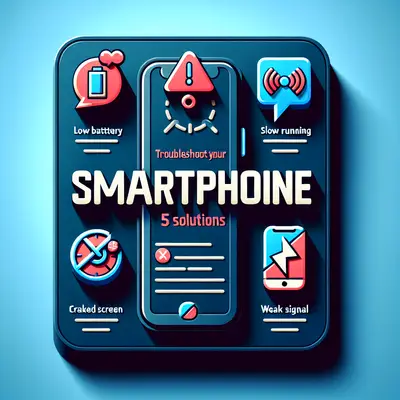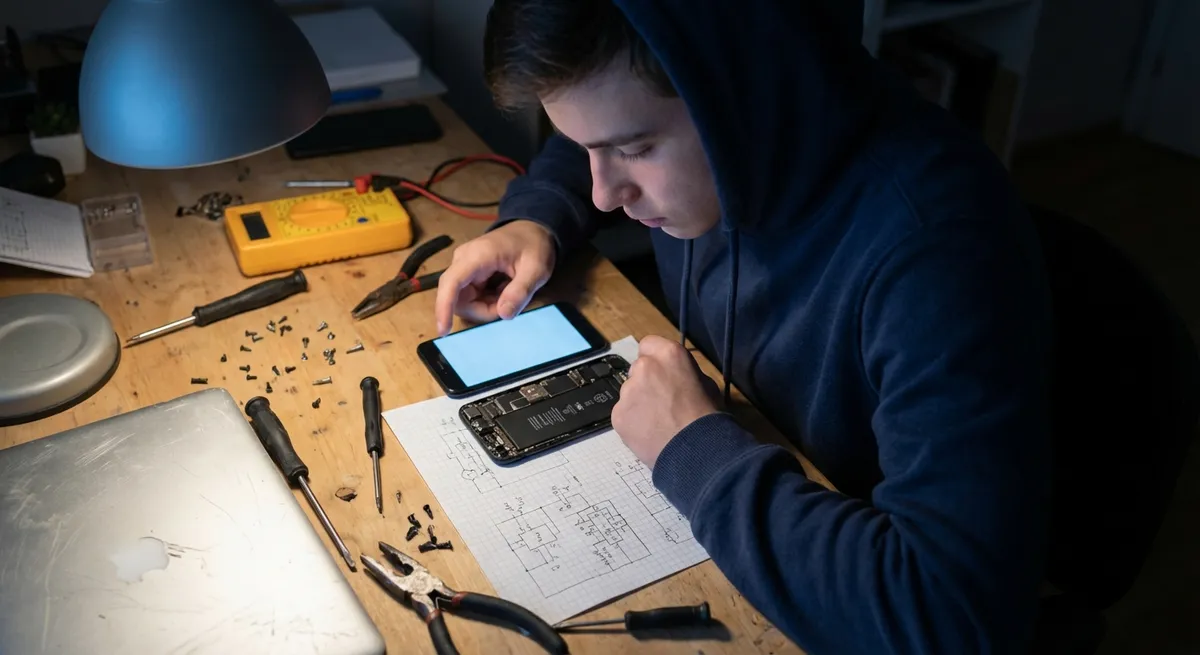
Smartphones fail in surprisingly predictable ways: they freeze, drain battery, overheat, lose signal, or refuse to charge. Underneath each symptom is a specific subsystem misbehaving—storage, radios, power management ICs, or thermal throttling safeguards. This article walks through five core troubleshooting paths that map directly to common hardware and software components. Each path is designed so you can quickly isolate where the fault lives and decide whether it’s fixable at home or needs professional repair.
1. When Apps Freeze or the Phone Feels Sluggish
Performance problems usually point to three technical culprits: storage pressure, runaway processes, or thermal throttling. Instead of just “restarting and hoping,” you want to methodically reduce load and identify the bottleneck.
First, check storage health and free space. On Android, go to Settings → Storage; on iOS, Settings → General → iPhone Storage. Aim for at least 10–20% free space. When NAND flash gets too full, write amplification increases and the system has to work harder to manage blocks, causing slowdowns. Uninstall large unused apps, clear app caches (Android: Settings → Apps → [App] → Storage → Clear cache), and offload media to cloud or external storage.
Next, inspect resource-heavy apps. On Android, enable Developer options (tap Build number 7 times) and use Running services or battery usage stats to spot processes that stay active in the background. On iOS, use Settings → Battery to find apps dominating screen or background time. Disable or uninstall anything that consistently sits at the top of CPU or battery usage without a good reason (e.g., misbehaving social or location-heavy apps).
Check for thermal throttling. A device that gets hot to the touch and then slows down is likely reducing CPU/GPU frequencies to protect itself. Remove thick or insulated cases, avoid direct sun, and pause intensive workloads (gaming, 4K video, navigation). If performance normalizes as temperature drops, your hardware is probably fine—the system is just enforcing its thermal envelope.
Finally, validate with a controlled reboot and test. Power the phone off completely for 30 seconds (not just a screen-off). Boot, wait a minute, and test responsiveness before opening your usual heavy apps. If performance is fine in this “clean” state, your slowdown is almost certainly software-related; if it remains sluggish even after a clean start and free storage, you may be dealing with aging flash storage or a deeper hardware issue, which usually requires professional diagnosis.
2. Battery Draining Fast or Not Lasting a Full Day
Modern smartphone power systems are controlled by a power management IC (PMIC), battery fuel gauge, and OS-level battery scheduler. Fast drain can come from a weak battery, excessive background activity, radio inefficiencies, or display misconfiguration. The goal is to separate a “bad battery” from “bad behavior.”
Start with usage analytics. On Android and iOS, go to Settings → Battery and look for:
- Apps with unusual background activity relative to your use
- High “mobile signal” or “cell standby” drain (poor reception)
- Periods where the screen is off but drain is still high
- Android: Settings → Apps → [App] → Battery → Restricted/Optimized, and disable “Allow background activity” where possible.
- iOS: Turn off Background App Refresh for nonessential apps in Settings → General → Background App Refresh.
If one or two apps dominate, restrict them:
Next, optimize power-hungry subsystems. Lower display brightness, disable “always-on display” if available, and shorten screen timeout. For radios, turn off 5G, Wi‑Fi, Bluetooth, or GPS when not needed; 5G in marginal coverage can dramatically increase RF power draw as the modem struggles to maintain a link. In poor cellular areas, consider using Wi‑Fi calling or even Airplane Mode during long periods with no signal.
Calibrate the battery gauge if readings seem erratic (e.g., jumping from 40% to 5%). Once every few months: charge to 100%, use normally until shutdown, then charge uninterrupted back to 100%. This doesn’t “repair” lithium-ion cells, but it helps the fuel gauge estimate capacity more accurately.
Finally, evaluate the battery’s health.
- iOS: Settings → Battery → Battery Health & Charging; if Maximum Capacity is significantly below 80% or you see “Service” recommendations, the cell is degraded.
- Some Android devices (e.g., Samsung) expose battery diagnostics in Samsung Members or Settings → Device care; others may require a service menu code or third-party diagnostics tools.
If your battery health is low or the phone is several years old and can’t last half a day under light use—even after app, display, and radio tuning—replacement is the most technical and cost-effective solution. For sealed phones, use the manufacturer or a reputable repair shop to avoid damaging the battery, display, or waterproofing seals.
3. Overheating During Normal Use
A phone that gets warm during intensive tasks is normal; sustained overheating during light tasks is not. Heat comes from concentrated power consumption in the SoC, modem, or charging circuitry. Your job is to identify what’s producing the heat and whether it’s workload, environment, or a hardware fault.
First, differentiate context:
- Heavy workloads (gaming, 4K recording, extended hotspot use) causing warmth are expected. The device may display a “cooling down” or “temperature” warning and throttle performance.
- Light workloads (messaging, web, standby) causing noticeable heat suggest a runaway process, modem stress, or charging issue.
Check battery and CPU load. On Android, use built-in battery usage tools and developer options, or a reputable system monitor to see if a particular app is holding a wake lock or keeping CPU cores busy. On iOS, look at Settings → Battery for background-hungry apps and consider force-quitting offenders or uninstalling them temporarily to see if the issue resolves.
Inspect charging behavior. Charging generates heat, especially with fast charging profiles (high voltage/current). Avoid using the phone heavily while fast charging and remove thick cases that trap heat. If the device becomes very hot during slow or normal charging, especially near the connector, stop immediately—this can indicate a failing battery, damaged port, or unsafe charger/power adapter.
Evaluate environment and airflow. Phones cooling is almost entirely passive; anything that insulates the frame (thick case, bedding, direct sun on a car dashboard) can push the device beyond its thermal design. Use the phone in shaded, ventilated conditions, and avoid leaving it in hot cars or under pillows while charging.
If you consistently see system-level thermal warnings during light tasks or idle, and you’ve ruled out bad apps, chargers, and cases, this may be a PMIC, battery, or board-level defect. At that point, a diagnostic visit to the manufacturer or authorized service center is warranted; continued heavy use of an overheating device can accelerate component degradation or, in worst cases, pose a safety risk.
4. Wi‑Fi, Cellular, or Bluetooth Connectivity Problems
Connectivity issues usually map to one of three layers: configuration (settings, software), local environment (interference, congestion), or hardware (antennas, RF front-end). Systematically testing each layer avoids blindly blaming your carrier or router.
Begin with local and cross-device checks. If Wi‑Fi is unstable, see whether other devices on the same network experience issues; if they do, your router or ISP is likely at fault. If only your phone struggles, toggle Airplane Mode on and off to reset all radios, then independently toggle Wi‑Fi, Cellular Data, and Bluetooth. Power-cycling the router and your phone clears many transient state problems in DHCP leases and radio association.
Next, reset network stacks at the OS level.
- iOS: Settings → General → Transfer or Reset iPhone → Reset → Reset Network Settings.
- Android: Settings → System → Reset options → Reset Wi‑Fi, mobile & Bluetooth (wording varies by vendor).
This wipes saved networks, paired Bluetooth devices, and some APN configurations, eliminating corrupted profiles or improper settings as causes.
Test across distinct environments and networks. Connect to a different Wi‑Fi network (e.g., a public hotspot or friend’s network) and check if the behavior persists. For cellular, test outdoors in a known good coverage area and, if possible, with a different SIM in the same phone, or your SIM in a different phone. If your SIM works fine elsewhere but your device shows intermittent “No Service” or one-bar reception where others are stable, you may have a damaged antenna, loose RF connector, or water ingress affecting the RF path.
For Bluetooth, narrow down the chain. Try pairing with multiple device types (headphones, car, speaker). If none connect or stay connected, the issue is on the phone’s side; if only one target device misbehaves, factory reset or firmware-update that accessory. Check that your phone is running the latest OS patch—many vendors push Bluetooth, modem, and Wi‑Fi firmware updates via system updates.
If all software, reset, and environment tests fail—and the problem is reproducible across networks and accessories—hardware is suspect. That includes drop damage affecting internal antenna lines, liquid damage to RF components, or an early failure of the modem or Wi‑Fi/Bluetooth chipset. Document your tests (screenshots, notes on locations and networks) before approaching support; this speeds up carrier or manufacturer troubleshooting and increases the chance of a clear warranty outcome.
5. Charging Failures or USB Port Not Detected
Charging circuitry is a combination of the USB/Lightning port, charging IC, battery, and power negotiation protocols (USB-PD, proprietary fast charging). When your phone won’t charge, charges very slowly, or isn’t recognized by a PC, the objective is to pinpoint whether the issue is the cable/charger, port, software, or power hardware.
Start with the external chain: cable, adapter, outlet. Test with a known-good, manufacturer-approved cable and charger on a different power outlet. If your phone supports wireless charging, test that as well—wireless charging working while wired charging fails is a strong sign of a damaged port rather than a failed battery.
Inspect and clean the port. Under magnification and good lighting, look for lint, dust, oxidation, or bent pins. Use a non-metallic tool (plastic or wooden pick) to gently remove compacted debris; avoid sharp metal objects, which can damage contacts or cause shorts. After cleaning, try charging again—pocket lint blocking the cable from fully seating is a very common mechanical failure mode.
Check system recognition. When you connect the phone to a PC:
- If it charges but is not recognized for data, you may have a charge-only cable or damaged data lines. Try a different data-capable cable and USB port on the PC.
- If it is neither charging nor recognized, and you’ve tested multiple cables/adapters/PCs, hardware inside the phone—port solder joints, ESD protection diodes, or the charging IC—may be compromised.
- A temperature-related cutoff (battery or charging IC overheating)
- A software-side negotiation problem with certain fast chargers
- A failing battery drawing erratic current
Observe charging behavior and thresholds. If the phone starts charging then stops intermittently, or only charges when powered off, you might have:
Try disabling fast charging (if supported) and using a lower-wattage adapter to see if stability improves. On some Android devices, charging logs or battery diagnostics are accessible through manufacturer apps or service menus.
If the phone displays explicit charging errors (“Liquid detected in Lightning connector,” “Charging paused: Battery temperature too high/low”), follow manufacturer guidance strictly—do not attempt to dry a wet port with heat sources and do not bypass temperature protections. Persistent errors even in dry, room-temperature environments, after cleaning and using known-good accessories, typically require professional service. In cases where the device is out of warranty and data is critical, prioritize data backup via any remaining interface (Wi‑Fi, cloud, OTG) before attempting risky DIY hardware repairs.
Conclusion
Most smartphone problems can be mapped to a specific subsystem—storage, battery, thermal management, radios, or power delivery—and addressed with targeted, technical troubleshooting rather than guesswork. By working through these five solution paths methodically—performance, battery, temperature, connectivity, and charging—you not only fix many issues yourself, you also generate clear evidence when a deeper hardware fault exists. That evidence makes conversations with manufacturers, carriers, or repair shops far more efficient and increases the odds of a clean, cost-effective resolution.
Sources
- [Apple Support – If your iPhone or iPad is running slow](https://support.apple.com/en-us/HT201559) – Official guidance on performance issues, storage, and background processes on iOS devices
- [Google Android Help – Fix battery drain problems on a Pixel phone](https://support.google.com/pixelphone/answer/6187458) – Technical steps for diagnosing and improving battery life on Android, applicable to many Android devices
- [Samsung – Tips to Stop Your Phone from Overheating](https://www.samsung.com/global/galaxy/apps/samsung-members/stop-phone-from-overheating/) – Explains thermal behavior, causes of overheating, and mitigation strategies for smartphones
- [U.S. Department of Energy – Energy Saver: Devices and Power Management](https://www.energy.gov/energysaver/energy-efficient-computers-home-office-equipment-and-electronics) – Background on power management concepts that also apply to mobile devices and electronics
- [Android Open Source Project – Power Management Overview](https://source.android.com/docs/core/power) – Technical documentation on how Android manages power, wake locks, and battery usage at the OS level
Key Takeaway
The most important thing to remember from this article is that this information can change how you think about Smartphone Issues.