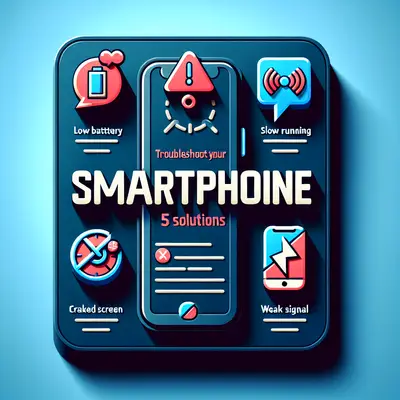
When your phone suddenly drains 40% battery in an hour, refuses to charge past 80%, or starts dropping Wi‑Fi every few minutes, it’s rarely “just dying of old age.” Most smartphone issues can be broken down, isolated, and corrected with a structured, technical approach rather than random setting toggles. This guide walks through five high‑impact troubleshooting workflows you can apply to modern Android and iOS devices, focusing on root‑cause isolation rather than guesswork.
Stabilizing Aggressive Battery Drain
Unusually fast battery drain is almost always a software, configuration, or environment problem before it’s a hardware one. The goal is to identify which process, radio, or sensor is keeping the device awake and consuming power.
First, check actual usage data instead of relying on intuition. On Android, go to Settings → Battery → Battery usage; on iOS, use Settings → Battery and review the per‑app graphs. Look for apps that show high “background” activity or sustained foreground time you didn’t initiate—these are common culprits (social media, messaging clones, poorly optimized games, or third‑party launchers).
Next, reduce unnecessary wake‑ups and foreground services. On Android, open the offending app’s settings and restrict background activity: Settings → Apps → [App] → Battery → Restricted / Optimized, then disable “Allow background activity.” On iOS, disable Background App Refresh for any non‑critical apps under Settings → General → Background App Refresh and turn off unnecessary Location Services under Settings → Privacy & Security → Location Services.
Radio behavior is another major factor. In low‑signal environments, phones aggressively boost transmit power, which can destroy battery life. If you’re in a basement or an elevator all day, consider enabling Airplane mode when you don’t need connectivity, then selectively re‑enable Wi‑Fi or Bluetooth. For 5G‑capable phones, test switching to LTE/4G only (Android: Settings → Network & Internet → Mobile network → Preferred network type; iOS: Settings → Cellular → Voice & Data) to see if 5G scanning is causing drain.
Finally, clear any runaway state that might not be surfaced in standard UI. Perform a full power cycle: shut down the phone completely, wait at least 30 seconds, then reboot. On Android, also consider clearing the cache partition (if your vendor still exposes this via recovery mode). If none of the above stabilizes usage and the battery health metric (iOS Battery Health; vendor diagnostics on Android, or a trusted third‑party app) reports significantly degraded capacity (often <80%), you’re likely looking at genuine cell wear and should plan for a battery replacement.
Fixing Wi‑Fi and Mobile Data Instability
When connectivity becomes intermittent—Wi‑Fi disconnects, “Connected without internet,” or mobile data drops—it’s important to determine whether the fault is with the device, the network hardware, or the upstream connection.
Start by isolating the scope of failure. Test at least two different Wi‑Fi networks (home vs. office vs. hotspot from another phone). If the phone fails similarly on multiple networks while other devices are stable, it points to device‑side issues. Also verify that other devices on the same network can access the internet; if none can, the issue is likely with the router or ISP rather than your phone.
On Android, reset the specific network profile before taking more drastic measures: Settings → Network & Internet → Internet → [Your Wi‑Fi] → Forget, then reconnect and re‑enter the password. On iOS, use Settings → Wi‑Fi → [i] next to the network → Forget This Network, then rejoin. If you suspect DNS problems (sites not loading but ping or some apps work), manually set DNS servers (e.g., 1.1.1.1 or 8.8.8.8) under the Wi‑Fi’s advanced settings (Android: IP settings → Static, iOS: Configure DNS → Manual).
If behavior remains inconsistent, perform a global network reset. On Android: Settings → System → Reset options → Reset Wi‑Fi, mobile & Bluetooth. On iOS: Settings → General → Transfer or Reset iPhone → Reset → Reset Network Settings. This clears stored Wi‑Fi profiles, Bluetooth pairings, and some low‑level networking parameters that can become inconsistent after OS updates, roaming, or carrier config changes.
Radio band and channel issues can also cause apparent instability. Older routers using congested 2.4 GHz channels may conflict with microwaves, cordless phones, or neighbors’ routers. If your device supports 5 GHz or Wi‑Fi 6/6E, force connection to those SSIDs where possible and, on the router, assign less congested channels. For mobile data, ensure the correct APN (Access Point Name) profile is in use—on Android: Settings → Network & Internet → Mobile network → Access Point Names; compare with your carrier’s official values.
If Wi‑Fi and cellular both fail intermittently only on your phone, and network resets plus OS updates don’t improve behavior, you may be facing hardware degradation in the RF front‑end (antenna, filters, or power amplifiers). In that case, document the behavior, run carrier or manufacturer diagnostics if available, and schedule a hardware assessment.
Resolving Overheating and Thermal Throttling
Modern smartphones tightly manage thermals, but persistent overheating under light workloads indicates either misbehaving software or a damaged thermal path. The technical objective is to distinguish between expected thermal response (e.g., gaming, long 4K video recording) and abnormal idle or low‑load heating.
First, quantify when and where the device gets hot. Is it only during 3D gaming, camera use, or video calls, or does it heat while idle in your pocket? Feel which area gets hottest: upper‑back near the camera (SoC, RF), center (battery), or near the bottom (charging circuitry). This physical mapping helps identify whether the load is CPU/GPU, battery/charging, or radio.
Check for runaway processes. On Android, enable developer options (Settings → About phone → tap Build number 7 times), then go to Settings → System → Developer options → Running services to see which apps are consuming memory and CPU. Force stop any app showing unusually high resource use when you’re not actively using it. On iOS, monitor Settings → Battery and correlate overheating episodes with specific apps’ usage spikes.
Charging behavior is another key factor. Fast charging at high ambient temperatures (e.g., car dashboard in summer) can cause severe heating. When troubleshooting, temporarily disable fast charging if your vendor allows it, use the original or certified charger, and avoid using the device heavily while charging—especially for gaming or video streaming. If the phone overheats rapidly only when charging regardless of load, suspect a failing battery or damaged charging circuitry and stop using that charger until inspected.
Cases and accessories can interfere with thermal dissipation. Remove thick or metal‑backed cases while testing to see if the device stabilizes. Some magnetic accessories and wallet cases trap heat around the SoC or wireless charging coil. If the phone operates normally without the case but overheats with it, you’ve found a thermal bottleneck rather than an internal hardware failure.
Finally, keep firmware and apps current. OS point releases and vendor firmware updates frequently contain thermal policy adjustments and performance fixes. Install pending system updates, then reboot and retest under the same conditions. If overheating persists at idle, or the battery area becomes abnormally hot to the touch without heavy usage, stop charging the device and seek a professional diagnostic—persistent battery heating is a safety risk, not just an annoyance.
Recovering Performance from Severe Lag and Freezes
When a smartphone starts stuttering through basic UI, freezing on app launch, or taking several seconds to respond to taps, you’re likely dealing with a combination of storage pressure, background load, and resource fragmentation rather than “age” alone.
Start by inspecting storage utilization. Both Android and iOS become unstable as free space drops below roughly 10–15% of total capacity because there’s insufficient room for swap, logs, caches, and updates. On Android: Settings → Storage; on iOS: Settings → General → iPhone Storage. If you see the bar nearly full, offload large video files, unused apps, and cached media. On Android, clear app caches selectively: Settings → Apps → [App] → Storage & cache → Clear cache (avoid “Clear storage” unless you’re prepared to lose app data).
Next, examine which apps are active in the background. On Android, again use Developer Options: Running services or any vendor‑provided task manager to identify apps with persistent processes (VPNs, antivirus, third‑party cleaners, always‑on messengers). Many “cleaner” or “optimizer” apps actually increase background load and can be safely uninstalled in favor of built‑in system tools. On iOS, minimize the number of apps allowed to refresh in the background or constantly access location.
System updates can both cause and resolve lag. After a major OS upgrade, background indexing (photos, search, file system) can cause temporary sluggishness for several hours. If performance never recovers, check for subsequent minor updates addressing performance regression. On Android, also verify that your vendor’s skin (e.g., Samsung One UI, Xiaomi MIUI) and bundled apps are up to date via their app store, as they may ship performance fixes independently of OS builds.
If UI lag coincides with specific apps (e.g., camera, messaging, browser), test them in a clean state: clear cache (Android), reinstall the app, or log out and back in. Corrupted local databases or oversized caches can induce serious slowdowns. Additionally, disable animations temporarily (Android Developer Options: Window animation scale / Transition animation scale / Animator duration scale → Off) to both improve perceived responsiveness and reveal whether lag is animation‑bound or CPU/storage‑bound.
As a last software step, perform a backup and factory reset after confirming you have a complete backup and all necessary credentials. On Android: Settings → System → Reset options → Erase all data; on iOS: Settings → General → Transfer or Reset iPhone → Erase All Content and Settings. After reset, test the phone’s responsiveness before restoring all apps; if it remains sluggish even in a clean state, hardware limitations (aging eMMC/UFS storage, throttling SoC, or RAM faults) may be at play, and it may be time to evaluate repair vs. replacement.
Addressing Charging Failures and Power Anomalies
Charging problems—slow charging, intermittent connection, or complete failure to charge—often stem from physical connector issues or power‑path control logic misbehavior. The key is to separate cable/charger faults, port contamination, software limitations, and genuine hardware damage.
Begin with the simplest swap: test with a known‑good, certified cable and charger (preferably from the phone’s manufacturer). Avoid drawing conclusions based on a single third‑party accessory. If possible, test on a different wall outlet or power strip to rule out supply anomalies. If the phone charges normally with one combination but not another, you’ve identified an accessory problem rather than a device fault.
Physically inspect the port under strong light. Lint, dust, and metal fragments are extremely common in USB‑C and Lightning ports and can prevent full pin contact. Power down the phone completely and use a plastic or wooden toothpick to gently remove debris—never use metal tools in the port. After cleaning, re‑test charging. A large percentage of “dead” ports are restored by proper cleaning.
On the software side, some devices implement charging protection features, such as pausing charging around 80% to extend battery lifespan or reduce heat (e.g., Apple’s Optimized Battery Charging, certain Android vendors’ “Protect Battery” options). Verify these settings under your battery or device care menus; what appears to be a charging fault may be a protective limit. Disable temporarily for testing, then re‑enable if the feature is working as designed.
Monitor the phone’s charging status information. Many Android skins and iOS will indicate “Charging,” “Fast charging,” “Cable charging,” or similar in the lock screen or notification shade. If the phone only ever shows “Charging slowly” or drops in and out of charging when the connector is wiggled, the port or internal solder joints may be worn or cracked. In such cases, avoid further mechanical stress and seek a professional port inspection.
If the device doesn’t power on at all, attempt a forced reboot or recovery boot: on many Android phones, hold Power + Volume Down for 10–20 seconds; on recent iPhones, quickly press Volume Up, then Volume Down, then hold Side button until the Apple logo appears. If the device responds to force restart but continues to shut down at high battery percentages, the battery may have uneven cell health or calibration issues; backing up and arranging for a battery replacement is advisable.
Conclusion
Stability problems in smartphones almost always map to specific subsystems: power (battery/charging), radios (Wi‑Fi/cellular), thermals, storage, or software load. By approaching issues with targeted, technical workflows—checking usage metrics, isolating networks, resetting low‑level configs, and validating hardware vs. software behavior—you can distinguish between fixable configuration or software faults and genuine hardware degradation. The goal isn’t just to get the phone working “for now,” but to understand why it failed and what that implies for long‑term reliability and safety.
Sources
- Apple Support – If your iPhone or iPad is getting hot - Details Apple’s guidance on normal vs. abnormal device temperature and safe operating ranges
- Google Pixel Help – Fix battery drain problems on a Pixel phone - Explains battery usage analysis and optimization techniques on Android
- Samsung – Galaxy phone overheating issues and solutions - Manufacturer-level troubleshooting for thermal and charging behavior
- FCC – Mobile Devices and Health - Provides regulatory context and safety considerations for RF and device use
- NIST – Guidelines on Mobile Device Security - Technical guidance on managing mobile device configuration and risk factors
Key Takeaway
The most important thing to remember from this article is that this information can change how you think about Smartphone Issues.