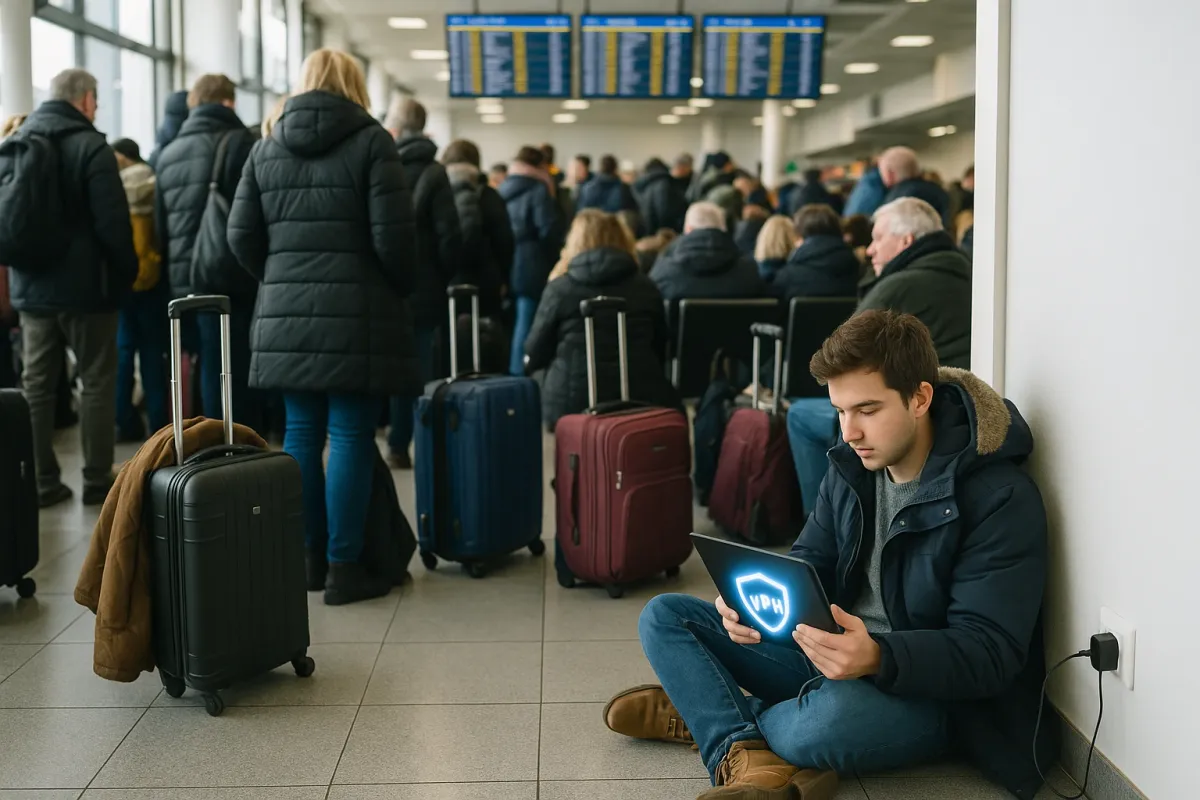
If you’re already doom‑scrolling articles about holiday airport chaos (like BuzzFeed’s roundup of “25 Travel Gadgets For Anyone Who Is Already Mentally Preparing For The Chaos Of Holiday Travel”), your tablet is probably about to become your in‑flight therapist, entertainment hub, and boarding‑pass lifeline—all at once.
That also means a misbehaving iPad, Galaxy Tab, Fire tablet, or Windows 2‑in‑1 can instantly turn a long travel day into pure pain. With airports packed, outlets taken, and public Wi‑Fi sketchier than ever, you don’t have time for random crashes, dead batteries, or “No internet” errors at the gate.
This guide walks through five practical, technical fixes you can apply right now—before you hit TSA—to keep your tablet stable, efficient, and ready for holiday abuse.
1. Stop Random Crashes And Freezes Before You Board
Intensive travel use (offline Netflix, games, maps, video calls) will surface every instability issue your tablet has been quietly hiding. Address them now so you’re not force‑rebooting at 30,000 feet.
A. Flush out bad app states
- Force‑close misbehaving apps:
- iPadOS: Swipe up from the bottom > hold > swipe apps up to close.
- Android (Samsung, Pixel, others): Square/Recent button or swipe‑up gesture > close problematic apps.
- Fire OS: Tap the square/Recent icon > swipe away.
- For apps that crash immediately on open:
- Clear cache/data (Android/Fire):
- Tap Clear cache first.
- If still broken, Clear data (you may need to re‑sign‑in and reconfigure).
- iPadOS: Offload and reinstall:
Settings → Apps → [App Name] → Storage
Settings → General → iPad Storage → [App] → Offload App → Reinstall.
B. Check for OS and app compatibility updates
Many pre‑holiday updates quietly fix stability issues:
- Update OS:
- iPadOS: Settings → General → Software Update.
- Android: Settings → System → System update (or Software update on Samsung).
- Fire tablet: Settings → Device Options → System Updates.
- Update key travel apps (airline apps, Netflix, Disney+, Kindle, Google Maps, MS Teams/Zoom):
- Open App Store / Play Store / Amazon Appstore → Updates → update all critical apps.
C. Rule out storage‑related instability
Tablets often misbehave when free space < 10% of total storage.
- Check remaining storage:
- iPadOS: Settings → General → iPad Storage.
- Android: Settings → Storage.
- Fire OS: Settings → Storage.
- If you’re under 5–8 GB free, offload:
- Unused games (they’re usually the worst offenders).
- Large downloaded videos from Netflix/Prime/YouTube.
- Old offline maps after your trip.
D. Deep reset when behavior is systemic
If system‑wide freezes or lockups persist:
- Soft reboot (safe first step):
- Hold power until you see the power off slider/button → power off → wait 30 sec → power on.
- Force restart (varies by device; skips normal shutdown):
- iPad with Face ID: Volume Up → Volume Down → hold Power until Apple logo.
- Samsung Galaxy Tab: Hold Volume Down + Power ~10–15 seconds until it restarts.
- Fire tablet: Hold Power 40 sec, then release and power on.
- iPadOS: Settings → General → Transfer or Reset iPad → Erase All Content and Settings.
- Android/Fire: Settings → System → Reset (names vary) → Factory data reset.
Use a factory reset only as a last resort and only after backing up:
2. Make Your Battery Last Through Delays And Long Hauls
That “25 Travel Gadgets” article assumes you’ve got a power bank handy, but many people still rely on airport outlets—and those are often taken or dead. Optimizing your tablet’s power usage is your best defense.
A. Enable platform battery optimizations
- iPadOS:
- Settings → Battery → Low Power Mode → turn On.
- Android (Samsung/Pixel):
- Settings → Battery (or Device Care → Battery) → Enable:
- Power saving or Battery Saver
- Adaptive Battery / Background usage limits
- Fire OS:
- Settings → Power → enable Low Power Mode (if available).
B. Identify real battery hogs
Before traveling, run a 24‑hour usage audit:
- Go to Settings → Battery (or similar) and inspect:
- Top apps using battery.
- Screen‑on time vs total time.
- If a social, VPN, or messaging app is consuming a large share in the background:
- iPadOS: Settings → [App] → disable Background App Refresh.
- Android: Settings → Apps → [App] → Battery → restrict background use.
- Fire OS: Settings → Apps & Notifications → [App] → Battery → restrict if available.
C. Configure a “travel power profile”
Create a pre‑flight checklist:
Screen brightness:
- Turn off auto‑brightness and manually set to the lowest comfortable level (usually 20–40% indoors).
Background activity:
- Disable auto‑downloads, OS updates, and app updates over cellular/Wi‑Fi just before traveling.
Radios:
- In the air, use Airplane Mode + Wi‑Fi only when the airline network is active. - Turn off Bluetooth if you’re not using wireless headphones.
High‑drain features:
- Turn off live wallpapers, motion/3D parallax effects, and always‑listening voice assistants where possible.
D. Manage downloads for offline use efficiently
Streaming is more power‑hungry than local playback:
- Pre‑download:
- Netflix/Prime/Disney+/YouTube: Download over home Wi‑Fi while plugged in.
- Choose Standard (not High) quality downloads for a good compromise:
- Less decoding load → slightly better battery life.
- Delete watched content at your destination to reclaim space.
3. Survive Bad Airport And Hotel Wi‑Fi Without Losing Your Mind
As travel‑tech guides keep pointing out, public Wi‑Fi is notorious: oversaturated, slow, and often insecure. Your tablet needs to handle captive portals, dropped connections, and VPNs gracefully.
A. Deal with captive portals the smart way
Most airports and hotels use a captive portal (a login or “Accept terms” page).
If your tablet connects but shows “No internet” or apps won’t load:
Force the portal page:
- Open any browser and visit a non‑HTTPS site like neverssl.com. - This often triggers the login/acceptance page.
If that fails:
- Forget and reconnect to the Wi‑Fi: - iPadOS/Android/Fire: Long‑press on network name → Forget → reconnect. - Disable any active VPN temporarily (it can block the portal).
B. Tame aggressive Wi‑Fi roaming and auto‑connect
Your tablet may cling to a weak network and ruin your connection:
- Disable auto‑join for bad networks:
- iPadOS: Settings → Wi‑Fi → tap ⓘ next to network → turn off Auto‑Join.
- Android/Fire: Long‑press network name → Modify / Auto reconnect = Off.
- If you carry a travel router or hotspot:
- Set your tablet to prefer that SSID and only fall back to public Wi‑Fi when necessary.
C. Set up and troubleshoot a VPN for public networks
Public Wi‑Fi without encryption is inherently risky, which is why many travel blogs now strongly recommend VPNs.
- Before traveling:
- Install a reputable VPN app (Proton, Mullvad, Nord, etc.).
- Test it on your home network to ensure it connects cleanly.
- If VPN blocks the captive portal or causes no internet:
- Disconnect VPN.
- Connect to Wi‑Fi and complete the portal login.
- Re‑enable VPN after you have “real” internet.
If your tablet won’t reconnect properly after moving between networks:
- Clear network stacks:
- iPadOS: Settings → General → Transfer or Reset → Reset → Reset Network Settings.
- Android: Settings → System → Reset → Reset Wi‑Fi, mobile & Bluetooth.
- Fire OS: Settings → Device Options → Reset to Factory Defaults (no granular network reset on many models; back up first).
4. Keep Your Tablet Secure In Crowded Terminals And Hotels
Busy travel seasons are prime time for opportunistic theft, shoulder surfing, and data‑stealing USB ports. While that viral travel‑gadgets article focuses on physical gear, your software defenses matter just as much.
A. Harden lock screen and local data
Before you leave:
- Use a strong lock method:
- iPadOS: 6‑digit (or better, alphanumeric) passcode + Face ID/Touch ID.
- Android: PIN or password + fingerprint/face unlock.
- Fire OS: Lock‑screen PIN or password.
- Encrypt the device (most modern tablets are encrypted by default, but verify):
- iPadOS: Enabled automatically when you set a passcode.
- Android: Settings → Security → Encryption (on modern devices it’s always on).
- Fire: Current models are also encrypted with lock‑screen PIN/password.
B. Turn on location and remote‑wipe features
If your tablet disappears:
- Enable “Find My” / similar:
- iPadOS: Settings → [Your Name] → Find My → Find My iPad = On.
- Android: Settings → Security & privacy → Find My Device = On.
- Fire: Settings → Device Options → Find My Device = On (requires Amazon account).
- Test from another device:
- Sign into your iCloud/Google/Amazon account via browser and confirm you can:
- See the device location.
- Lock it remotely.
- Trigger a remote erase if necessary.
C. Avoid “juice jacking” on unknown USB ports
Some airports and transit locations still have bare USB ports. Use them carefully:
- Prefer:
- Your own wall charger plugged into an AC outlet.
- A power‑only USB cable or a USB data‑blocker if you must use public USB.
- On Android/Fire:
- If you see a “USB mode” prompt, select Charge only, not File transfer.
D. Lock down notifications and quick access
To prevent someone from reading your messages from your lock screen:
- iPadOS: Settings → Notifications → Show Previews → When Unlocked.
- Android: Settings → Notifications → On lock screen → Hide sensitive content.
- Fire OS: Settings → Security & Privacy → Lock‑screen notification options (varies by version).
5. Prepare For Offline‑Only Scenarios (No Signal, No Problem)
Between spotty mountain coverage, overseas roaming limitations, and overloaded towers near major hubs, you should assume you will be offline for parts of your trip.
A. Pre‑cache everything critical
Before leaving a reliable network:
Maps & navigation:
- Google Maps: - Open app → Tap your profile → Offline maps → Select your regions. - Download entire cities or drive corridors.
Boarding passes & travel docs:
- Save PDFs to: - Files app (iPadOS), Google Drive offline, or OneDrive offline. - Take screenshots as a last‑resort backup (works even if airline app fails).
Tickets/codes:
- Save QR codes as images in a dedicated “Travel” album.
B. Sync email and work apps for offline reading
- Email:
- Ensure your mail app keeps at least a few days’ worth of email offline.
- In Outlook/Gmail settings, increase “Days to sync” before traveling.
- Note‑taking and docs:
- OneNote, Notion, Evernote, Docs/Sheets: mark key notebooks/files as Available offline.
C. Manage apps that misbehave offline
Some apps are poorly coded and hang when they can’t reach servers:
- Test your critical apps in Airplane Mode at home:
- If an app becomes unusable:
- Check its Settings for “Offline mode” or data caching options.
- If unavailable, plan a backup: web version, alternate app, or PDF export.
D. Build a “travel profile” you can quickly toggle
Consider creating a configuration you can switch to when boarding:
- On: Airplane Mode, Wi‑Fi (when allowed), Low Power Mode, Do Not Disturb, offline‑only media.
- Off: Auto‑updates, unnecessary sync, heavy cloud backups.
On Android, you can use Routines (Samsung) or Rules (Pixel) to automate some of this (e.g., when connecting to your airline’s Wi‑Fi SSID, enable specific settings). On iPadOS, Focus modes can approximate a “Travel Focus” to silence non‑essential notifications and reduce distraction.
Conclusion
With holiday travel in full swing—and gear lists and gadget guides dominating tech news—you don’t need more stuff as much as you need a stable, efficient, secure tablet that just works when everything around you is chaotic.
By stabilizing apps and storage, tuning battery behavior, taming sketchy public Wi‑Fi, hardening your security, and preparing for offline usage, you can turn any iPad, Galaxy Tab, Fire tablet, or Windows 2‑in‑1 into a reliable travel tool instead of another source of stress.
If you tell me your exact tablet model and what you use it for most while traveling (streaming, work, kids, creative work, etc.), I can lay out a device‑specific “travel optimization” checklist you can run in under 15 minutes before your next trip.
Key Takeaway
The most important thing to remember from this article is that this information can change how you think about Tablet Solutions.