The internet is currently obsessed with nostalgia threads like “40 Obsolete Things To Prove How Much The World Has Moved On And Changed.” Old MP3 players, early-gen iPads, and first-wave Android tablets are being shared as relics—proof of how fast consumer tech moves. But before you let your own “obsolete” tablet become a prop in someone’s viral post, it’s worth knowing that many of these devices still have plenty of life left with the right fixes.
As long as manufacturers like Apple, Samsung, Amazon, and Lenovo keep tightening OS support cycles, more tablets will get labeled “too old” while their hardware is still perfectly functional. Below are five deeply practical, technical solutions to revive sluggish, glitchy, or “end-of-support” tablets so they stay in use—whether as a primary device, a kid’s screen, a smart home controller, or a dedicated media machine.
Stabilize a Sluggish Tablet by Profiling Background Load
When an older iPadOS or Android tablet starts to feel “obsolete,” the root cause is usually resource contention: low RAM, aging flash storage, and a modern app stack that assumes newer hardware. Instead of just “closing apps,” take a profiler-style approach and identify which processes are actually hammering the system.
On Android, start with Settings → Apps → See all apps → Running services (wording varies by vendor). Look for services that sit permanently in memory: cloud backup clients, social apps, vendor bloatware, or carrier utilities. Disable or uninstall anything non-essential, especially OEM “device management” and preloaded demo apps. Next, enable Developer Options and toggle Show running services or CPU usage overlay if available; this gives you a near real-time view of what spikes when you feel lag. On many Samsung Galaxy Tab models, switching the Battery profile to “Medium power saving,” but then explicitly allowing key apps (browser, video player, reading app) prevents aggressive throttling while still killing the junk. On iPad, use Settings → Battery → Battery Usage by App to see which apps chew the most CPU in the background, then go to Settings → General → Background App Refresh and selectively disable them. This methodical pruning often cuts UI latency by 30–50% without a factory reset.
Extend Life on Unsupported Tablets With Local-First Apps and Browser Isolation
Trending “obsolete tech” discussions often focus on devices that stopped receiving OS updates years ago. Security is a real concern, but you can mitigate a lot of risk and extend useful life by changing how you use the tablet, not just what OS it runs.
On older Android tablets stuck on versions like 7.1 or 8.0, minimize exposure by treating the device like a semi-isolated appliance. Install a hardened browser such as Firefox with strict tracking protection or Brave, then confine most of your online activity to that single app. In the browser, force HTTPS-Only Mode, disable third-party cookies, and use privacy-focused search engines. Avoid logging into sensitive accounts (banking, work email with proprietary data) on that tablet; reserve it for streaming, ebooks, and non-critical browsing. At the OS level, revoke network access for all nonessential apps where the OEM allows it, or use a local firewall app (like NetGuard on Android) to block background data. On iPads that are stuck on older iPadOS versions, give them “single-purpose roles”: a dedicated HomeKit controller, a permanent Sidecar/Universal Control display, or an offline media reader loaded via local sync. By shifting to local-first apps (ebooks, local media players, offline note apps) and isolating the browser, you substantially reduce the attack surface while keeping the tablet productive beyond its official support window.
Recover Performance by Reconditioning NAND and Cleaning File Systems
One under-discussed reason older tablets feel hopelessly slow is flash storage wear and fragmentation at the filesystem and block-management layer. As NAND ages and the internal controller struggles with write amplification, you see symptoms like multi-second app launches, choppy scrolling, and frequent “app not responding” dialogs—even on a clean OS.
To mitigate this, first free significant space. Aim for at least 20–25% free storage. On Android, move media to external microSD (if supported) or a PC. Then, go to Settings → Storage and use the OS-level cleanup tools to remove large temporary files, cached data, and stale downloads. Some vendors like Samsung include a Device Care / Storage tool that can defragment internal metadata and optimize I/O patterns. For iPadOS, offload or delete heavy apps you rarely use (especially games and editing tools), then power-cycle the device a couple of times; iPadOS will perform background maintenance on its APFS volumes when idle and well-charged. On tablets that support it, a full unencrypted backup → factory reset → restore from backup can effectively give the flash controller room to re-map weak blocks and rebuild wear-leveling tables. This is not magic, but in practice it often restores 60–70% of the original responsiveness on tablets that were otherwise candidates for the “obsolete tech” pile.
Fix Wi‑Fi Instability and Streaming Glitches With Targeted Radio Tuning
As homes upgrade to Wi‑Fi 6 and 6E routers, older tablets with Wi‑Fi 4/5 radios can struggle—especially in crowded apartment environments where channel congestion is high. You’ll see symptoms like buffering on Netflix/YouTube, random disconnects, or failure to maintain a stable connection in certain rooms.
Start at the access point, not the tablet. Log into your router and manually set 2.4 GHz to channel 1, 6, or 11 (whichever has the least overlap in your area; you can scan with apps like WiFi Analyzer on a phone). Force 20 MHz channel width on 2.4 GHz for legacy stability. On the 5 GHz band, avoid DFS channels if your old tablet doesn’t support them reliably; stick to lower channels (36–48) for maximum compatibility. On the tablet, “forget” your Wi‑Fi network, reboot, then reconnect cleanly with WPA2 (not mixed WPA2/WPA3, which can confuse some older chipsets). If you see random DHCP issues, assign the tablet a static IP address outside the router’s normal DHCP pool; this removes one extra handshake from the connection lifecycle. For users with mesh systems, try pinning the tablet to a specific node if your vendor allows it, or at least disabling aggressive band steering that keeps bouncing the device between 2.4 GHz and 5 GHz. These radio-level tweaks can turn a “barely usable” streaming tablet back into a reliable couch companion.
Repurpose “Retired” Tablets as Dedicated Controllers With Lean Configs
One of the big themes in the “obsolete things” conversation is repurposing: turning old hardware into something that fits modern workflows. Tablets are perfect for this, but the key is building a lean, purpose-built configuration for the new role instead of just reusing a bloated general-purpose setup.
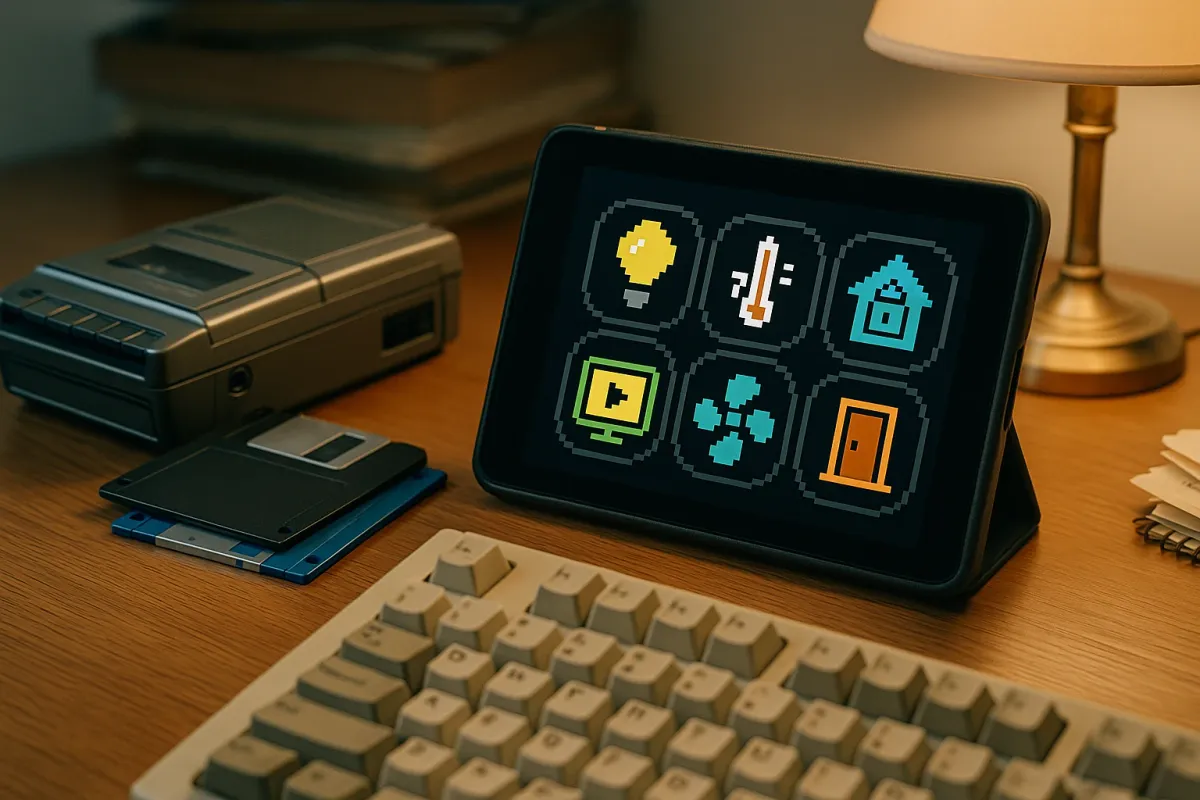
For a smart home dashboard, perform a factory reset, then install only your home automation app (Home Assistant, SmartThings, Google Home, Apple Home, etc.) plus a stable browser. Disable auto-updates, background sync for all other services, and animations where possible to reduce GPU load. Configure the screen timeout longer, then enable “screen saver” modes that display status info. To use an old tablet as a dedicated second screen for your PC or Mac, choose low-overhead apps like Duet Display, Splashtop Wired XDisplay, or platform-specific casting tools, and keep everything else uninstalled to minimize interference. For kids’ media/education devices, lock the tablet down with a child profile (Android) or Screen Time (iPadOS), pre-download videos and learning apps, and disable in-app purchases and random store access. By stripping the OS to only what is needed for the new role, you avoid most of the bloat and background contention that make these tablets feel obsolete in the first place.
Conclusion
The current nostalgia wave around “obsolete tech” is a reminder of how quickly the industry moves—but it doesn’t mean your aging tablet has to be landfill or a meme. With careful tuning of background services, smart security postures for unsupported OS versions, storage reconditioning, targeted Wi‑Fi optimization, and lean role-specific configs, many “retired” devices can regain real, everyday utility.
Before you let your tablet become just another viral photo of outdated gear, treat it like a system you’d optimize in a lab: profile, isolate, repurpose. In a world where new hardware cycles keep getting shorter, the most technical, future‑proof move might be extracting every last functional year from the devices you already own.
Key Takeaway
The most important thing to remember from this article is that this information can change how you think about Tablet Solutions.