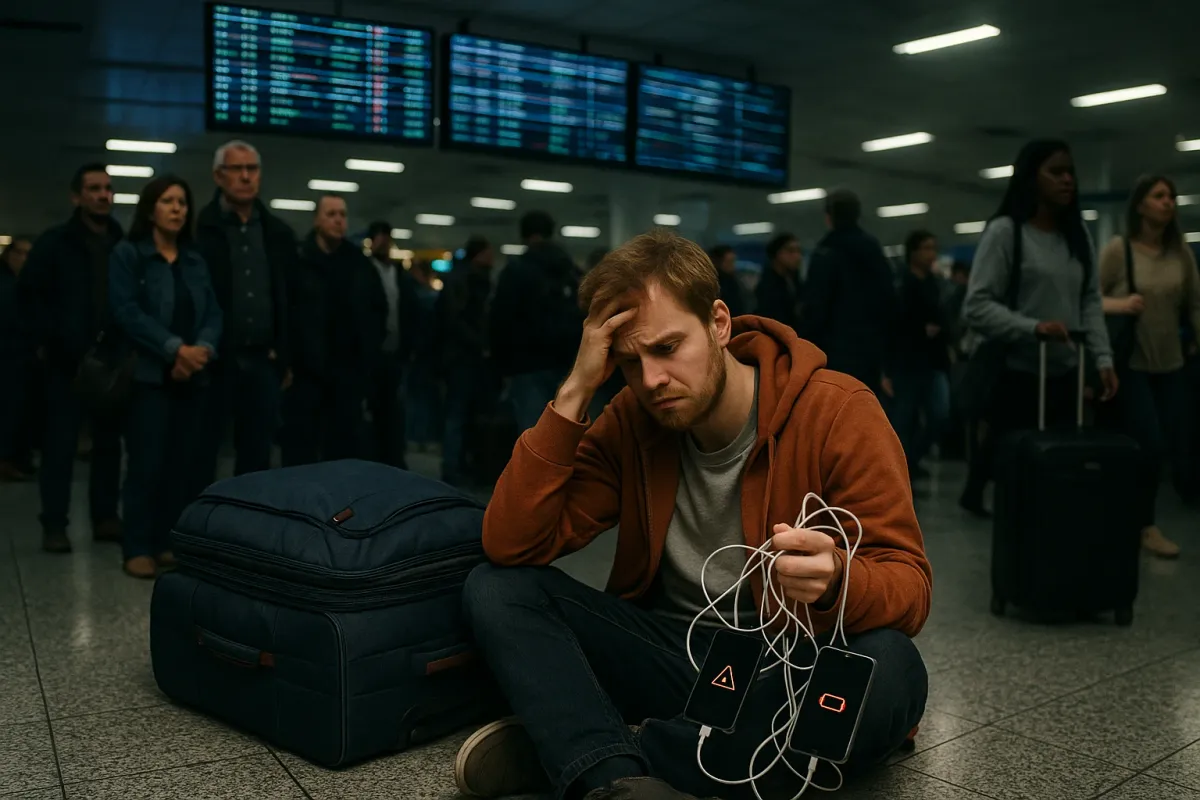
If you’re already doom-scrolling airport chaos and “lost luggage” TikToks, you’ve probably also seen something else: people’s gadgets failing at the worst possible moment. Power banks that won’t charge, tablets that freeze mid-boarding-pass, Bluetooth headphones dropping audio right as your group is called. With holiday travel surging (and articles like “25 Travel Gadgets For Anyone Who Is Already Mentally Preparing For The Chaos Of Holiday Travel” going viral), device reliability is suddenly a practical survival skill, not a luxury.
This season, your phone, laptop, and travel gadgets are being pushed harder than usual: constant roaming, rapid-fire charging on random outlets, packed Wi‑Fi networks, and temperature swings from the tarmac to the cabin. Below are five targeted, technical fixes to keep your devices stable and usable when travel chaos is at its peak—whether you’re stuck at the gate or tethered to a hotel lobby outlet.
1. Phone Battery Drains Fast at the Airport or On the Plane
Heavy roaming, poor signal, and nonstop screen time can make a healthy battery look “broken.” Before assuming the worst, optimize for high‑stress environments:
Lock down radios and background activity:
- On iOS: - Go to Settings → Battery → Battery Health & Charging and make sure Optimized Battery Charging is on. - In Settings → Privacy & Security → Location Services, set rarely used apps to While Using or Never. - Turn off Background App Refresh for nonessential apps: Settings → General → Background App Refresh. - On Android (varies by brand): - Go to Settings → Battery → Battery usage to find apps using the most power and restrict background usage. - Disable location for nonessential apps: Settings → Location → App location permissions.
Use “airplane mode plus Wi‑Fi” when possible:
- Mobile radios burn battery hunting for towers in crowded airports or low-signal areas. - Enable Airplane Mode, then manually turn Wi‑Fi back on to use airport/hotel Wi‑Fi. - Only re‑enable cellular when you actually need it (e.g., for SMS boarding codes).
Lock screen brightness and tame the display:
- Set brightness to ~30–40% and turn off Auto‑Brightness temporarily if it keeps spiking under bright lighting. - Reduce screen timeout: - iOS: Settings → Display & Brightness → Auto-Lock. - Android: Settings → Display → Screen timeout (or Sleep).
Clean charging ports before blaming the cable:
- Pocket lint and dust are common when you’re moving through jackets, bags, and seat pockets. - Power off the phone, then use a non‑metal tool (wooden toothpick or plastic spudger) to gently dislodge debris in the USB‑C/Lightning port. - Test again with a known‑good, certified cable and charger.
If battery drain is extreme after an OS update:
- After a big iOS/Android update, background indexing and migration can spike usage for 24–48 hours. - Check Battery usage to confirm if “System,” “OS,” or “Media” is dominating. - If the problem persists beyond 2 days, back up your data and: - Try a settings reset (network, location, etc.). - As a last resort, perform a full backup + factory reset when you’re not mid‑trip.
2. Tablet Freezes Right When You Need Your Boarding Pass
Airlines and hotels increasingly assume your phone or tablet “just works.” When the device locks up as you’re boarding, you’re in real trouble. Here’s how to hard‑recover and prevent recurring freezes.
Perform a force restart (not just a normal reboot):
- iPad/iPhone with Face ID or no Home button: - Press Volume Up, then Volume Down, then hold Side/Top button until the Apple logo appears. - Older iPad/iPhone with Home button: - Hold Home + Power together until the Apple logo appears. - Android tablets (general guideline): - Hold Power for 10–20 seconds. - If that fails, hold Power + Volume Down until you feel a vibration or see the logo.
Disable or remove problematic travel apps:
- If freezing happens when opening a specific airline, VPN, or navigation app: - Update the app from the App Store/Google Play first. - If issues continue, uninstall it and: - Use the airline’s mobile website in the browser instead. - Store a screenshot or PDF of your boarding pass in Files/Photos for offline access.
Free emergency space quickly:
- Low storage can cause OS‑level slowdowns and app crashes. - Aim for at least 2–5 GB free: - Delete large offline maps, downloaded Netflix/Disney+ episodes, or unnecessary photos/videos. - On iOS: Settings → General → iPad Storage for auto‑cleanup suggestions. - On Android: Settings → Storage then remove large cached data and downloads.
Turn off aggressive power or performance “optimizers”:
- Some OEM “cleaner” or “booster” apps kill processes too aggressively and can corrupt app state. - Disable or uninstall third‑party task killers or optimizers; rely on the built‑in OS memory management instead.
Prepare offline redundancy before you travel:
- Save PDFs of tickets, hotel confirmations, and IDs in a local files app, not only in email or airline apps. - On iOS: store in Files → On My iPad/iPhone. - On Android: use a local folder or offline-enabled note app. - Test opening these files with Wi‑Fi and cellular off to confirm they’re truly offline.
3. Bluetooth Headphones Glitching on Planes and Trains
With the rise of wireless-only devices and new in‑flight Bluetooth support, crackling audio and random disconnects are a top complaint. Crowded environments introduce tons of 2.4 GHz interference.
Force a clean pairing instead of “just reconnecting”:
- On your phone/tablet: - Remove the headphones: - iOS: Settings → Bluetooth → (i) → Forget This Device - Android: Settings → Bluetooth → settings icon → Forget / Unpair - Put the headphones into pairing/reset mode (varies by brand; often holding the power or multi‑function button for 7–10 seconds). - Re‑pair from scratch and test again.
Minimize interference and physical obstructions:
- Keep the audio source in line of sight with the headphones’ primary antenna side (often the right earcup). - Avoid putting the phone in a backpack behind your body or under thick blankets/jackets. - Move away from aircraft bulkheads, Wi‑Fi routers, or power outlets (in some cabins, these areas are noisy RF zones).
Change Bluetooth codec (Android, where supported):
- Enable Developer Options (if not already enabled) by tapping Build Number 7 times in Settings → About phone. - Go to Settings → System → Developer options → Bluetooth Audio Codec. - If you’re on a high‑bandwidth codec like LDAC and getting dropouts, switch to AAC or SBC for more stable, lower‑bitrate audio.
Disable Wi‑Fi temporarily during severe dropouts:
- 2.4 GHz Wi‑Fi and Bluetooth share spectrum and can collide. - On congested planes, try: - Turn Wi‑Fi off but leave Bluetooth on, especially when playing downloaded/local media. - If you need Wi‑Fi, try moving closer to or farther from the access point; sometimes moving a few rows helps.
Reset network settings if Bluetooth is failing across all devices:
- If every Bluetooth accessory is unreliable: - iOS: Settings → General → Transfer or Reset iPhone → Reset → Reset Network Settings. - Android: Settings → System → Reset options → Reset Wi‑Fi, mobile & Bluetooth. - Note: this wipes Wi‑Fi networks and VPN settings, so have passwords and configs ready.
4. Public Wi‑Fi Won’t Load the Login Page (Captive Portal Issues)
Airports, hotels, and cafes often use captive portals (web pages you must accept before browsing). Modern browsers and VPNs can block or confuse this flow.
Manually trigger the portal page:
- Connect to the Wi‑Fi network. - Open a browser and visit a non‑HTTPS or simple URL like: - neverssl.com - http://example.com (ensure the http is not auto‑changed to https) - This often forces the portal page to appear.
Temporarily disable VPNs, DNS filters, and ad blockers:
- VPNs can block the redirect that captive portals rely on. - Turn off: - VPN apps (NordVPN, ExpressVPN, corporate VPN, etc.). - DNS changers (1.1.1.1, NextDNS, AdGuard, etc.). - System‑wide ad blockers that filter all connections. - After sign‑in succeeds, you can usually re‑enable the VPN.
Forget and re‑add the Wi‑Fi network:
- On both iOS and Android: - Tap the Wi‑Fi network → Forget / Remove. - Reconnect, re‑enter the password if needed, then wait ~30 seconds for the portal pop‑up.
Use the gateway IP if the portal still doesn’t appear:
- Check the router/gateway IP: - iOS: Settings → Wi‑Fi → (i) on network → Router. - Android: Settings → Wi‑Fi → network details → Gateway (wording varies). - Type that IP address directly into your browser (e.g., 192.168.1.1, 10.0.0.1). This often opens the captive page.
Create a quick personal hotspot workaround (with care):
- If you have decent mobile data and tethering allowance: - Turn off Wi‑Fi on your laptop/tablet. - Enable Personal Hotspot on your phone. - Use this for payment, boarding pass downloads, and critical logins; avoid heavy streaming to prevent bill shock.
5. Power Banks and Chargers Fail When You Need Them Most
With travel gadget lists trending online, a lot of people have grabbed cheap power banks, GaN chargers, or multi‑port adapters without understanding their limitations. Under travel stress, subpar gear shows its flaws.
Verify the power bank isn’t in “shipping mode”:
- Some banks ship with the output disabled to prevent accidental discharge. - Look for a power button and press/hold it to “wake” the bank before plugging in your device. - Check LED indicators—if they flash briefly and go dark, read the manual for the proper activation pattern.
Confirm cable and port capabilities (USB‑A vs USB‑C, PD ratings):
- Use USB‑C to USB‑C cables for modern devices and fast charging. - Check printed specs on the charger or power bank: - Look for PD (Power Delivery) ratings, e.g., 20W, 30W, 65W. - For laptops, your charger must meet or exceed the laptop’s required wattage. - If a port is labeled “5V/1A” only, it will not fast charge modern phones.
Diagnose “fake charging” (device shows charging, battery still drops):
- Some airplane seat USB ports output as low as 0.5–1A—barely enough to slow the drain. - Test: - Put the device in Airplane Mode and dim the screen. - If the battery still decreases, the port is too weak; switch to your own charger and a proper AC outlet if available.
Avoid daisy‑chaining USB through questionable adapters:
- Plugging power bank → random hub → device can cause unstable voltage or handshake failures. - When traveling, use direct connections: - Wall → charger → device - Power bank → device - Avoid adding extra hubs or splitters unless they’re high quality and rated for charging.
Thermal management: don’t cook your charger or battery:
- Power banks stuffed into tight, insulated bags while fast‑charging can overheat and throttle or shut down. - Keep chargers and banks: - On a hard surface, not under pillows or clothes. - Away from direct sun in car dashboards or near plane windows. - If a power bank feels too hot to hold, unplug it and let it cool before reusing.
Conclusion
Holiday travel amplifies every weakness your devices already have: marginal batteries, flaky Bluetooth, sketchy cables, and misconfigured networks. With viral gift guides pushing more travel gadgets than ever, the real advantage isn’t owning more tech—it’s knowing how to keep what you already have working when the airport Wi‑Fi crawls, your seat’s USB port is underpowered, and your boarding pass is locked inside a frozen screen.
Implement the steps above before your next trip: clean ports, test power banks, verify offline access to tickets, and practice force‑restarts and captive‑portal tricks. A few minutes of prep now can mean the difference between calmly scanning a rock‑solid digital boarding pass and frantically arguing with a dead phone at the gate.
Key Takeaway
The most important thing to remember from this article is that following these steps can lead to great results.