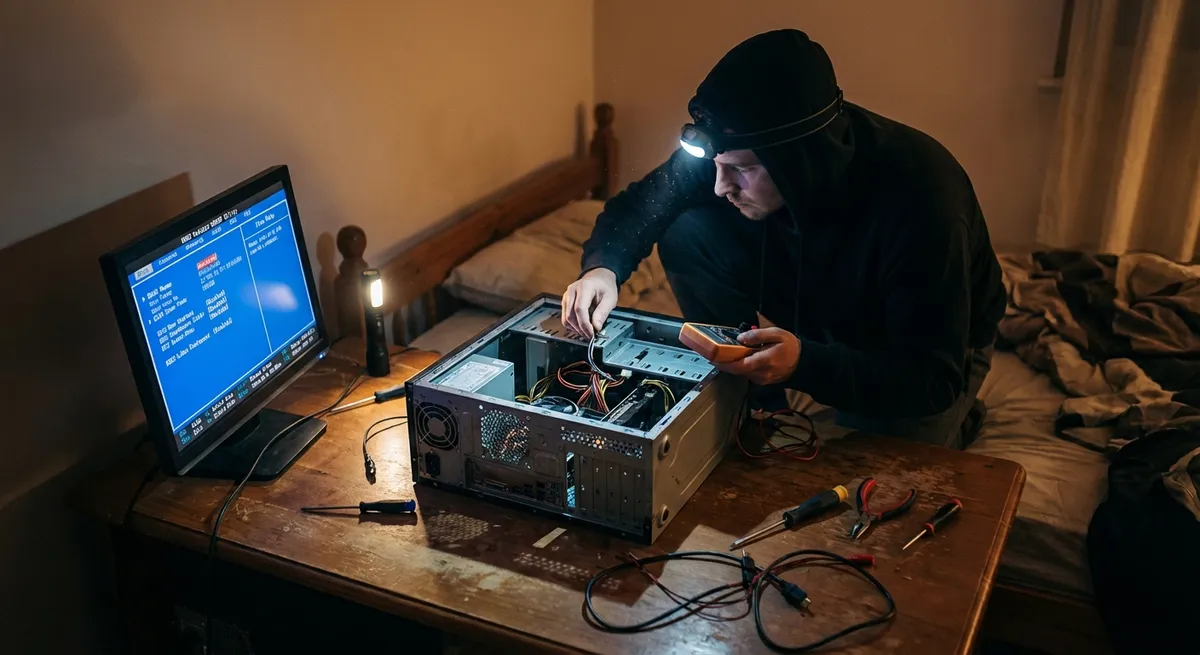
When a computer misbehaves, it’s rarely “just broken.” Under the hood, there’s almost always a logical cause: resource bottlenecks, driver conflicts, file system issues, thermal limits, or corrupted configuration data. This article walks through five technical troubleshooting paths you can apply to a wide range of everyday PC problems—slow performance, random freezes, odd network behavior, and more. Each solution is written so you can both fix the issue now and better understand what’s happening inside your system.
1. Stabilizing a Sluggish or Unresponsive System
When a computer feels slow or intermittently locks up, the root cause is often resource saturation (CPU, RAM, disk I/O) or a background process misbehaving.
Profile resource usage with built-in tools
- On Windows, open Task Manager (Ctrl + Shift + Esc) → Processes and Performance tabs. - Look for sustained CPU usage above ~80%, memory usage above ~80%, or disk usage pinned near 100%. - On macOS, use Activity Monitor (Applications → Utilities) to check CPU, Memory, and Disk tabs.
Identify and contain runaway processes
- Sort processes by CPU, then by Memory and Disk usage. - If a single process is dominating resources without a clear reason, try: - End task (Windows) or Quit/Force Quit (macOS) to see if performance recovers. - If it’s tied to a specific application, check for updates or reinstall that application.
Check startup load and background services
- Windows: Task Manager → Startup tab; disable non-essential entries (cloud sync, updaters, vendor utilities) and reboot. - macOS: System Settings → General → Login Items; remove anything you don’t absolutely need at launch. - Reducing startup load often eliminates persistent sluggishness and shortens boot times.
Inspect storage health and free space
- Aim for at least 15–20% free space on the system drive; SSDs especially need free space for wear leveling and performance. - Windows: run chkdsk /scan from an elevated Command Prompt to check the file system. - macOS: Disk Utility → select your drive → First Aid to scan and repair logical file system issues.
Update drivers and system components
- On Windows, ensure chipset, storage, and graphics drivers are up to date via Device Manager or your OEM’s support site. - Windows Update sometimes lags vendor releases; for graphics and chipset, the GPU vendor (NVIDIA, AMD, Intel) or motherboard/laptop OEM is usually best. - On macOS, keeping the OS updated generally includes necessary driver updates.
If performance stabilizes after these steps, you’ve likely addressed a resource contention or software-level fault rather than a hardware defect.
2. Recovering from Frequent Crashes, Freezes, or Blue Screens
System instability—random reboots, blue screens (BSOD), or complete freezes—often points to deeper issues: driver faults, RAM errors, thermal problems, or power irregularities.
Record the failure pattern and error codes
- On Windows BSODs, note the stop code (e.g., IRQL_NOT_LESS_OR_EQUAL, MEMORY_MANAGEMENT) and any mentioned driver filenames (nvlddmkm.sys, etc.). - On macOS, note if you see repeated kernel panics and any patterns (after wake from sleep, under heavy GPU load, etc.).
Examine logs and reliability data (Windows)
- Open Event Viewer → Windows Logs → System and Application; look for critical or error events around the time of the crash. - Use Reliability Monitor (Control Panel → Security and Maintenance → Maintenance → View reliability history) to see a timeline of crashes and related software installs or updates. - Repeated faults tied to the same driver or executable strongly indicate where to focus.
Stress test memory and storage
- RAM: - Windows: run Windows Memory Diagnostic (mdsched.exe) and choose Restart now and check for problems. - For deeper tests, use a bootable tool like MemTest86; a single error can justify RAM replacement. - Storage: - Use vendor tools (e.g., Samsung Magician, Western Digital Dashboard) to check SMART attributes and perform diagnostics. - Any reallocated sector growth, pending sectors, or uncorrectable errors are red flags.
Check thermal and power conditions
- Use hardware monitoring tools (e.g., HWMonitor, HWiNFO on Windows; Intel Power Gadget or third-party tools on macOS) to read CPU and GPU temperatures under load. - Temperatures frequently exceeding ~90–95°C under moderate load can cause throttling or hard shutdowns. - Physically inspect: - Clean dust from fans and heatsinks. - Ensure all fans spin freely. - Verify that laptops have adequate airflow (not blocked by soft surfaces).
Rollback recent changes and simplify the environment
- If crashes began after a driver or OS update: - Windows: Device Manager → right-click device → Properties → Driver → Roll Back Driver (if available). - Use System Restore to revert to a known-good restore point if the timeline aligns. - Temporarily disconnect non-essential USB devices and remove recently added hardware (PCIe cards, RAM sticks) to isolate the failing component.
By correlating error codes, logs, and hardware diagnostics, you can distinguish between software instability and emerging hardware failure.
3. Fixing Network and Connectivity Failures
Connectivity problems—no internet, intermittent drops, or abnormal latency—often stem from DNS issues, driver problems, signal quality, or router misconfiguration.
Isolate the layer of failure
- Check physical link first: - Ethernet: verify cable seating; test another port and cable. - Wi‑Fi: ensure the adapter is enabled; verify airplane mode is off. - Test local vs internet connectivity: - Can you access your router’s admin page (often 192.168.0.1 or 192.168.1.1)? - If local network works but internet does not, focus on the modem/ISP side.
Run built-in network diagnostics
- Windows: - Settings → Network & Internet → Status → Network troubleshooter. - Or run from Control Panel; check indicated fixes (reset adapter, DNS, etc.). - macOS: - Use Network Diagnostics (available when a network issue is detected) or System Settings → Network for interface status.
Flush DNS and reset network stacks (Windows)
- Open Command Prompt as Administrator and run: ``cmd ipconfig /flushdns ipconfig /release ipconfig /renew netsh int ip reset netsh winsock reset ` - Reboot afterward. This often resolves name resolution issues and Winsock corruption.
Recreate the network configuration (Wi‑Fi/Ethernet)
- Forget and re-add Wi‑Fi networks: - Remove the existing profile, then reconnect and re-enter credentials. - Temporarily set a public DNS (e.g., 8.8.8.8 and 1.1.1.1) in the adapter’s IPv4 properties to bypass potentially misbehaving ISP DNS.
Update firmware and drivers, then test systematically
- Update router/modem firmware from the manufacturer’s web interface; outdated firmware can cause intermittent drops or poor throughput. - On the PC, update the network adapter driver from OEM or chipset vendor sites (Intel, Realtek, Broadcom). - Test with: - A different device on the same network. - The same PC on a different network (mobile hotspot). - This A/B testing quickly tells you whether the problem is PC-specific or network/ISP-related.
Once you know whether the failure is at the adapter, local network, or ISP level, you can target the right layer instead of blindly rebooting hardware.
4. Repairing File System Errors and Application Corruption
Applications that randomly fail to start, crash on launch, or generate strange errors often indicate file corruption, damaged system components, or conflicts in user-level configuration data.
Start with system file integrity checks (Windows)
- Run Command Prompt as Administrator and execute: `cmd sfc /scannow ` - This scans and repairs protected system files. - If SFC reports it found errors it could not fix, follow with: `cmd DISM /Online /Cleanup-Image /RestoreHealth ` - Then run sfc /scannow again to verify.
Verify disk integrity and SMART status
- Use chkdsk for deeper disk checks (schedule at next boot if prompted): `cmd chkdsk C: /f /r ` - On macOS, Disk Utility’s First Aid checks and repairs the file system; run it on both the volume and the physical disk if applicable. - Check SMART attributes via vendor utilities; recurring or growing errors suggest backing up and replacing the drive.
Reset or cleanly reinstall problematic applications
- Clear the application’s cache and configuration: - Many apps have built-in “Reset to defaults” or “Clear cache” options. - For stubborn cases, completely uninstall, delete leftover config folders (often in AppData on Windows or Library on macOS), then reinstall. - If only one user profile is affected, test the application under a different user account to confirm a per-user config issue.
Check for security software interference
- Over-aggressive antivirus or endpoint protection can quarantine legitimate binaries or block file access. - Temporarily disable non-essential third-party security tools (while offline if possible) to see if behavior changes. - If it does, add appropriate exclusions for application folders, especially for development tools, virtual machines, and databases.
Use versioning and backups to roll back damaged data
- On Windows: - Check File History or previous versions (if configured) to restore uncorrupted copies of key documents or configuration files. - On macOS: - Use Time Machine to revert to earlier file states or restore entire applications/configurations from a date before issues started. - For cloud-synced apps (OneDrive, Google Drive, Dropbox), leverage built-in file version history to undo recent corruptions.
By confirming system file health, disk integrity, and configuration state, you can systematically undo corruption instead of guessing where things went wrong.
5. Handling Boot Failures and Startup Anomalies
Boot problems range from slow startup to complete failure with error messages or blank screens. Treat the boot sequence like a pipeline: firmware → bootloader → OS loader → OS initialization.
Observe where the boot process stalls
- No power or no fans/fans spin then stop → suspect PSU, motherboard, or severe short. - Vendor logo appears but no OS → potential bootloader, drive, or firmware configuration issue. - OS logo appears then reboots or shows error → OS-level or driver-level fault.
Check firmware (BIOS/UEFI) configuration and drive detection
- Enter firmware setup (commonly Del, F2, F10, or Esc during power-on). - Verify: - System drive is detected with correct capacity. - Boot order points to the correct device (e.g., NVMe SSD, not a USB stick). - Secure Boot settings match your OS configuration (incorrect settings can block boot).
Use OS recovery environments
- Windows:
- Interrupt boot 3 times (power off during the Windows logo) to trigger Automatic Repair, or boot from a Windows installation USB.
- Use Startup Repair, System Restore, and Uninstall Updates options.
- From Command Prompt:
bootrec /fixmbr
bootrec /fixboot
bootrec /scanos
bootrec /rebuildbcd
Use these carefully and ensure you’re targeting the correct disk.
- macOS:
- Use macOS Recovery: press and hold Command + R
immediately after powering on. - From there, run Disk Utility → First Aid, or reinstall macOS over the existing installation (keeping data intact where possible).
Disable non-essential startup drivers and services (Windows)
- Boot into Safe Mode: - Shift + Restart → Troubleshoot → Advanced options → Startup Settings → Restart → select Safe Mode. - In Safe Mode: - Run msconfig → Services tab → hide Microsoft services → disable everything non-essential. - In Task Manager → Startup, disable aggressive third-party entries (GPU overclocking tools, extra security agents, vendor utilities). - If the system boots normally afterward, re-enable items in small batches to isolate the offender.
Prepare for hardware-level remediation
- If the system drive is not detected, emits unusual noises, or fails diagnostic utilities, prioritize data backup via a bootable Linux/WinPE environment or external enclosure. - For desktop PCs, minimally test with: - A known-good PSU (if available). - One RAM stick at a time in different slots. - Only the OS drive and integrated graphics (if available), disconnecting everything else. - Narrowing to the minimum configuration often exposes a faulty component (RAM, GPU, PSU, or motherboard).
Understanding where the boot chain fails lets you decide whether you’re dealing with a recoverable configuration issue or a failing component that requires replacement.
Conclusion
Most “mysterious” computer problems become manageable once you treat your system like a set of interacting subsystems: CPU, memory, storage, network, firmware, and OS services. The five troubleshooting paths here—resource stabilization, crash diagnostics, connectivity repair, corruption recovery, and boot restoration—give you a reusable framework for diagnosing and fixing a broad spectrum of PC issues. The key is to measure, observe patterns, change one variable at a time, and let logs and diagnostics guide your next step. Over time, this methodical approach turns random device headaches into predictable, solvable technical tasks.
Sources
- [Microsoft: Use the System File Checker tool to repair missing or corrupted system files](https://support.microsoft.com/en-us/topic/use-the-system-file-checker-tool-to-repair-missing-or-corrupted-system-files-79aa86cb-ca52-166a-92a3-966e85d4094e) - Official documentation on sfc` and related repair steps for Windows system files
- [Apple: About macOS Recovery](https://support.apple.com/en-us/HT201314) - Explains macOS Recovery options for repairing disks and reinstalling macOS
- [Microsoft: Troubleshoot blue screen errors](https://support.microsoft.com/en-us/windows/troubleshoot-blue-screen-errors-37e7d3c4-87a4-2b5a-6c87-4f34ffb38aff) - Guidance on diagnosing and resolving BSOD issues in Windows
- [NIST: Guide to General Server Security (SP 800-123)](https://csrc.nist.gov/pubs/sp/800/123/final) - Provides best practices relevant to system stability, configuration, and patching
- [US-CERT: Securing Your Web Browser](https://www.cisa.gov/uscert/publications/securing-your-web-browser) - Covers security and configuration concepts that intersect with application stability and system reliability
Key Takeaway
The most important thing to remember from this article is that this information can change how you think about Computer Problems.