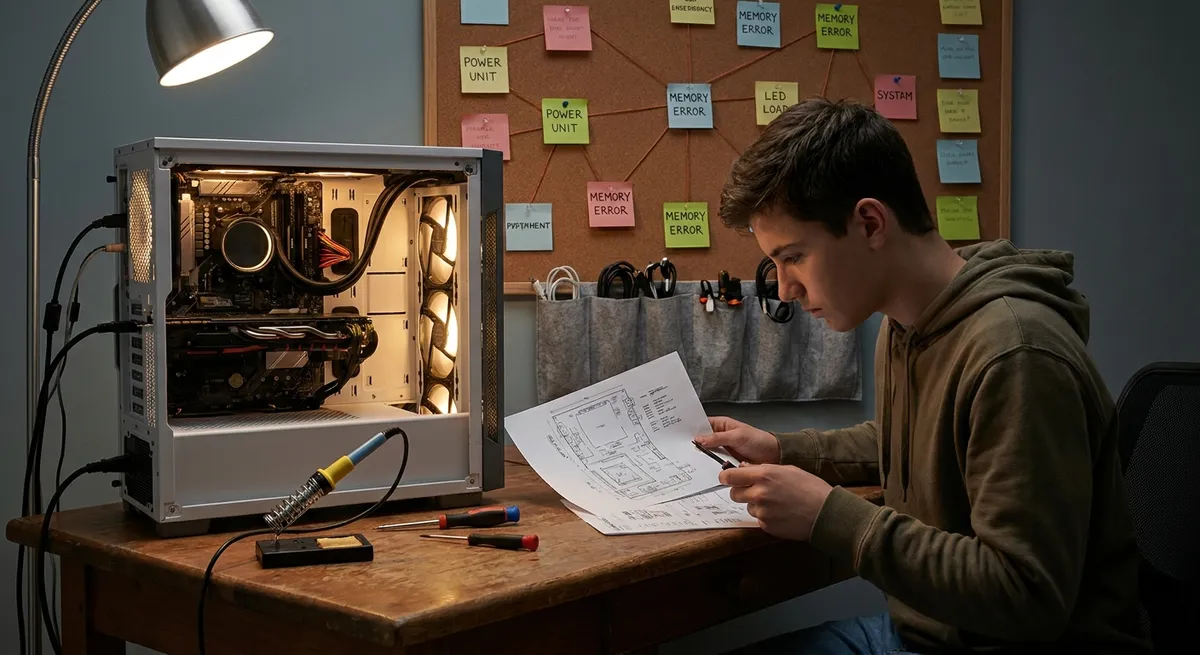
When a desktop PC stops behaving, the symptoms (slowdowns, crashes, no boot, no network) can look random—but they usually trace back to a few repeatable root causes. Understanding those patterns is the difference between blindly rebooting and actually fixing the problem. This guide walks through five structured troubleshooting solutions you can apply to most Windows desktop issues, from performance stalls to hard power failures.
Each solution is written to be systematic: check, test, change one thing at a time, then re-test. That approach not only fixes immediate problems but also helps you avoid making things worse (like corrupting data or masking the real fault).
1. Stabilizing a Slow or Stuttering System
When a system feels “heavy” (apps open slowly, mouse lags, frequent “Not Responding” messages), it’s usually CPU, RAM, disk, or a background process hogging resources.
Step 1 – Establish a performance baseline
- Press
Ctrl + Shift + Escto open Task Manager.
On the Performance tab, watch CPU, Memory, Disk, and GPU while:
- Opening apps you regularly use. - Switching browser tabs. - Playing a video or simple game (if applicable).
Identify what pegs near 100% during slowdowns:
- CPU 90–100%: likely a runaway process, background scan, or misbehaving app. - Memory >80–90%: not enough RAM for current workload, or a leak. - Disk 90–100%: slow HDD, indexing, antivirus scan, or failing drive. - GPU 90–100% (with stutter in 3D workloads): driver or thermal throttling.
Step 2 – Isolate problematic processes
- Go to Processes tab. Sort by CPU, then Memory, then Disk.
Look for processes consuming unusually high resources for extended periods:
- A browser with dozens of tabs. - Background updaters, cloud sync, or OEM utilities. - Unknown processes with generic names. 3. For obviously stuck processes (e.g., application frozen for minutes), right‑click → End task. - If killing a process restores responsiveness, that app is a suspect.
Step 3 – Reduce startup load
- In Task Manager, go to Startup apps (or run
shell:startupfor user startup folder).
Disable non-essential entries, such as:
- Game launchers that don’t need to auto-start. - OEM “helper” utilities that don’t affect drivers. - Updaters for apps you rarely use. 3. Reboot and test if the time to usable desktop improves and if the system feels lighter immediately after login.
Step 4 – Check disk health and file system integrity
- Open Command Prompt (Admin) or Windows Terminal (Admin).
Run:
``cmd chkdsk C: /scan ` - If errors are found, schedule a full check: `cmd chkdsk C: /f /r ` and reboot (this can take a long time on HDDs). 3. Run Windows Security → Virus & threat protection → Quick scan, then consider a Full scan to rule out malware as a performance sink.
Step 5 – Address hardware bottlenecks
If Task Manager consistently shows:
- Memory near max with many browser tabs and editing tools: consider upgrading from 4–8 GB to 16 GB+.
- Disk pegged on an HDD: moving Windows and key apps to an SSD is the single biggest performance upgrade.
- CPU maxed during basic use: close heavy background tasks and consider undervolting/cleaning (see thermal section) before assuming you need a new CPU.
2. Recovering a PC That Won’t Boot Properly
Boot failures fall into two broad categories: no firmware/POST (no display, fans maybe spin, no beeps), and Windows-level failures (Windows logo then crash/loop, blue screens, or endless automatic repair).
2.1. If the PC shows no video or POST
Step 1 – Basic power and display checks
- Verify the PSU switch is on (I/O rocker at the back set to |
, notO). - Confirm the power cable is fully seated in the PSU and wall socket, and the outlet works (test with another device).
Ensure the monitor:
- Has power and its LED is on. - Is set to the correct input (HDMI/DisplayPort/DVI). - The cable is firmly connected to the discrete GPU (if present), not the motherboard port (unless using integrated graphics).
Step 2 – Listen and look for POST indicators
On power-on, note:
- Do fans spin? - Are there any beeps from the motherboard speaker? - Are any diagnostic LEDs on the motherboard lit (CPU/DRAM/VGA/BOOT indicators)?
Re-seat components:
- Power off, unplug, hold power button 10 seconds to discharge. - Re-seat RAM sticks (remove then firmly click back into place). - Re-seat GPU (if discrete) and verify PCIe power connectors are secure.
Step 3 – Minimal boot configuration
Disconnect everything non-essential:
- All USB devices except keyboard. - Extra SSDs/HDDs, PCIe cards except GPU (if needed).
Leave only:
- CPU + cooler. - One RAM stick in the recommended slot per motherboard manual. - GPU (if no integrated graphics). - System drive (optional at this stage; first aim for POST/BIOS). 3. Try to power on. If it now POSTs, add components back one by one until the failure returns; that component or port is likely the fault.
2.2. If Windows starts but crashes or loops
Step 1 – Enter Windows Recovery Environment (WinRE)
Force three unsuccessful boots:
- Power on, interrupt boot with power button just after Windows logo. - Repeat 3 times; on the next boot, Windows should open Automatic Repair → Advanced options. 2. From Advanced options, choose Troubleshoot.
Step 2 – Attempt startup repair and restore
In Advanced options:
- Run Startup Repair first; it attempts to fix bootloader issues.
If recent changes might be the cause:
- Use System Restore (if restore points exist) to revert OS files and registry to a previous state. 3. Use Uninstall Updates if the problem started after a major feature or quality update.
Step 3 – Boot into Safe Mode
- In WinRE → Startup Settings → Restart.
- After reboot, press 4
orF4for Safe Mode (or5/F5for Safe Mode with Networking).
In Safe Mode:
- Uninstall recent drivers or software (especially GPU drivers, disk utilities, antivirus, overclocking tools). - Run: `cmd sfc /scannow DISM /Online /Cleanup-Image /RestoreHealth ` from an elevated Command Prompt to repair system files and component store.
Step 4 – Rebuild boot configuration (if bootloader is corrupt)
Still in WinRE → Command Prompt:
bootrec /fixmbr
bootrec /fixboot
bootrec /scanos
bootrec /rebuildbcd
Reboot and test. If the drive itself is failing, these commands may not help; check storage health (see below).
3. Diagnosing Blue Screens and Random Crashes
Blue Screen of Death (BSOD) events and spontaneous reboots almost always indicate a low-level issue: drivers, RAM, storage, or power/thermal problems.
Step 1 – Capture the error details
When a BSOD appears, note:
- Stop code (e.g., IRQL_NOT_LESS_OR_EQUAL, CRITICAL_PROCESS_DIED). - Any driver file mentioned (e.g., nvlddmkm.sys, ntfs.sys). 2. After reboot, open Event Viewer (eventvwr.msc) → Windows Logs → System and filter for Error and Critical entries around the crash timestamp. 3. Use a minidump viewer (e.g., Microsoft’s WinDbg from the Store) to inspect C:\Windows\Minidump\*.dmp for repeating offending drivers.
Step 2 – Update or roll back drivers
Prioritize:
- GPU drivers (NVIDIA/AMD/Intel) via official vendor sites. - Chipset and storage drivers from the motherboard vendor. - Network and audio drivers if mentioned in dumps.
If BSODs started right after a new driver:
- In Device Manager, right‑click the device → Properties → Driver tab → Roll Back Driver (if available). 3. Avoid third-party driver “updaters”; they often introduce instability.
Step 3 – Test memory stability
Faulty RAM is a frequent cause of random BSODs:
Run Windows Memory Diagnostic:
- Press Win + R, type mdsched.exe, choose Restart now and check for problems.
For a deeper test, use MemTest86 from a bootable USB:
- Run at least several full passes.
If errors occur:
- Test sticks individually in the same slot. - If one stick consistently fails, replace it. - If all sticks fail in a specific slot only, the motherboard slot might be defective.
Step 4 – Validate storage integrity
- Use chkdsk
and vendor utilities (e.g., Samsung Magician, Western Digital Dashboard) to: - Check SMART attributes.
- Run surface/extended tests.
- If SMART shows reallocated/pending sectors or large error counts, treat the drive as suspect and backup data immediately.
Step 5 – Confirm power and thermal headroom
Instability under load often points to borderline PSU or overheating:
Use monitoring tools (HWMonitor, HWiNFO, or vendor utilities) to observe:
- CPU/GPU temperatures. - Voltage stability (+12 V, +5 V rails staying within ±5%).
If crashes align with peak load (gaming, encoding):
- Suspect either: - Insufficient PSU wattage/quality. - Cooling/airflow issues causing thermal throttling and eventual fault.
4. Restoring Reliable Network Connectivity
Network faults show up as random disconnects, slow throughput, or “No Internet” warnings despite being connected to Wi‑Fi or Ethernet.
Step 1 – Confirm scope of the issue
Before blaming the PC:
Test other devices (phone, laptop) on the same network:
- If all devices are affected, focus on router/ISP first.
Use command line from the desktop:
`cmd ping 8.8.8.8 -n 10 ping www.google.com -n 10 ` - Loss/latency to IP but not to domain suggests DNS issues. - Loss to both suggests broader connectivity issues.
Step 2 – Reset PC network stack
Open Command Prompt (Admin) and run:
`cmd netsh winsock reset netsh int ip reset ipconfig /flushdns ipconfig /release ipconfig /renew `` 2. Reboot and retest.
Step 3 – Refresh or adjust adapter configuration
- Open Network & Internet settings → Advanced network settings → More network adapter options.
- Right-click your active adapter → Disable, wait a few seconds → Enable.
Check adapter properties:
- Ensure Internet Protocol Version 4 (TCP/IPv4) is set to Obtain an IP address automatically and Obtain DNS server address automatically, unless you use static settings. 4. Optionally set manual DNS (e.g., 8.8.8.8 & 1.1.1.1) to bypass ISP DNS issues.
Step 4 – Update or reinstall network drivers
In Device Manager → Network adapters:
- Right-click your Ethernet/Wi‑Fi adapter → Update driver → Browse my computer → point to vendor driver packages if downloaded.
If issues persist:
- Right-click → Uninstall device (check Delete the driver software for this device if troubleshooting a corrupt driver). - Reboot; Windows will reinstall a base driver.
For Wi‑Fi specific issues:
- Ensure correct band and channel usage in router settings. - Disable power-saving modes that can shut down adapters: - Adapter Properties → Power Management tab → uncheck Allow the computer to turn off this device to save power.
Step 5 – Router and ISP verification
If only this PC has issues but the hardware checks out:
- Try a different port on the router (for Ethernet) and a different cable.
- Connect the PC directly to the modem (if ISP terms allow) to bypass router; if stable, your router may be faulty or misconfigured.
- Run an online speed test and compare to your subscribed plan; large discrepancies across multiple devices point toward ISP-level problems.
5. Controlling Temperatures, Noise, and Power-Offs Under Load
Overheating can cause loud fans, throttling (sudden slowdowns during heavy tasks), and emergency shutdowns to protect hardware.
Step 1 – Measure thermal behavior
- Install a monitoring tool (HWiNFO, HWMonitor, or manufacturer utilities).
Record idle and load temperatures for:
- CPU. - GPU. - Motherboard/VRM, if available.
Run a controlled load:
- For CPU: tools like Cinebench or Prime95 (small FFTs) for short durations. - For GPU: a game benchmark or dedicated stress tool.
Observe:
- CPUs typically should remain below ~85–90°C under sustained heavy load. - GPUs often operate safely up to ~80–85°C (check vendor specs).
Step 2 – Clean airflow paths
- Power off, unplug, press power button 10 seconds.
Open the case:
- Use compressed air to blow dust from fans, heatsinks, filters, PSU intake. - Prevent fan overspinning by lightly holding blades while cleaning.
Ensure case fans are oriented correctly:
- Front/bottom: intake (pull cool air in). - Rear/top: exhaust (push hot air out). 4. Verify cable management is not obstructing major airflow paths.
Step 3 – Reseat cooler and renew thermal interface (if necessary)
If a CPU overheats within seconds of load:
- Remove the CPU cooler carefully.
- Clean old thermal paste from CPU and cooler base with isopropyl alcohol (≥90%) and lint-free cloth.
Apply fresh thermal paste:
- Small pea-sized blob (or manufacturer-recommended pattern). 4. Re-mount cooler evenly; tighten screws in a cross pattern to ensure uniform pressure.
Step 4 – Check fan curves and power profiles
Enter BIOS/UEFI:
- Use the hardware monitor section to review temperatures and fan speeds. - Configure fan curves to ramp more aggressively at higher temps if needed.
In Windows:
- Set Power mode to Balanced or a custom plan. - Avoid unnecessarily aggressive overclocks unless you’ve validated stability and cooling capacity.
Step 5 – Evaluate PSU capacity and stability
Spontaneous power-offs under peak workload may indicate PSU limitations:
Compare total system power draw (estimated via PSU calculators) with PSU wattage:
- Aim for 50–70% typical load; avoid constantly running a PSU near its rated maximum. 2. If using adapters or daisy-chained PCIe power connectors, connect dedicated cables where possible. 3. Consider testing with a known-good PSU of sufficient wattage to rule out power delivery as a root cause.
Conclusion
Most desktop PC problems can be approached as structured diagnostics instead of guesswork. By methodically checking system load, boot sequence, driver health, network stack, thermals, and power delivery, you can narrow a wide set of symptoms down to a small number of likely causes. That discipline—change one thing at a time, re-test, and observe—is the core of reliable troubleshooting.
Use these five solution paths as templates: performance stabilization, boot recovery, crash analysis, network restoration, and thermal/power control. Over time, you’ll build intuition about which path to start with based on symptoms, and you’ll spend far less time “trying random fixes” and more time actually resolving the right problem.
Sources
- [Microsoft Support – Troubleshoot blue screen errors](https://support.microsoft.com/en-us/windows/troubleshoot-blue-screen-errors-in-windows-11-10-8-7-2adae757-89a6-5855-5f2a-96c048c71caa) – Official guidance on analyzing and resolving BSOD issues in Windows
- [Microsoft Learn – Windows Startup Settings (including safe mode)](https://learn.microsoft.com/en-us/windows/client-management/windows-10-startup-settings-boot-menu) – Detailed steps for accessing Safe Mode and advanced startup options
- [NIST – General Guide to System and Network Security](https://csrc.nist.gov/publications/detail/sp/800-123/final) – Broader best practices for securing and maintaining reliable systems and networks
- [Intel – Processor Operating Temperatures and Power Guidelines](https://www.intel.com/content/www/us/en/support/articles/000005597/processors.html) – Reference for safe operating temperature ranges and thermal behavior of Intel CPUs
- [Western Digital – Understanding S.M.A.R.T. and Hard Drive Health](https://support-en.wd.com/app/answers/detail/a_id/6206) – Background on disk health indicators and interpreting SMART data
Key Takeaway
The most important thing to remember from this article is that this information can change how you think about Computer Problems.