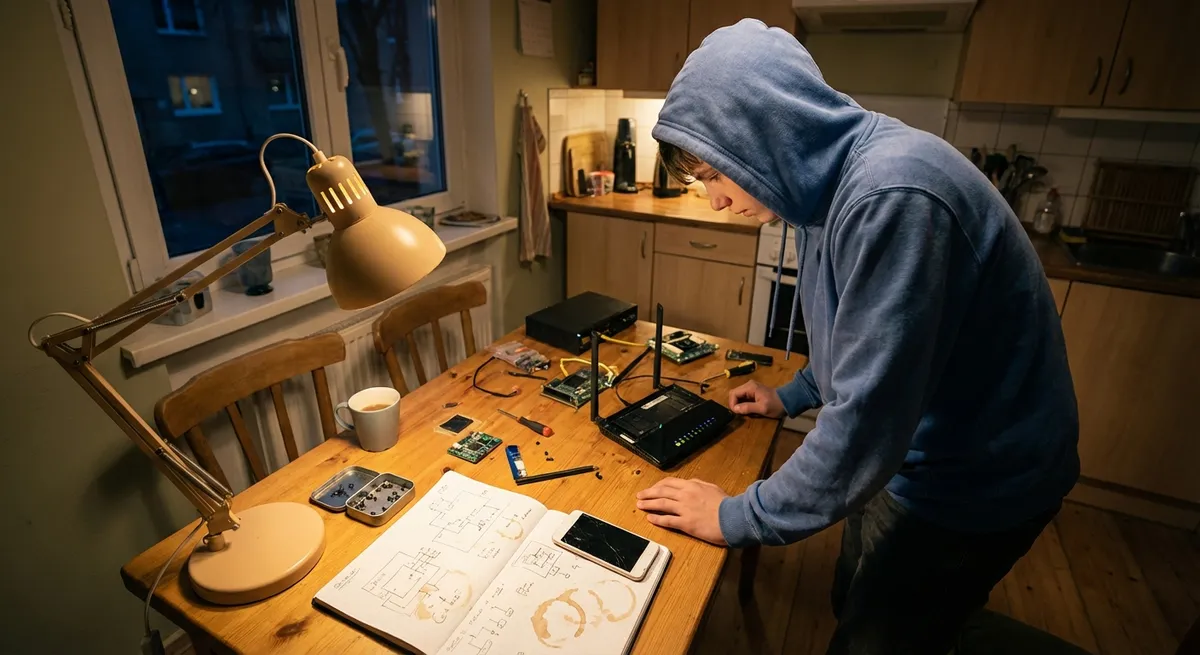
When a device suddenly stops behaving—won’t charge, crawls to a halt, or drops Wi‑Fi at the worst possible time—it’s tempting to panic or assume it’s “just dying.” In reality, most everyday failures follow a few repeatable patterns that you can troubleshoot systematically. This guide walks through five practical, field-tested solutions that apply across laptops, desktops, smartphones, and tablets, with a focus on technical clarity and step‑by‑step actions you can actually follow.
1. When Nothing Responds: Hard Resets and Power Path Checks
A completely unresponsive device often looks catastrophic, but the root cause is frequently power-related rather than a dead motherboard.
Step 1: Verify the entire power chain
Think in terms of a power path:
- Wall outlet → Surge protector/UPS → Power adapter → Cable → Device port → Battery/power circuitry
Perform these checks:
Test the outlet:
- Plug in a known‑working device (lamp/phone charger) to confirm the outlet has power. - If you’re on a power strip or UPS, bypass it and go directly into the wall.
Inspect the adapter and cable:
- Look for frayed insulation, kinks, burn marks, or loose connectors. - Gently wiggle the connector at the device end while observing any charging LED or screen response. Intermittent behavior often points to a cable or port issue.
Check for correct wattage (laptops especially):
- Use the manufacturer‑recommended adapter. Underpowered chargers may power on a laptop but prevent battery charging or cause throttling. - Compare the adapter label to the laptop requirements (volts and amps or watts).
Step 2: Perform a hard reset / power drain
On modern devices, embedded controllers or firmware can get “stuck” in a low‑power state. A hard reset can clear that.
- Windows laptop (removable battery):
- Disconnect the power adapter.
- Remove the battery.
- Hold the power button for 15–30 seconds (discharges residual power).
- Reinsert the battery, connect power, and try to power on.
- Windows laptop (non‑removable battery):
- Hold the power button for 15–30 seconds. If the device supports a hard reset combo (e.g., some use power + volume up), check the vendor’s support page.
- MacBook (Apple silicon or T2 models):
- Shut down.
- Press and hold the power button for ~10 seconds, then release and wait a few seconds.
- Power back on.
- If issues persist, consider an SMC/PMU or NVRAM reset (for Intel Macs—follow Apple’s documented procedures).
- Smartphones/tablets (Android/iOS/iPadOS):
- Common pattern: hold Power + Volume Down for 10–20 seconds (varies by manufacturer).
- For iPhones with Face ID: quickly press Volume Up, then Volume Down, then hold Power until the Apple logo appears.
Step 3: Interpret power indicators
- LEDs flicker then die: Often a short, faulty RAM, or critical power rail failure.
- Charging LED on but no power: Could be display, RAM, SSD, or OS corruption. Try external display and bootable media.
- No signs of life on multiple chargers/outlets: More likely mainboard or power circuitry failure—document your tests for support or repair.
2. When Everything Is Slow: Resource Bottlenecks and Background Load
Sluggish performance is usually not “age” alone—it’s a resource bottleneck: CPU, RAM, storage I/O, or network.
Step 1: Observe resource utilization
On each platform, start by looking at real numbers:
- Windows:
- Press
Ctrl + Shift + Esc→ Task Manager → Performance tab. - Check CPU, Memory, Disk, and GPU utilization in real time.
- Sort the Processes tab by CPU, Memory, and Disk to identify outliers.
- macOS:
- Open Activity Monitor (Applications → Utilities).
- Review CPU, Memory, Energy, Disk, and Network tabs for top consumers.
- Android:
- Enable Developer Options, then use Running services or vendor-specific tools, or use a reputable system info app.
- Look for apps with persistent high CPU or background usage.
- iOS/iPadOS:
- Go to Settings → Battery → review Battery Usage by App.
- Heavy background usage often correlates with performance or heat issues.
Step 2: Address memory and storage pressure
RAM pressure (PCs and laptops):
- If RAM usage is consistently above ~80–90% at idle or with only a browser and one app open, you’re swapping to disk. - Close unneeded startup apps: - Windows: Task Manager → Startup tab → disable non‑essential entries. - macOS: System Settings → General → Login Items → review and remove. - For chronic pressure, upgrading RAM (if possible) yields large gains.
Storage pressure and fragmentation (especially HDDs):
- Keep at least 15–20% free space; SSDs need free blocks for wear‑levelling and performance. - On Windows: - Run Storage Sense or manually clean %TEMP% and Downloads. - For HDDs only: use “Defragment and Optimize Drives.” Do not defragment SSDs. - On macOS: enable Optimized Storage and offload rarely used files.
Step 3: Mitigate background processes and services
- Uninstall or disable:
- Duplicate antivirus or “security suites” (stick to one reputable solution).
- “PC optimizer” or registry cleaners with constant background agents.
- Auto‑updaters for software you no longer use.
- On Windows, consider:
- Services.msc (advanced users only) to disable clearly unnecessary vendor services (printer daemons, updaters). Document changes before disabling.
Step 4: Use performance baselines
If possible, create a baseline:
- Right after a clean boot, note:
- Idle CPU %
- Idle RAM usage
- Disk activity
- Compare later when slowdowns occur; any process that diverges significantly is a suspect.
3. When Wireless Breaks: Systematic Wi‑Fi and Bluetooth Recovery
Network issues often get blamed on “the internet,” but the failure could be anywhere from the ISP to your device’s driver.
Step 1: Isolate where the failure occurs
Answer these quickly:
Do other devices on the same network have the issue?
- If yes → likely router, modem, or ISP. - If no → likely your specific device.
Is the failure Wi‑Fi only or also Ethernet?
- If Ethernet works but Wi‑Fi doesn’t → wireless radio, drivers, or interference. - If both fail → router/ISP or system-wide TCP/IP issue.
For Bluetooth: does it fail to see devices, fail to pair, or drop connections?
Step 2: Local device Wi‑Fi fixes
- Restart the radio stack:
- Toggle Airplane Mode on and off.
- Forget the network and reconnect:
- Remove the saved SSID, re-enter the password, and test again.
- Reset IP/TCP stack (Windows):
- Open Command Prompt as Administrator:
netsh winsock reset
netsh int ip reset
ipconfig /flushdns
- Reboot afterward.
- Update or roll back wireless drivers:
- Windows: Device Manager → Network adapters → your Wi‑Fi card → Update driver.
- If the issue started after a recent driver update, roll back to the previous version.
- Check power management:
- On laptops, disable “Allow the computer to turn off this device to save power” on the Wi‑Fi adapter (Device Manager → Wi‑Fi Adapter → Power Management).
Step 3: Router and environment checks
- Basic power cycle:
- Power off the modem and router for 30 seconds, then power on modem, wait for full sync, then power on router.
- Channel and band optimization:
- Log into the router’s admin interface.
- Prefer 5 GHz or 6 GHz for high-density environments; 2.4 GHz travels further but is more congested.
- Manually set a less crowded Wi‑Fi channel if your router allows it (use a Wi‑Fi analyzer app to check congestion).
- Physical and interference checks:
- Avoid placing routers inside cabinets, behind metal objects, or next to microwaves or cordless phones.
- Keep firmware updated to the latest stable release from your router vendor.
Step 4: Bluetooth specifics
- Turn Bluetooth off/on and remove problematic devices, then re‑pair.
- On Windows:
- Device Manager → Bluetooth → your adapter → Disable then Enable.
- Ensure Bluetooth Support Service is running (services.msc).
- On phones:
- Clear Bluetooth cache (Android) under App Info → Storage → Clear Cache.
- Reset Network Settings (note: this also clears Wi‑Fi and VPN profiles).
4. When Storage Misbehaves: File System, Drive Health, and Data Safety
Weird read/write failures, missing files, or long hangs when opening folders can signal anything from mild file system damage to failing hardware.
Step 1: Distinguish disk vs. file system issues
Common indicators:
- Disk‑level failure (hardware):
- Clicking, grinding, or repeated spin‑up/spin‑down noises on HDDs.
- Frequent system freezes when accessing files.
- S.M.A.R.T. warnings in system tools or BIOS/UEFI.
- File system corruption (software):
- Sudden appearance of folders named
FOUND.000or.chkfiles (Windows). - OS prompts to “scan and fix” the drive after a crash or improper shutdown.
- Specific folders not opening, but others on the same disk are fine.
Step 2: Immediately protect critical data
Before aggressive diagnostics:
- Copy irreplaceable documents, photos, and project files to an external drive or cloud.
- On a suspect drive, avoid large writes (don’t install new software or move large folders onto it); this can accelerate failure.
Step 3: Run file system checks
- Windows:
- Open Command Prompt as Administrator:
chkdsk C: /f /r
/ffixes file system errors,/rlocates bad sectors. This may require a reboot and can take a long time—avoid interrupting.- macOS:
- Boot into Recovery Mode (hold Command+R on Intel or power button on Apple Silicon).
- Open Disk Utility → select the volume → First Aid.
- Follow prompts to repair file system structures.
- Linux:
- Use
fsckon unmounted partitions from a live environment. Example:
sudo fsck -f /dev/sdXn
Step 4: Check drive health with S.M.A.R.T.
- Use vendor or third‑party tools:
- Windows: CrystalDiskInfo or manufacturer tools (e.g., Samsung Magician, WD Dashboard).
- macOS: Smartmontools (
smartctl) or reputable GUI wrappers.
Look for:
- Reallocated sector count
- Pending sector count
- Overall health status (“Caution” or “Bad” is a strong replacement signal)
If S.M.A.R.T. attributes are degrading or errors keep increasing, plan immediate drive replacement and full data backup/imaging.
5. When Devices Overheat: Thermal Management and Cooling Integrity
Thermal issues can present as random shutdowns, throttling, fan noise spikes, or frame rate drops in games.
Step 1: Monitor actual temperatures
Use OS‑level or vendor tools to read sensor data:
- Windows:
- Tools like HWMonitor, HWiNFO, or vendor utilities (e.g., Lenovo Vantage, Dell Power Manager).
- macOS:
- Tools such as Macs Fan Control or iStat Menus.
- Android/iOS:
- Many devices throttle silently; some show warnings like “Device is too hot.”
- Use reputable hardware info apps (Android) if available.
Typical safe under-load ranges (approximate, may vary by CPU/GPU):
- CPU: 70–90°C under sustained load is common.
- GPU: 70–85°C often acceptable; above 90°C often triggers throttling.
- Persistent temps above 95°C require investigation.
Step 2: Ensure proper airflow and placement
Physical basics:
- Don’t use laptops on soft surfaces (beds, couches) that block intake/exhaust vents.
- Clean dust from vents using compressed air (short bursts, hold fan blades if accessible to prevent overspin).
- On desktops:
- Verify front intake and rear/top exhaust fans are working and oriented correctly.
- Manage cables to prevent airflow obstruction.
Step 3: Validate thermal interface and fan control
For more technical users:
- Thermal paste:
- Over years, paste between CPU/GPU and heatsink can dry out. Reapplying high‑quality paste can significantly reduce temperatures.
- This often voids warranties—confirm coverage status first.
- Fan curves and profiles:
- Use BIOS/UEFI settings or vendor utilities to adjust fan curves. Favor slightly earlier/faster ramp‑up over silence in hot environments.
- Avoid extreme “silent” profiles when doing heavy workloads.
Step 4: Reduce thermal load via software
- Limit background processes (see Section 2).
- Cap frame rates in games to reduce GPU load.
- Use battery saver / low‑power modes on laptops and phones when possible.
- On mobile devices, avoid charging and gaming simultaneously, especially in hot conditions or direct sunlight.
Conclusion
Fixing everyday device failures is about methodical isolation, not guesswork. By checking the full power path, measuring real resource usage, treating Wi‑Fi and Bluetooth as layered systems, validating storage health before it fails, and monitoring thermals instead of guessing, you can resolve a large percentage of issues without replacing hardware—or at least walk into a repair shop with solid data rather than vague symptoms. The more you treat each failure as a small diagnostic project, the faster and more reliably you’ll bring misbehaving devices back under control.
Sources
- Microsoft Support: Fix Network Connection Issues in Windows - Official guidance for diagnosing and repairing Wi‑Fi and Ethernet problems in Windows
- Apple Support: If your Mac won’t turn on - Apple’s official troubleshooting flow for Mac power and startup problems
- NIST Computer Security Resource Center – Guide to General Server Security - Provides background on system hardening and resource management concepts relevant to performance and reliability
- US-CERT / CISA: Securing Your Home Network - Best practices for configuring and maintaining home routers and wireless networks
- Seagate: What is S.M.A.R.T. and How It Works - Technical overview of drive health monitoring and failure indicators
Key Takeaway
The most important thing to remember from this article is that this information can change how you think about Tech Support.