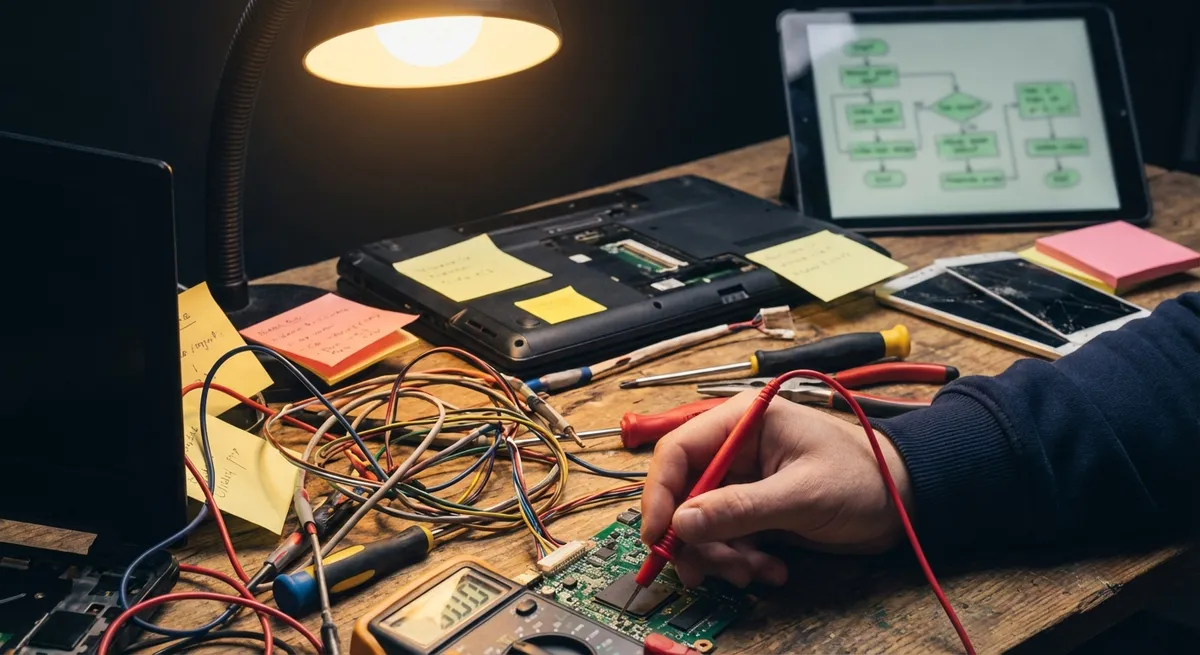
When a device misbehaves, most people start randomly tapping buttons, rebooting, or reinstalling apps. That wastes time and often hides the real problem. A more technical, structured approach helps you fix issues faster—and avoid making them worse. This guide walks through five core troubleshooting solutions you can apply to many devices: laptops, desktops, phones, tablets, and even smart TVs or routers.
Each section focuses on a specific type of fix, not a single product. Use these as repeatable tools in your own “support playbook.”
1. Baseline Health Check: Power, Peripherals, and Environment
Before you dive into settings and logs, confirm the fundamentals. Many “mysterious” failures are just power or connection issues disguised as something complex.
Start by verifying stable power. For laptops, confirm the power LED on the charger and the charging LED on the device. Try a different outlet and, if possible, another power adapter rated for the same voltage and wattage. On desktops, inspect the power cable, surge protector, and PSU switch (if present). For mobile devices, test with a known‑good cable and charger that meets the manufacturer’s specifications.
Next, isolate peripherals. Disconnect all non-essential USB devices, external drives, docks, printers, and HDMI/DisplayPort cables. A faulty USB device or hub can cause boot hangs, random disconnects, or input lag. Reboot the device with only the bare minimum: keyboard, mouse, display, and power. If stability improves, reintroduce peripherals one at a time to identify the culprit.
Check the physical environment. Overheating can cause throttling, shutdowns, and Wi‑Fi instability. Ensure vents are unobstructed; for laptops, avoid soft surfaces that block airflow. Listen for fans ramping to maximum under light load—this often indicates dust buildup or dried thermal paste. For networking gear, make sure routers and modems are not stacked in closed cabinets, which can trap heat and shorten component life.
Finally, rule out transient glitches. Perform a controlled power cycle: fully shut down, unplug power for 30–60 seconds, then reconnect and boot. For routers and modems, power them off for 30 seconds, then power back on and allow a full restart (2–5 minutes). This clears temporary faults in firmware, memory, and network sessions without changing configuration.
2. Software Integrity: Updates, Drivers, and Corrupted Files
Once hardware basics check out, move to the software layer. System instability, random application crashes, or missing features are often caused by outdated or corrupted software components.
Start with system updates. On Windows, use Settings → Windows Update and install all critical and recommended patches, then restart. On macOS, go to System Settings → General → Software Update. For Android and iOS, navigate to Settings → System / General → Software update. Apply firmware updates with caution: ensure stable power and avoid interrupting the process, as a failed firmware flash can brick the device.
Next, validate drivers and firmware, especially for graphics, network, storage, and chipset. On Windows, use Device Manager to check for error icons and verify driver versions. Update graphics drivers from the GPU vendor (NVIDIA, AMD, Intel) rather than random third‑party sites. For Wi‑Fi and wired NICs, use the system or motherboard manufacturer’s support page. On macOS and mobile OSes, most driver updates are bundled with system updates, but firmware updates for accessories (e.g., AirPods, routers, SSDs) may be separate via vendor tools or apps.
Check for corrupted system files. On Windows, open an elevated Command Prompt and run:
sfc /scannow
When SFC completes, follow with:
DISM /Online /Cleanup-Image /RestoreHealth
These tools repair system files and servicing components without wiping user data. On macOS, use Disk Utility → First Aid on the system volume to correct file system inconsistencies. For Linux, tools like fsck (from a live environment) or package verification (e.g., rpm --verify, debsums) can help detect tampered or corrupted files.
For individual applications, reinstall from a trusted source if they repeatedly crash or behave abnormally. Before reinstalling, export or back up configuration where possible. Avoid “registry cleaners” or “optimization” tools that promise miracles—they can cause more damage than they fix by deleting necessary entries or services.
3. Resource Diagnostics: CPU, RAM, Storage, and Network Load
Many “slow” or “laggy” behaviors are not random; they’re caused by specific resource bottlenecks. Measuring utilization lets you distinguish between normal load and underlying defects.
Start with CPU and memory. On Windows, open Task Manager and monitor the Performance and Processes tabs. On macOS, use Activity Monitor. Check whether CPU utilization is near 100% when idle or under light usage. If a single process is spiking CPU usage constantly (e.g., a browser tab, background sync agent, or update service), terminate it and observe if performance recovers. For memory, persistent high RAM utilization with heavy paging (disk activity) suggests you’re hitting swap frequently, which drastically slows the system.
Check storage health and capacity. Keeping a drive nearly full (often above 80–90%) reduces performance and can accelerate wear on SSDs. On Windows and macOS, check available space and clear large caches, temporary files, and unused applications. Use built‑in or vendor tools to read SMART data for HDDs and SSDs, looking for reallocated sectors, pending sectors, or media errors. Increasing SMART error counts or slow read/write benchmarks may indicate a failing drive requiring immediate backup and replacement.
Evaluate network usage. If streaming, downloads, or cloud sync feel sluggish, open your OS’s network monitor to see which processes are consuming bandwidth. Routers with QoS features may throttle certain devices or services. Log in to the router admin interface, verify connection status, and check for devices saturating the uplink. If possible, test wired vs. Wi‑Fi performance to differentiate between local wireless issues and ISP or upstream problems.
Correlate resource spikes with user actions. If performance drops every time an antivirus scan runs, reschedule scans for off‑hours. If virtual machines, containers, or heavy development tools (e.g., IDEs, emulators) consistently max out RAM, consider upgrading memory or adjusting resource allocations. The goal is to turn vague “it’s slow” complaints into measurable patterns you can act on.
4. Configuration Reset: Caches, Profiles, and Safe Modes
When an issue appears after configuration changes, new app installs, or OS upgrades, configuration resets and safe modes are powerful diagnostic tools. They allow you to test the system with minimal drivers and background processes.
Start with safe or diagnostic modes. On Windows, use Advanced Startup → Startup Settings → Safe Mode; on macOS, hold Shift during boot to enter Safe Mode. For Android, most devices support Safe Mode via a long‑press on “Power off” and confirming. Booting in these modes loads only core drivers and usually disables third‑party startup apps. If the problem disappears in Safe Mode, the root cause is almost certainly a third‑party driver, extension, or application.
Clear caches and temporary data. For browsers, clear cache and cookies, then test the same website or web app. For mobile apps acting strangely (e.g., not loading content, stuck in a loop), clear app cache and, if needed, app data via Settings → Apps. On Windows, delete temporary files using Storage Sense or Disk Cleanup. On macOS, log out and back in, or create a new user profile and test the same workflow to see if the issue is tied to a specific user configuration.
Reset network stacks when connectivity issues persist. On Windows, run:
netsh int ip reset
netsh winsock reset
ipconfig /flushdns
Then reboot. On macOS, remove and re-add Wi‑Fi services in Network settings, and consider deleting old network profiles. On mobile devices, use the “Reset Network Settings” option, understanding this will erase saved Wi‑Fi networks and Bluetooth pairings.
For more complex issues (e.g., recurring crashes, UI glitches, or permissions errors), test with a fresh user account. If the problem does not appear in a new profile, migrate data carefully rather than copying whole profile folders or systemwide tweak tools. This approach preserves a working baseline and avoids reintroducing broken configuration.
5. Data Protection and Last-Resort Recovery Paths
Technical troubleshooting is incomplete without a plan to protect data while you experiment. Any invasive operation—disk repairs, OS reinstalls, firmware updates—carries risk. Always secure data first, then proceed.
Begin by identifying critical data: documents, photos, databases, project folders, and configuration files that would be difficult or impossible to recreate. Back them up to at least one separate physical device (external HDD/SSD) and, ideally, a cloud provider. Use built‑in tools like File History or Backup and Restore (Windows), Time Machine (macOS), or platform‑specific backup options on mobile devices.
If the system still boots, even intermittently, prioritize copying data before deeper diagnostics. For failing drives, avoid long stress tests or multiple full‑disk scans until you have at least one verified copy of important files. Tools that attempt to “fix” a dying drive can push it over the edge. In severe cases, switch to read‑only imaging tools or professional data recovery services if the data value justifies the cost.
For OS‑level recovery, distinguish between repair and reset. On Windows, “Repair install” (in‑place upgrade) preserves files and most apps while reinstalling system components. “Reset this PC” offers options to keep or remove personal files but will typically remove desktop apps. On macOS, reinstalling via Recovery (Cmd+R on boot) refreshes system files while attempting to leave user data intact. Always read the prompts carefully so you understand what will and will not be erased.
Document your changes as you proceed: what commands you ran, which services you disabled, which settings you changed. This makes it easier to revert if a step worsens the problem and provides a clear record if you later escalate to professional support or warranty service. If you reach firmware flashing, motherboard BIOS updates, or hardware teardown, double‑check model numbers and vendor documentation. Incorrect firmware or static‑unsafe handling can cause permanent damage.
When you’ve exhausted logical, documented steps and the issue persists or worsens, stop and reassess. Hardware that repeatedly fails diagnostics, drives with escalating SMART errors, or devices overheating under normal load are strong indicators that repair or replacement—not endless software tweaking—is the correct technical solution.
Conclusion
Effective tech support is less about memorizing tricks and more about following a disciplined workflow. Verify power and connections, confirm software integrity, measure resource usage, isolate configuration issues with safe modes and resets, and protect data before risky changes. By applying these five troubleshooting solutions systematically, you turn device problems from guesswork into a structured investigation—and dramatically improve your chances of a clean, lasting fix.
Sources
- Microsoft Support – How to use System File Checker (SFC) to repair system files – Official guidance on SFC and related repair tools in Windows
- Apple – If your Mac runs slowly – Apple’s official performance troubleshooting steps for macOS devices
- NIST – Small Business Cybersecurity Corner: Data Backup – Best practices for protecting data and planning backups during troubleshooting
- US-CERT (CISA) – Securing Your Web Browser – Background on browser configuration, cache, and security considerations relevant to troubleshooting web issues
- Federal Communications Commission (FCC) – Home Network Tips – Official guidance on optimizing and diagnosing home networking and Wi‑Fi problems
Key Takeaway
The most important thing to remember from this article is that this information can change how you think about Tech Support.