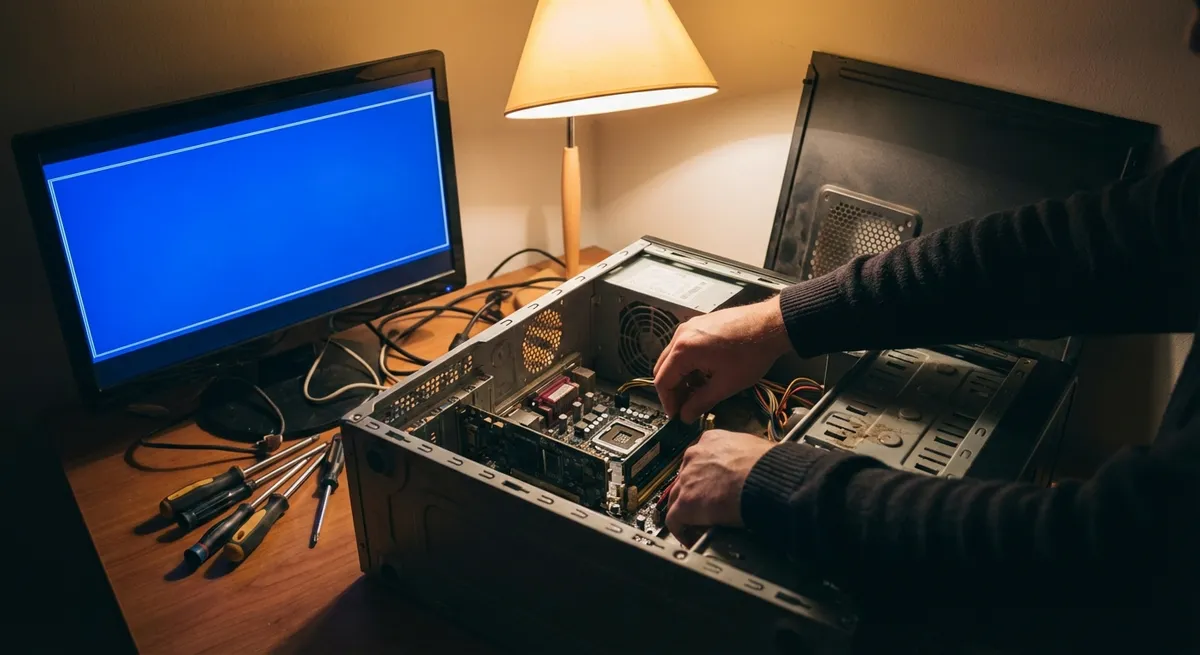
Modern PCs can fail in subtle ways—random reboots, brief freezes, or apps that vanish without clear error messages. These “quiet crashes” often point to deeper problems in hardware, drivers, or power management rather than a single obvious fault. This guide breaks down five technical fix paths you can work through systematically to stabilize an unreliable Windows computer.
1. Verify Hardware Health: RAM, Storage, and Temperatures
Before changing software, confirm the underlying hardware is behaving correctly. Many “software-looking” problems are rooted in failing memory, overheating components, or a deteriorating SSD/HDD.
Run through these checks:
- Memory (RAM) diagnostics
- In Windows, open Windows Memory Diagnostic:
- Press Win + R, type
mdsched.exe, press Enter. - Select Restart now and check for problems.
- Allow the tool to complete; note any reported errors.
- If errors appear, test again with only one stick of RAM at a time to isolate a bad module or slot.
- Storage integrity
- Open Command Prompt (Admin) and run:
chkdsk C: /scan
- For SMART/health data, use a vendor tool (e.g., Samsung Magician, Crucial Storage Executive) or a utility like CrystalDiskInfo.
- Look for Reallocated Sectors, Pending Sectors, or Uncorrectable Errors; rising counts suggest a drive approaching failure.
- Temperature monitoring
- Install a hardware monitor (e.g., HWMonitor, HWiNFO, or your motherboard vendor utility).
- Stress the system lightly (open multiple browser tabs, maybe a game or benchmark) and watch:
- CPU temps typically should stay under ~85–90°C under load for most consumer CPUs.
- GPU temps should generally remain under ~80–85°C under sustained load, depending on model.
- If temperatures spike rapidly, check:
- Dust buildup in fans and heatsinks
- Proper fan operation in BIOS/UEFI
- Thermal paste age or improper cooler mounting
- Power delivery sanity check
- Confirm the PSU wattage is adequate for your GPU/CPU combination using the manufacturer’s PSU calculator (e.g., from NVIDIA, AMD, or PSU vendors).
- Inspect power cables for loose connectors, especially GPU 8-pin/12-pin and 24-pin motherboard connectors.
If any hardware test shows errors or temperatures well out of spec, resolve that first (replace RAM, improve cooling, or back up and replace the failing drive) before chasing software-level solutions.
2. Stabilize the OS Core: System Files, Updates, and Drivers
Once hardware checks out, validate the integrity of Windows system files and your driver stack. Corrupted files or unstable drivers can cause random crashes even on healthy hardware.
Follow this sequence:
- System File Checker (SFC)
- Open Command Prompt (Admin).
- DISM health restore (if SFC reports errors it cannot fix)
- Windows Update
- Go to Settings → Windows Update and apply:
- Cumulative updates
- Security patches
- Optional driver updates only if they are from Microsoft or the device OEM (e.g., Intel, AMD).
- Chipset and storage drivers from OEM
- Visit your motherboard or laptop manufacturer’s support page.
- Download and install:
- Latest chipset drivers (Intel/AMD)
- SATA/NVMe storage drivers if recommended
- Any power management or platform drivers (Intel ME, AMD PSP, etc.).
- Reboot after each major driver bundle.
- GPU drivers (clean install)
- For NVIDIA/AMD/Intel GPUs, use the official driver from the vendor site.
- During install, choose Clean installation (or use DDU – Display Driver Uninstaller in Safe Mode if experiencing display-related crashes).
- Avoid beta drivers unless you need them for specific issues.
Run:
``cmd sfc /scannow ` 3. Wait for completion; if SFC reports it found and repaired files, reboot and observe if stability improves.
In Command Prompt (Admin):
`cmd DISM /Online /Cleanup-Image /RestoreHealth ` 2. Let it finish, then run sfc /scannow again. 3. Reboot.
This combination (SFC, DISM, and OEM-grade drivers) often resolves silent crashes caused by low-level driver conflicts and corrupted system binaries.
3. Isolate Faulty Applications and Background Services
Third-party applications and background services can destabilize an otherwise healthy system. To detect them, reduce the system to a minimal software set and reintroduce complexity gradually.
Use this structured approach:
- Clean boot configuration
- Press Win + R, type msconfig
, press Enter.
Under Services:
- Check Hide all Microsoft services. - Click Disable all. 3. Under Startup, click Open Task Manager and Disable all non-essential startup items. 4. Reboot and run your typical workload.
If crashes disappear in a clean boot state, the culprit is likely a third-party service or startup item. Re-enable them in small groups to identify which reintroduction triggers instability.
- Event Viewer analysis
- Press Win + X → Event Viewer.
- Navigate to Windows Logs → System and Application.
- Filter by Critical and Error.
- Common destabilizers to test removing
- Third-party antivirus/firewall suites (temporarily disable or uninstall; rely on Windows Defender for testing).
- RGB control software, overlay tools, and performance “optimizers.”
- Outdated VPN clients or network filter drivers.
- Old versions of hardware utilities (e.g., vendor fan control tools).
Note recurring entries around the time of each crash:
- Faulting application name - Faulting module (DLL or driver) - Error codes (e.g., 0xc0000005 for access violations) 5. Correlate these with known software (e.g., backup tools, overlay apps, antivirus, hardware monitoring utilities).
Once you’ve identified a problematic application or service, remove or update it. In some cases, an alternative tool (e.g., a more recent VPN client or motherboard utility) resolves the issue while preserving functionality.
4. Tune Power, BIOS/UEFI, and Overclocking Settings
Unstable firmware, aggressive power management, and borderline overclocks can cause intermittent, hard-to-reproduce crashes. Align your firmware and power settings with stability in mind.
Perform these steps carefully:
- BIOS/UEFI update (if needed)
- On your motherboard or laptop vendor site, check for firmware updates with release notes that mention:
- System stability
- CPU compatibility
- Memory compatibility (XMP/EXPO fixes)
- If your system is unstable during firmware updates, consider using a USB flash drive and the built-in EZ Flash/Q-Flash or equivalent tool from the BIOS screen.
- Do not interrupt power during the update.
- Revert to baseline settings
- Enter BIOS/UEFI (usually by pressing Del, F2, or F10 at boot).
- Load Optimized Defaults or Setup Defaults.
- Disable any user-applied CPU/GPU overclocks, including:
- XMP/EXPO memory profiles (test both enabled and disabled; some kits are unstable at rated speed).
- Manual voltage tweaks or BCLK adjustments.
- Save and reboot.
- Windows power plan adjustments
- Go to Control Panel → Power Options:
- For desktops: use Balanced or High performance.
- For laptops: start with Balanced; verify vendor-specific power plans if provided.
- In Change plan settings → Change advanced power settings:
- Disable PCI Express → Link State Power Management for test purposes.
- Set Processor power management → Minimum processor state to 5–10%, Maximum to 100%.
- Ensure Hard disk → Turn off hard disk after is not overly aggressive (e.g., 20+ minutes).
- Stress stability testing
- After reverting to defaults, run controlled stress tests:
- CPU/RAM: Prime95, AIDA64, or OCCT (monitor temps).
- GPU: 3DMark, Unigine, or a game you know stresses the GPU.
- If the system survives several hours of mixed load without crashing, you can cautiously reintroduce XMP/EXPO or mild, vendor-recommended settings.
In many borderline systems, walking back from aggressive memory timings or power-saving states is enough to stop random reboots and hangs.
5. Capture Crashes with Logs and Minidumps for Deeper Diagnosis
When crashes persist, you need detailed data. Windows can generate minidump files and more verbose logs that help pinpoint kernel-mode drivers or hardware issues.
Configure and analyze as follows:
- Ensure minidumps are enabled
- Press Win + R, type sysdm.cpl
, press Enter. - Go to Advanced → Startup and Recovery → Settings.
- Under Write debugging information, choose Small memory dump (256 KB).
- Confirm the dump directory is %SystemRoot%\Minidump
. - Click OK and reboot once to make sure settings apply.
- When a BSOD occurs
- Note:
- The stop code (e.g., IRQL_NOT_LESS_OR_EQUAL
,WHEA_UNCORRECTABLE_ERROR). - Any driver name shown (e.g., nvlddmkm.sys
,storport.sys). - After reboot, navigate to C:\Windows\Minidump
and confirm.dmpfiles exist. - Basic dump analysis with WinDbg (Preview)
- Install WinDbg (Preview) from the Microsoft Store.
- Open WinDbg, choose File → Start debugging → Open dump file, and load a recent .dmp
. - WHEA (hardware error) interpretation
- If you see WHEA_UNCORRECTABLE_ERROR or WHEA logs in Event Viewer:
- It often points to hardware: CPU, RAM, motherboard, PCIe, or PSU.
- Check Event Viewer → Windows Logs → System, filter for WHEA-Logger events.
- Note whether errors are associated with a particular processor core, PCIe device, or memory controller.
- Testing with known-good RAM or PSU if available.
- Contacting the hardware vendor with dump files and WHEA logs.
- Backing up data and preparing for potential hardware RMA or replacement.
In the command bar, type:
` !analyze -v ``
Look at:
- MODULE_NAME and IMAGE_NAME for likely offending driver. - BugCheck description and STACK_TEXT to see call chains. 5. If the same driver name appears across multiple dumps, focus on updating/removing that component or related hardware.
At this stage, if logs repeatedly implicate the same hardware component or driver and you’ve already updated drivers and firmware, consider:
Conclusion
Random reboots and silent crashes are rarely solved by a single “magic” fix. The most reliable path is a structured workflow: verify hardware health, repair the OS and drivers, strip away unstable software, normalize firmware and power settings, then capture detailed crash data to find any remaining root cause. Working through these five technical steps narrows the problem space quickly and gives you actionable evidence—whether you’re replacing faulty RAM, uninstalling a misbehaving driver, or sending a clear, log-backed support request to your hardware vendor.
Sources
- [Microsoft Support – Use the System File Checker tool to repair missing or corrupted system files](https://support.microsoft.com/en-us/topic/use-the-system-file-checker-tool-to-repair-missing-or-corrupted-system-files-79aa86cb-ca52-166a-92a3-966e85d4094e) - Official guidance on SFC and system file repair
- [Microsoft Learn – Windows Debugging Tools (WinDbg)](https://learn.microsoft.com/en-us/windows-hardware/drivers/debugger/debugger-download-tools) - Documentation for installing and using WinDbg to analyze crash dumps
- [Intel – Processor Temperature Guidelines](https://www.intel.com/content/www/us/en/gaming/resources/cpu-cooling.html) - Reference information on typical safe temperature ranges for Intel CPUs and cooling considerations
- [NVIDIA – NVIDIA Driver Downloads](https://www.nvidia.com/Download/index.aspx) - Official GPU driver source and best practices for driver updates
- [MemTest86 – Memory Diagnostic Tool](https://www.memtest86.com/technical.htm) - Technical overview of RAM testing methodology and memory error interpretation
Key Takeaway
The most important thing to remember from this article is that this information can change how you think about Computer Problems.