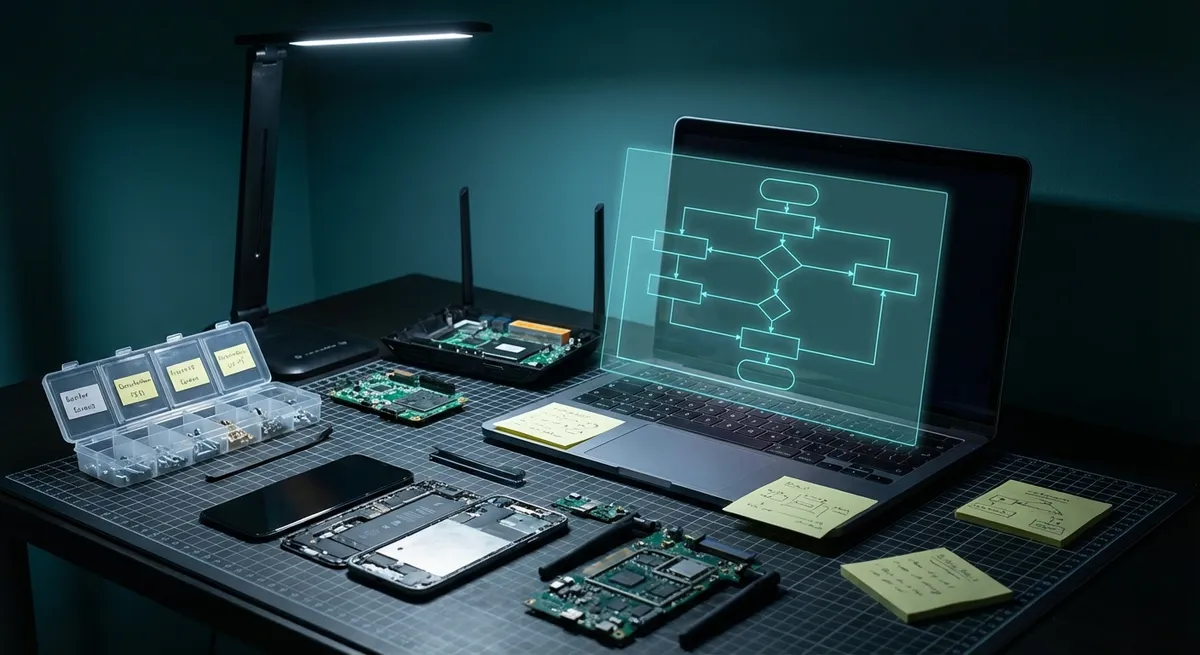
For most users, “tech support” starts when a device suddenly refuses to cooperate: a laptop that won’t connect to Wi‑Fi, a phone that drains its battery by noon, a PC that crawls when you open a browser. This guide walks through five core troubleshooting approaches you can apply across phones, tablets, laptops, and desktops. Each fix is designed to be systematic: verify, isolate, and resolve—without jumping straight to a factory reset.
1. When Your Device Feels Slow: Target CPU, RAM, and Storage
Performance issues are rarely random. They usually come from overloaded CPU, exhausted RAM, or storage that’s nearly full or fragmented with junk files.
Start by inspecting resource usage:
- Windows: Press
Ctrl + Shift + Esc→ Task Manager → “Processes” & “Performance” tabs. - macOS: Open Activity Monitor (Applications → Utilities).
- Android: Settings → Developer options → Running services (or use a reputable system monitor app).
- iOS/iPadOS: Settings → General → iPhone/iPad Storage and Battery → Battery usage.
Technical steps:
- Sort by CPU and memory usage and identify processes that spike to the top and stay there.
- If it’s a browser, check the number of open tabs and installed extensions.
- If it’s an app you don’t recognize, search its name—malware and adware often show up this way.
- Check free storage and aim to keep at least 15–20% of total capacity free.
- Delete large unused apps, downloaded media, and duplicate videos/photos.
- Use built‑in tools like Storage Sense (Windows), Manage Storage (macOS/iOS), or Files cleanup (Android/ChromeOS).
- Update OS and drivers/firmware, especially GPU, chipset, and storage drivers. Poorly optimized or outdated drivers can cause CPU spikes and UI lag.
Terminate or uninstall problematic apps:
- On desktop OSes, use Task Manager/Activity Monitor to end the process, then uninstall via Control Panel (Windows) or move to Trash (macOS). - On mobile, long‑press the app → Uninstall/Remove app.
Disable auto‑start items that load at boot:
- Windows: Task Manager → “Startup” tab → Disable non‑essential entries. - macOS: System Settings → General → Login Items → Disable/Remove unneeded apps.
If performance improves in Safe Mode (Windows/macOS) or Safe Mode on Android, you’ve confirmed a third‑party app or driver is the culprit—re‑enable items in batches to pinpoint the offender.
2. Network and Wi‑Fi Failures: Isolate Layers from Device to Router
Connectivity problems can be misleading: your device says “No Internet,” but the real issue could be DNS, the router, or even your ISP. Work top‑down, from the device outward.
Technical isolation steps:
Verify the network layer:
- Try a different device on the same Wi‑Fi. If both fail, the issue is likely router/ISP, not the individual device. - Connect the affected device to mobile hotspot or another known‑good network. If it works there, your device is fine.
Check IP and DNS configuration:
- Windows: - Run ipconfig /all in Command Prompt to verify IP, gateway, and DNS. - Run ipconfig /flushdns to clear local DNS cache. - macOS: - Use ifconfig and networksetup -getdnsservers Wi-Fi in Terminal. - Renew DHCP lease in Network settings. - For mobile, simply toggle Airplane Mode ON → OFF to reset network stacks.
Test connectivity at each step:
- ping 192.168.1.1 (or your router’s IP): tests local network. - ping 8.8.8.8 (Google DNS): tests external reachability. - ping google.com: tests DNS resolution.
Reset or reconfigure Wi‑Fi:
- Forget the Wi‑Fi network on the device and re‑join with the correct password and security type. - On the router, verify: - SSID is broadcasting. - Security mode (WPA2/WPA3) is compatible with older devices. - DHCP is enabled.
Perform a staged power cycle:
- Power off devices → power off router → power off modem. - Wait 30–60 seconds. - Power on modem → wait for full sync → power on router → finally power on devices.
If problems persist only on one device after all this, consider driver/firmware updates (Wi‑Fi adapter or OS) and scan for VPN or security software that may be intercepting traffic and causing conflicts.
3. Battery Drain and Overheating: Profile Power and Thermal Load
Unusual battery drain or persistent heat almost always maps to background tasks, radio use (Wi‑Fi/LTE/5G/Bluetooth), or throttling due to thermal load.
Technical profiling steps:
Inspect power usage by app/process:
- Android: Settings → Battery → Battery usage; drill into top consumers. - iOS: Settings → Battery → “Last 24 Hours / Last 10 Days”. - Windows: Settings → System → Power & battery → Battery usage by app. - macOS: Activity Monitor → “Energy” tab.
Eliminate runaway processes:
- Force stop or uninstall apps that remain at the top of battery or CPU usage even when not actively used. - Watch for messaging, social, or poorly coded games doing constant network calls or location checks.
Adjust radio and sync behavior:
- Disable unused radios: Bluetooth, Wi‑Fi scanning, mobile hotspot, NFC. - Review per‑app permissions for Background App Refresh, location (prefer “While Using” over “Always”), and push notifications.
Thermal management:
- Avoid using devices on insulating surfaces (beds, carpets) that block vents. - Check fans and vents on laptops/desktops for dust; use compressed air carefully to clear obstructions. - On mobile, remove thick or heat‑trapping cases if the device frequently overheats.
Power plan calibration:
- On laptops, adjust power plan to Balanced or Battery Saver instead of High Performance when mobile. - Enable automatic screen brightness and reduce screen timeout.
Persistent overheating or battery drain after OS updates can indicate a post-update indexing or migration process; allow the device to remain plugged in and idle for a few hours to complete background tasks. If the issue remains after a day or two, investigate app conflicts and consider a clean reinstall of problematic apps.
4. Display, Input, and Peripheral Failures: Verify Path from Port to Driver
Black screens, flickering monitors, unresponsive touchscreens, or failing USB devices often trace to cabling, ports, or driver stack corruption rather than the display or peripheral itself.
Systematic checks:
Physical layer first:
- Test with a different cable (HDMI, DisplayPort, USB-C, Lightning, etc.). - Try a different port on the same device and, if possible, a different display or peripheral to confirm which side is at fault. - Inspect ports for bent pins, debris, or looseness.
Display configuration:
- Windows: Win + P to toggle between PC screen only / Duplicate / Extend / Second screen only. - macOS: System Settings → Displays → verify detection and arrangement; use “Detect Displays” if available.
Driver validation and rollback:
- GPU/Display: - Windows: Device Manager → Display adapters → Update/rollback driver. - Use vendor tools (NVIDIA/AMD/Intel) for clean driver installs. - Input devices: - Reinstall touchpad/mouse/keyboard drivers; on laptops, vendor‑specific utilities may control gestures and advanced functions.
Touchscreen diagnostics (mobile):
- Check for screen protectors causing dead zones; test without them. - Use built‑in touch diagnostics if available (some Android OEMs and Windows tablets include hardware test menus). - Boot into Safe Mode—if touch works normally there, a third‑party app is interfering.
USB device troubleshooting:
- Try a different USB port and another computer to isolate device vs. host. - On Windows, in Device Manager, uninstall problematic USB controllers/hubs and Scan for hardware changes so the OS reloads default drivers. - Avoid passive hubs for high‑draw devices (external HDDs); use powered hubs where required.
If a device intermittently disconnects under load (e.g., external GPU, high‑res webcam), suspect power delivery or bandwidth limitations—use higher‑spec cables, ports with better power output, and avoid chaining multiple adapters.
5. Software Corruption, Crashes, and Boot Problems: Validate System Integrity
Frequent app crashes, random reboots, or OS boot loops usually come from corrupted files, failing storage, bad updates, or problematic drivers. The key is to verify system integrity before wiping the device.
Technical process:
Check storage health:
- Windows: - Run chkdsk C: /f /r from an elevated Command Prompt (may require reboot). - Use wmic diskdrive get status or vendor SSD tools to check drive health. - macOS: Disk Utility → First Aid on the system volume. - For SSDs, use the manufacturer’s diagnostic utility when available.
Run system file integrity checks:
- Windows: - sfc /scannow to repair system files. - DISM /Online /Cleanup-Image /RestoreHealth to fix component store corruption. - Linux: Use distro‑specific package verification (rpm --verify, debsums, etc.) and filesystem checks (fsck) from a live environment.
Isolate via Safe Mode / Recovery:
- Boot into Safe Mode (Windows/macOS/Android). - If instability disappears, a startup app, driver, or extension is likely responsible. - Disable or uninstall recently added drivers/software and retest.
Rollback problematic updates or drivers:
- Windows: - Settings → Windows Update → Update history → Uninstall updates. - Device Manager → Driver → Roll Back Driver (if available). - macOS/iOS/Android: Often require updating forward or restoring from backup; vendor tools (iTunes/Finder for iOS, OEM tools for Android) can reinstall firmware.
Structured backup and reset plan:
- Before any reset, back up personal data using OS‑native tools (File History, Time Machine, cloud backups) or full‑disk image solutions. - For persistent, untraceable corruption or malware, perform a clean OS reinstall from a known‑good image or official installation media rather than an unknown recovery source.
Consistent crashes under heavy load can also indicate hardware faults—failing RAM, overheating CPU/GPU, or bad power supply. Use hardware diagnostics (memtest, vendor hardware tests, built‑in BIOS/UEFI diagnostics) to verify components before assuming software is solely responsible.
Conclusion
Most “mystery glitches” on everyday devices fall into a few technical patterns: resource exhaustion, network misconfiguration, power and thermal imbalance, I/O or driver conflict, and underlying file or hardware corruption. By approaching each problem with a structured workflow—observe, isolate layers, apply targeted fixes, then validate—you can resolve a large percentage of issues without guesswork or immediate escalation to a full reset.
Save or share this checklist so the next time a device misbehaves, you can walk through these five fix paths step by step and zero in on the true root cause instead of chasing symptoms.
Sources
- [Microsoft Learn – Troubleshoot performance issues in Windows](https://learn.microsoft.com/en-us/troubleshoot/windows-client/performance/windows-performance-recording) - Technical guidance on analyzing and improving Windows performance
- [Apple Support – If your iPhone, iPad, or iPod touch won’t connect to a Wi‑Fi network](https://support.apple.com/en-us/HT204051) - Official network troubleshooting steps for iOS and iPadOS
- [Google Android Help – Fix Android system issues](https://support.google.com/android/answer/6088915) - Official Android guidelines for crashes, freezing, and performance problems
- [US-CERT (CISA) – Securing Your Web Browser & Operating System](https://www.cisa.gov/news-events/news/securing-your-web-browser-and-operating-system) - Covers updates, configuration, and stability/security best practices
- [NVIDIA Support – Clean Install of NVIDIA Drivers](https://nvidia.custhelp.com/app/answers/detail/a_id/5201) - Example of vendor-recommended driver installation practices for display issues
Key Takeaway
The most important thing to remember from this article is that this information can change how you think about Tech Support.