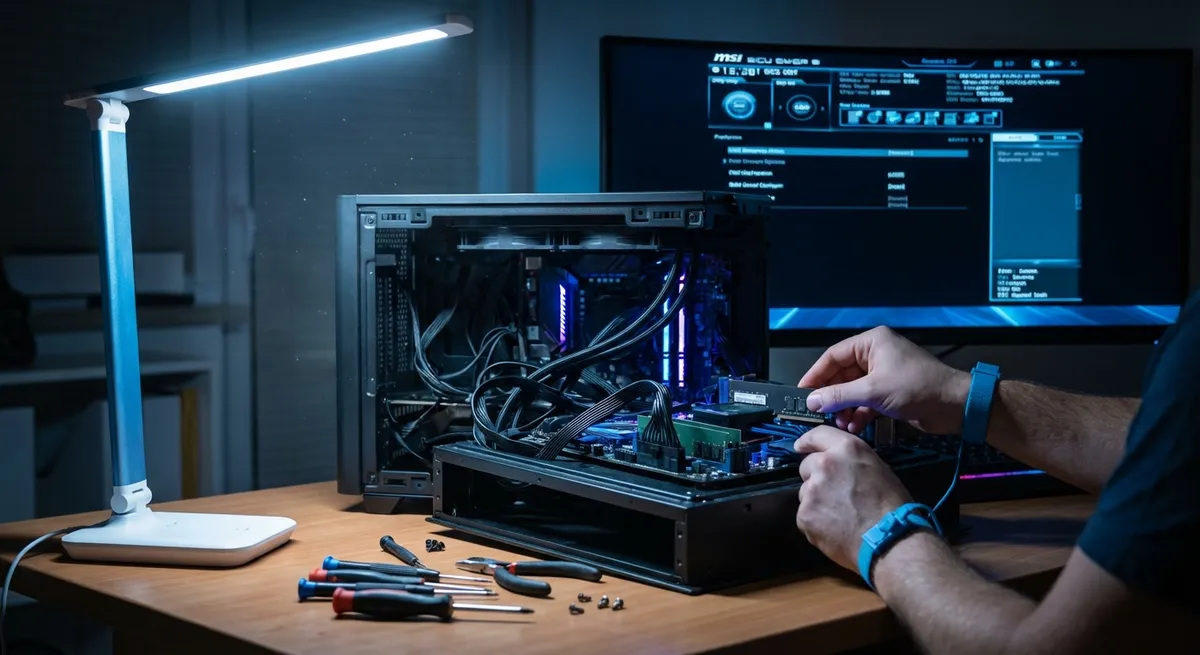
When a computer starts freezing, lagging, or throwing random errors, most people see “a broken PC.” Technically, though, what you’re seeing is a stack of interdependent systems (hardware, drivers, OS, apps) where one layer is misbehaving and cascading into the rest. This article walks through five practical, technical fixes you can apply to most Windows computers to restore stability, improve performance, and catch issues before they corrupt data.
Each section includes what the symptom looks like, why it happens, and step‑by‑step actions you can follow.
1. System Overload: CPU, RAM, and Disk at 100%
When your system feels “slow all the time,” taskbar clicks lag, and app windows take ages to open, you’re often dealing with resource saturation: CPU, memory (RAM), or disk throughput pinned near 100%.
On Windows, press Ctrl + Shift + Esc to open Task Manager, then:
- Go to the Processes tab.
- Sort by CPU, Memory, and Disk usage.
- Identify processes consistently consuming a high percentage for more than ~10–20 seconds.
Technical steps to stabilize:
- Terminate misbehaving processes
- If a non-essential process (e.g., a browser tab or third-party app) is stuck at high CPU, right-click it ⇒ End task.
- For repeated offenders, reinstall or update that specific application.
- Check for runaway background services
- Go to the Details tab in Task Manager, right-click the process ⇒ Open file location to identify the binary.
- If it’s unknown or suspicious, run a full antivirus/antimalware scan (see Section 4).
- Reduce startup load
- In Task Manager, go to Startup apps.
- Disable non-critical entries (cloud drives, chat tools, “updaters”).
- Reboot and re-check performance after login.
- Check for memory pressure
- If Memory is consistently at 80–100% with modest app usage, your system may be paging heavily.
- Confirm by checking the Performance tab ⇒ Memory. High In use (Compressed) and large page file activity point to RAM shortage.
- Close heavy apps (browser tabs with media, VMs, design tools). For a durable fix, consider a RAM upgrade.
- Investigate disk bottlenecks
- If Disk is stuck near 100% on HDDs, open Resource Monitor (search “Resource Monitor” in Start) ⇒ Disk.
- Sort by Total (B/sec) or Disk Queue Length to see which process is hammering the disk.
- Common culprits: Windows Search indexing, antivirus scans, Windows Update, cloud sync clients. Schedule heavy workloads for idle hours.
If performance improves in Safe Mode (hold Shift while clicking Restart ⇒ Troubleshoot ⇒ Advanced options ⇒ Startup Settings ⇒ Restart ⇒ select Safe Mode with Networking), you likely have a third‑party driver or startup app causing the overload.
2. Application Crashes and Blue Screens: Driver and OS Integrity
Crashes and Blue Screen of Death (BSOD) events typically point to driver faults, bad memory, file system corruption, or low‑level OS issues, not just “bad luck.”
Stabilize drivers and Windows core files
Update critical drivers from safe sources
- Prefer OEM (original equipment manufacturer) sites: Dell, HP, Lenovo, ASUS, etc. - Update in this order: - Chipset drivers (affect PCI, USB, power management). - Graphics driver (NVIDIA, AMD, Intel). - Network adapter (Wi‑Fi / Ethernet). - Avoid random “driver updater” tools; they often install incorrect or unstable versions.
Check Windows Update status
- Go to Settings ⇒ Windows Update. - Install pending quality updates and driver updates (especially for hardware you know you’re using).
Run System File Checker (SFC) and DISM
Open Command Prompt (Admin) or Windows Terminal (Admin) and run:
sfc /scannow
Wait for it to reach 100%. If it finds and fixes integrity violations, restart.
Then run:
DISM /Online /Cleanup-Image /RestoreHealth
DISM uses Windows Update (or a specified source) to repair the component store used by SFC.
Analyze BSOD events
- Note the stop code when a BSOD appears (e.g.,
IRQL_NOT_LESS_OR_EQUAL,VIDEO_TDR_FAILURE).
After reboot, open Event Viewer:
- Press Win + X ⇒ Event Viewer. - Navigate to Windows Logs ⇒ System. - Filter by Critical and Error events around the crash time.
For deeper analysis, you can inspect the minidump:
- Dumps are in C:\Windows\Minidump. - Tools like WinDbg (from Microsoft Store) can load these for detailed driver/module analysis.
If BSODs correlate with a specific action (e.g., gaming, attaching USB devices), that’s a strong signal the relevant driver or hardware is at fault.
3. Storage Errors, Corruption, and Vanishing Drives
File corruption, missing files, or drives that appear/disappear intermittently often indicate storage layer issues—anything from a flaky cable to a failing SSD/HDD.
Validate physical connections
- For desktops:
- Power down, switch off PSU, discharge by holding power for ~10 seconds.
- Reseat SATA or NVMe drives:
- For SATA: unplug and firmly reconnect data and power cables.
- For NVMe: unscrew and reseat the M.2 module.
- For laptops:
- Check that the drive is firmly seated (if you have service access). Refer to the manufacturer’s service manual.
Run file system and disk checks
Check disk health with SMART data
- For basic info, open Command Prompt and run:
wmic diskdrive get status
“OK” is good but not exhaustive.
- For detailed SMART data, use vendor tools (e.g., Samsung Magician, Crucial Storage Executive, Western Digital Dashboard) or third‑party utilities from reputable vendors.
Run CHKDSK on problematic volumes
- Open Command Prompt (Admin) and run:
chkdsk C: /f /r
- It may schedule a scan at next reboot.
/ffixes logical errors;/rchecks for bad sectors and attempts recovery. - Expect this to take from minutes to hours depending on drive size and health.
Monitor Event Viewer for disk warnings
- In Event Viewer, go to Windows Logs ⇒ System. - Filter by Source = Disk, Ntfs, or StorAHCI. - Repeated I/O errors, bad block messages, or timeouts are strong indicators of imminent disk failure.
If SMART shows pending sectors, reallocated sectors, or a rapidly rising error count, back up data immediately and plan to replace the drive.
4. Network Instability and Connectivity Failures
Slow downloads, intermittent disconnections, or “No Internet” messages can be rooted in anything from Wi‑Fi interference to misconfigured drivers or DNS.
Localize the fault: device vs network
- Test another device on the same network (phone, tablet).
- If both fail: suspect router/ISP.
- If only the PC fails: focus on the PC’s NIC (network interface card) or OS config.
Check basic IP configuration
Open Command Prompt and run:
Verify:
- The active adapter has a valid IPv4 address (not
169.254.x.x). - It has a default gateway and DNS server listed.
Reset network stack in Windows
Open Command Prompt (Admin) and run:
netsh winsock reset
netsh int ip reset
ipconfig /flushdns
ipconfig /registerdns
- Restart the computer and test connectivity again.
Update and reconfigure the adapter
Update NIC drivers
- Open Device Manager ⇒ Network adapters. - Right-click your adapter ⇒ Update driver. - Prefer OEM drivers from your laptop/desktop manufacturer’s support site or Intel/Realtek/Qualcomm directly, not generic third-party tools.
Toggle power management settings
- In Device Manager, right-click the network adapter ⇒ Properties ⇒ Power Management. - Uncheck Allow the computer to turn off this device to save power. - This prevents aggressive power saving from dropping connections.
Wi‑Fi optimization
- Move closer to the router and retest. - Change router Wi‑Fi channel to reduce interference (via router admin page). - Prefer 5 GHz or 6 GHz bands for less interference if both router and NIC support it.
If connectivity issues persist across multiple devices, check your router firmware version and contact your ISP to rule out line or service problems.
5. Malware, Unwanted Software, and OS Pollution
Unexplained pop‑ups, browser redirects, mystery apps, or resource spikes often point to malware or potentially unwanted programs (PUPs) that have modified startup entries, browser settings, or registry values.
Run layered malware scans
Update and run Microsoft Defender
- Go to Settings ⇒ Update & Security ⇒ Windows Security ⇒ Virus & threat protection. - Ensure definitions are up to date. - Run a Full scan or Microsoft Defender Offline scan for rootkits (Offline scan reboots and scans before Windows fully loads).
Supplement with a reputable on‑demand scanner
- Tools like Malwarebytes Free can catch adware, PUPs, and other nuisances. - After scanning, review detected items and quarantine/remove as appropriate.
Clean startup and scheduled tasks
Startup entries
- Open Task Manager ⇒ Startup apps. - Disable unknown or suspicious entries (especially “Unknown publisher” or random names).
Scheduled tasks
- Press Win + R, type taskschd.msc, press Enter. - Under Task Scheduler Library, inspect tasks for unfamiliar entries that run at logon or on a schedule. - Right-click suspicious tasks ⇒ Disable (or delete if confirmed malicious or unwanted).
Hardening browser and OS configuration
- Reset your main browser:
- In Chrome/Edge: Settings ⇒ Reset settings ⇒ Restore settings to their original defaults.
- Remove rogue extensions: disable or uninstall anything you do not recognize or use.
- Apply OS hardening basics:
- Keep Windows Update enabled.
- Uninstall unneeded software via Settings ⇒ Apps (toolbar bundles, “optimizer” utilities, etc.).
- Avoid running as a local admin for daily tasks; use a standard user account where feasible.
If malware keeps reappearing after cleaning, you may be dealing with a persistent loader or rootkit; backing up data and performing a clean reinstall of Windows from a trusted image is often the most reliable remediation.
Conclusion
Most “mysterious” computer problems map back to a handful of technical domains: resource saturation, driver/OS integrity, storage reliability, network configuration, and software hygiene. By approaching issues methodically—monitoring resource usage, validating drivers, checking storage health, localizing network faults, and eliminating unwanted software—you can often restore stability without guesswork or unnecessary hardware replacements.
The five solution paths in this guide are designed to be repeatable: every time your PC starts misbehaving, you can walk through these same diagnostics to isolate which layer is failing and correct it before it turns into data loss or complete system downtime.
Sources
- [Microsoft Learn: Troubleshoot blue screen errors](https://support.microsoft.com/en-us/windows/troubleshoot-blue-screen-errors-in-windows-10-ec362d14-41af-41cf-801e-4b95e3b4d085) - Official Microsoft guidance on diagnosing and resolving BSOD issues
- [Microsoft Learn: Use the System File Checker tool to repair missing or corrupted system files](https://support.microsoft.com/en-us/topic/use-the-system-file-checker-tool-to-repair-missing-or-corrupted-system-files-79aa86cb-ca52-166a-92a3-966e85d4094e) - Documentation for SFC and related repair steps
- [NIST Cybersecurity Framework](https://www.nist.gov/cyberframework) - Best-practice principles for securing systems and mitigating malware and configuration risks
- [Intel: How to Troubleshoot Network Connection Issues](https://www.intel.com/content/www/us/en/support/articles/000057388/network-and-i-o/wireless.html) - Vendor-level guidance for diagnosing network adapter and connectivity problems
- [Seagate: How to Use CHKDSK to Fix File System Errors](https://www.seagate.com/support/kb/how-to-use-chkdsk-fix-file-system-errors-003078en/) - Practical instructions for running CHKDSK and interpreting disk-related issues
Key Takeaway
The most important thing to remember from this article is that this information can change how you think about Computer Problems.