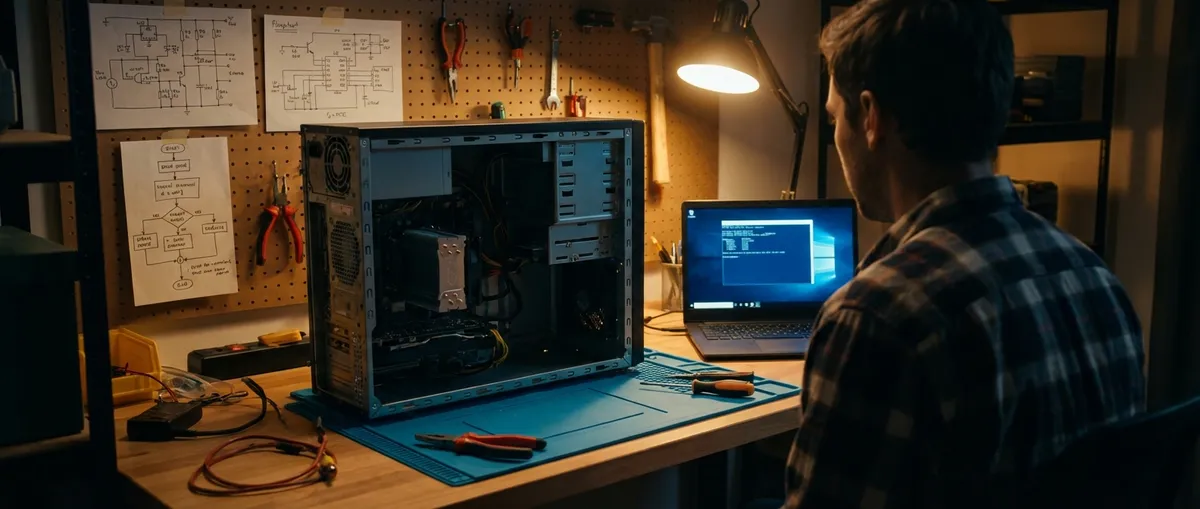
Modern PCs are incredibly capable, but when they fail, they often fail in frustratingly opaque ways: cryptic errors, random freezes, or a system that simply refuses to boot. Instead of randomly trying fixes, you’ll get better, faster results by following a structured, technical workflow. This guide walks through five core troubleshooting solutions that address the majority of everyday computer problems—slow performance, boot failures, crashes, network issues, and overheating—using repeatable, low-risk steps.
1. Baseline Health Check: Power, Peripherals, and Firmware
Before diving into operating system tweaks or drivers, confirm your hardware foundation is solid. Many “mysterious” software issues are actually triggered by unstable power, loose connections, or outdated firmware.
Start by shutting down the PC completely and physically inspecting connections. Ensure the power cable is firmly seated at both ends, the PSU switch (if present) is on, and any power strip or UPS shows normal status. For desktops, reseat the power connectors to the motherboard and GPU if you’re comfortable opening the case, and visually check for damaged or swollen capacitors on the motherboard and power supply.
Disconnect all nonessential peripherals: unplug external drives, printers, docks, and USB hubs, leaving only keyboard, mouse, and monitor. Attempt a clean boot in this minimal configuration; if the system becomes more stable, you’ve likely isolated a faulty peripheral or device-specific driver. Next, enter the BIOS/UEFI firmware (commonly via Delete, F2, Esc, or F12 on startup). Verify that RAM and storage devices are detected correctly and that CPU temperature is within safe range at idle (typically under ~50°C in BIOS for most systems). While there, check if a stable BIOS/UEFI update is available on the manufacturer’s site; firmware updates often fix compatibility and stability problems, but always follow vendor instructions closely to avoid a failed flash.
2. OS-Level Recovery: Clean Boot, Safe Mode, and System File Integrity
When the system powers on but behaves inconsistently—slow logins, random app crashes, or blue screens—focus on isolating the operating system and its components. On Windows, start with a clean boot: use msconfig (System Configuration) to disable third-party startup items and non-Microsoft services, then reboot. If performance or stability improves, gradually re-enable services in batches to identify the culprit.
Safe Mode is your next diagnostic layer. Booting into Safe Mode (or Safe Mode with Networking) loads a minimal set of drivers and services. If problems vanish in Safe Mode—no freezes, no crashes—this strongly points to a driver, third-party service, or startup software issue rather than hardware. On Windows 10/11, you can access Safe Mode via Advanced Startup (Shift + Restart) or the recovery environment if the system fails to boot several times in a row.
Verify system file integrity using built-in tools. Run an elevated Command Prompt or PowerShell and execute sfc /scannow to scan and repair corrupted system files. If errors persist, follow up with DISM /Online /Cleanup-Image /RestoreHealth to repair the component store that SFC relies on. For stubborn boot issues, use the recovery environment and run bootrec /fixmbr, bootrec /fixboot (may require additional steps on newer systems), and bootrec /rebuildbcd, or use the automated “Startup Repair” option. On Linux systems, check dmesg, journal logs (journalctl) and verify file system integrity with tools like fsck (on unmounted or offline partitions).
3. Storage Diagnostics: Disks, File Systems, and Performance Bottlenecks
Many “slow computer” complaints and random freezes trace back to failing or overloaded storage. Distinguish between transient software load and underlying disk health problems. Begin by checking SMART attributes for each drive. On Windows, tools like CrystalDiskInfo or Get-PhysicalDisk in PowerShell can surface reallocated sectors, pending sectors, or high error counts—red flags for mechanical or SSD wear. On Linux, use smartctl -a /dev/sdX (from smartmontools) to retrieve similar data.
If SMART reports issues or the drive is noticeably noisy (for HDDs), prioritize backing up critical data immediately before running intensive diagnostics. Next, verify and repair the file system. On Windows, run chkdsk C: /f /r from an elevated terminal (note it may schedule a scan at next reboot and can take time); on Linux, use fsck on unmounted partitions. For NTFS problems on dual-boot setups, ensure Windows is fully shut down (not hibernated) before running Linux-side checks.
Monitor performance under load. Use Task Manager (Performance tab) or Resource Monitor on Windows to see if the disk sits at 100% active time even with modest workloads. On Linux, tools like iotop and iostat help identify heavy I/O users. If the system is installed on a mechanical HDD, consider migrating the OS to an SSD; this single change often eliminates perceived sluggishness and stuttering. Also verify that AHCI is enabled in BIOS/UEFI for SATA SSDs and that NVMe drivers are up to date from the motherboard or OEM vendor.
4. Thermal and Hardware Stability: Heat, RAM, and PSU Integrity
Unexpected shutdowns, throttling, and system freezes commonly originate from heat or unstable hardware. Use monitoring tools—such as HWMonitor, HWiNFO, or the vendor’s utility—to observe CPU and GPU temperatures under idle and load. If temperatures routinely exceed 85–90°C under moderate usage, inspect the cooling path: clean dust from vents, fans, and heat sinks with compressed air, verify all fans spin freely, and confirm the system is not blocked in an enclosed space.
For desktops, consider reapplying thermal paste on the CPU if the system is several years old or the cooler was recently disturbed. Confirm that all case fans are oriented correctly to maintain a front-to-back or bottom-to-top airflow pattern. On laptops, check for firmware or OEM utility settings that limit performance for thermal reasons and ensure they aren’t stuck in an aggressive low-power mode unless intentionally set.
Next, verify memory and power stability. Run a dedicated memory test like Windows Memory Diagnostic or, more thoroughly, MemTest86 booted from USB. Any reproducible memory errors point to faulty RAM or incorrect BIOS memory timings/XMP settings—return to default JEDEC speeds and retest, or replace suspect modules. For PSUs, look for symptoms like random restarts under load, failure to power on with all components connected, or coil whine under GPU load. If possible, test with a known-good power supply or use a PSU tester. Under extreme GPU or CPU loads, large transient spikes can cause borderline PSUs to trip protections; sizing the PSU with adequate headroom (and from a reputable brand) is important for long-term stability.
5. Network and Software Stack: Connectivity, Drivers, and Security Layers
When the PC is stable but network-dependent tasks misbehave—slow browsing, dropped connections, or apps that refuse to authenticate—shift your focus to the network stack and security software. Start locally by verifying IP configuration. On Windows, run ipconfig /all to check the assigned IP, DNS servers, and gateway. If the configuration looks abnormal for your network, reset the network stack: netsh int ip reset and netsh winsock reset, followed by a reboot. On Linux, confirm network manager status, interface names (ip a), and routing (ip route).
Test connectivity in layers. First, ping your router’s IP; if that fails intermittently, suspect Wi-Fi signal issues or a local cabling problem. Then ping a public IP (e.g., 8.8.8.8) to rule in/out upstream connectivity. Finally, use nslookup or dig to test DNS resolution; slow or unreliable DNS can make a fast connection feel broken. Switching temporarily to a public DNS provider (Google DNS, Cloudflare) can be a useful diagnostic step.
Keep NIC (network interface card) drivers and firmware current. Visit your motherboard or laptop OEM’s support site, not just Windows Update, for the latest drivers—this is especially important for Wi‑Fi 6/6E and newer chipsets. Check for conflicts with security and VPN software: aggressive firewalls, endpoint protection suites, or poorly configured VPN clients can break connections or introduce severe latency. Temporarily disabling (or uninstalling) third-party security tools while testing connectivity—while remaining cautious about general browsing during that window—helps determine whether they are part of the problem. Finally, review router logs and firmware, and test with a different network (mobile hotspot, different Wi‑Fi) to isolate whether the issue is truly on the PC or upstream.
Conclusion
Systems rarely fail for just one reason; most frustrating PC issues emerge from the intersection of aging hardware, layered software, and subtle misconfigurations. By following a structured workflow—starting from physical checks and firmware, moving through OS integrity and storage health, validating thermals and power, and finally validating the network and software stack—you can convert guesswork into repeatable diagnostics. The key is to change only one variable at a time, observe the effect, and document each step. That approach not only gets your current system back into a stable state, it also builds a personal troubleshooting playbook you can reuse for every device you own.
Sources
- Microsoft Learn – Windows Startup Settings (including safe mode) - Official documentation on accessing and using Safe Mode and advanced startup for Windows troubleshooting
- Microsoft Support – Use the System File Checker tool to repair missing or corrupted system files - Explains SFC and related repair commands in detail
- NIST Computer Security Resource Center – Guide to General Server Security - Provides best practices for system stability and security that also apply to workstation configuration
- Intel – Troubleshooting CPU Overheating Issues - Official guidance on diagnosing and mitigating thermal problems with CPUs
- smartmontools – smartctl Documentation - Technical reference for querying and interpreting disk SMART data on multiple platforms
Key Takeaway
The most important thing to remember from this article is that this information can change how you think about Computer Problems.