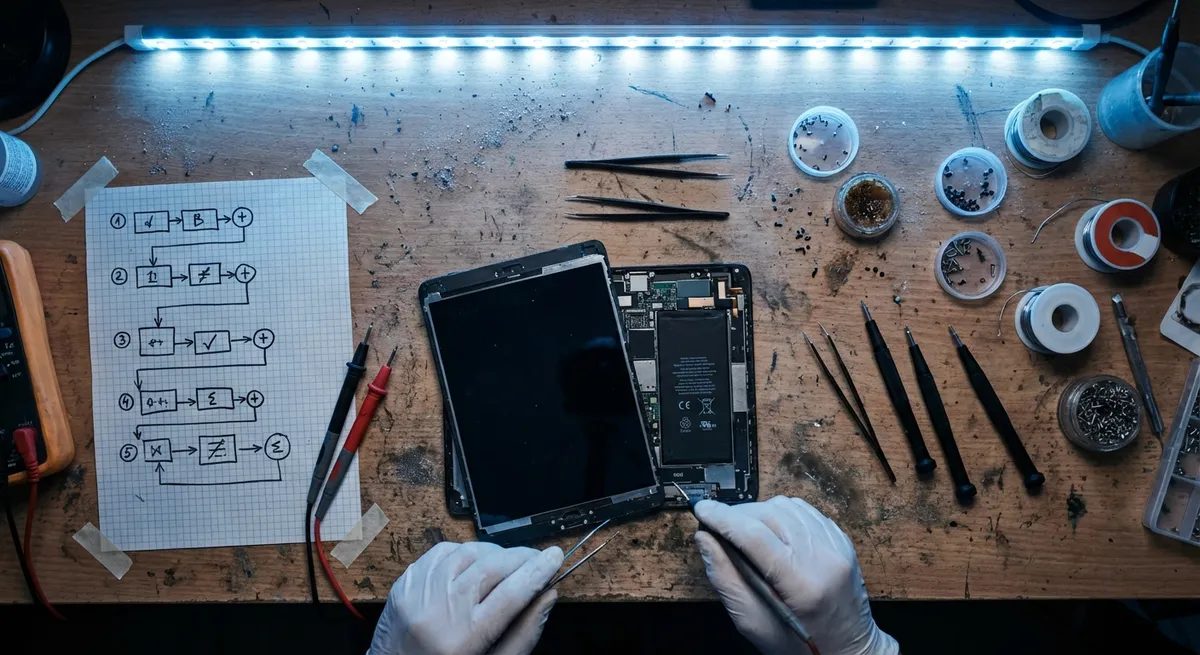
Tablets pack laptop-grade capabilities into thin hardware, which also means small faults can surface as confusing, intermittent problems. Instead of random trial-and-error, you can get better, faster results by treating your tablet like a system: isolate the symptom, map it to a likely subsystem (power, display, storage, thermal, or connectivity), and then apply focused tests. This article walks through five structured troubleshooting solutions for the most common tablet issues, with a bias toward reproducible, technical steps you can actually follow and share.
1. Power-On and Charging Failures (Power Subsystem Path)
When a tablet refuses to power on or charge reliably, treating it as a power-delivery problem avoids guesswork. First, hard-reset the device: on most Android tablets, hold Power for 20–30 seconds; on iPads, quickly press Volume Up, then Volume Down, then hold the Top/Power button until the Apple logo appears. This clears many firmware-level hangs that mimic a dead battery.
Next, validate the entire charging chain. Use a known-good, standards-compliant cable and charger: USB‑C tablets should ideally be tested with a USB‑IF certified charger; iPads should be tested with an Apple or MFi‑certified adapter. If possible, test with a USB power meter: confirm the charger is delivering expected voltage (typically 5 V, sometimes 9–20 V with fast charge) and that current draw increases when you plug the tablet in. Extremely low or zero current with multiple chargers suggests either a battery/protection-circuit fault or a physically damaged port.
Inspect the port under strong lighting: check for lint, oxidation, or bent pins. Use a non‑metallic tool (e.g., a wooden toothpick) to gently dislodge compacted debris; compressed air can help, but keep the can upright to avoid liquid propellant. After cleaning, re-test charging while the tablet is powered off; some devices charge more reliably in this state. If the tablet boots only when connected to AC but shuts down on battery, check battery health within the OS: iPadOS exposes this under Settings → Battery → Battery Health & Charging, while some Android vendors expose it under Settings → Battery or via diagnostic codes/apps. When software-reported battery health is “Service,” “Degraded,” or capacity is severely reduced, a physical battery replacement is usually the only durable fix.
If there is absolutely no response (no logo, no charge icon, no backlight flicker) with verified-good power hardware, the fault may lie in the power-management IC (PMIC), system board, or a blown protection fuse. At that point, end-user service options are limited: gather your tests (chargers tried, cables, indicators observed) and escalate to manufacturer support or a qualified repair shop that can perform board-level diagnostics.
2. Touchscreen and Display Anomalies (Input/Display Path)
Erratic touches, dead zones, ghost taps, or display artifacts typically originate in the touch digitizer layer, the display panel, or their connectors. Begin with a clean-input baseline: disconnect third-party cases with magnets, screen protectors that are lifting, or keyboard covers, as they can interfere with touch or apply constant pressure. Gently clean the screen with a microfiber cloth and isopropyl alcohol (70%+), especially in areas where touches misregister.
Run a simple touch-grid test if your OS or vendor provides one. Some Android devices have a “hardware test” or “touch test” in the dialer code or developer menu; others require installing a diagnostic app that displays a grid you can draw across to identify dead rows/columns. On iPadOS and most stock Android builds, you can approximate this by opening a drawing app and slowly dragging your finger in straight lines across the whole panel, checking for gaps or jitter. If dead areas are perfectly straight lines or large blocks, that usually indicates a digitizer or connector issue rather than software.
Next, boot into a minimal environment to separate software from hardware faults. On Android tablets, reboot into Safe Mode (typically by long-pressing Power → tap and hold “Power off” → Safe Mode) to disable third-party apps that could inject overlays or accessibility features affecting touch. On iPadOS, you don’t have Safe Mode in the same sense, but you can disable third-party keyboards, turn off AssistiveTouch, and reset all settings (Settings → General → Transfer or Reset iPad → Reset → Reset All Settings) without erasing data. If touch behavior is normal in these reduced states, focus on uninstalling recently added apps, disabling screen overlays, and removing custom launchers or gesture tools.
Display-only anomalies—flickering, color bands, or image retention—often respond to software-level tweaks before hardware replacement. Update to the latest OS and vendor firmware, as display driver fixes are common in point releases. Temporarily disable adaptive brightness and any “DC dimming” or low-frequency PWM options in developer or display settings. If flicker appears only at very low brightness, this may be a PWM sensitivity issue; raising brightness slightly can be an immediate workaround. Visible cracks, corner impact marks, or pressure points, however, strongly suggest the need for a professional screen/digitizer assembly replacement.
3. Storage Slowdowns, App Crashes, and OS Instability (File System Path)
When tablets feel “sticky,” apps crash on launch, or the OS shows random error dialogs, the underlying cause is often storage fragmentation, low free space, or file system corruption. Begin by quantifying resource pressure: check storage usage under Settings → Storage and aim for at least 10–20% free space. Flash storage performance drops markedly when nearly full due to write amplification and limited erase blocks.
Systematically free space by targeting large, low-value data first: offline video caches (streaming services), messaging apps with large media histories, and browser caches. Move large media collections to cloud storage or external drives (via USB‑C or Lightning adapters where supported). After cleanup, power cycle the tablet rather than just sleeping it; a full restart allows background storage maintenance and log rotation.
Next, audit misbehaving apps. Apps that repeatedly crash can leave inconsistent data on disk. On Android, clear the app’s cache and, if necessary, storage (Settings → Apps → [App] → Storage). On iPadOS, use Offload App to remove the app binary but retain its documents; then reinstall from the App Store. Always confirm you’re on the latest app and OS version, as vendors frequently patch crashes tied to new OS releases.
If problems persist, conduct file system checks where available. Some Android devices expose a “repair apps” or “optimize storage” operation in recovery mode, which runs a lightweight check and cache rebuild. If you’re comfortable, you can also boot to recovery and wipe only the cache partition (on devices that still expose it), which often resolves minor corruption without touching user data. iPadOS doesn’t expose direct file system checks, but performing an encrypted backup to a computer and then restoring the OS through Finder/iTunes can rewrite system partitions and correct some inconsistencies.
When you see specific error codes like “unable to mount storage,” “encryption failed,” or persistent boot loops after logo, you’re likely dealing with deeper storage/controller faults. In these situations, back up immediately if you can still boot, then perform a clean OS reinstall or factory reset. If fresh installs repeatedly fail or the device cannot complete setup after a reset, the embedded storage (eMMC/UFS/NAND) may be failing, which generally requires board-level repair or device replacement.
4. Overheating, Throttling, and Battery Drain (Thermal/Power Management Path)
Thermal behavior and power consumption are tightly linked. A hot tablet that drains quickly and stutters under load is often running misbehaving processes or experiencing poor thermal dissipation. Start by characterizing the pattern: does the device heat mainly during idle (screen off), during video playback, or under gaming/3D load? Idle heating often suggests runaway background services; load-based heating may be normal to a point but can expose throttling issues.
Inspect the battery and power usage breakdown in Settings. On both Android and iPadOS, identify apps with disproportionately high background activity or “Keep awake” time. Disable background refresh/sync for non-essential apps, revoke location access where not strictly required, and sign out of services you no longer use. On Android, also check for apps with unrestricted battery use permissions; revert them to optimized modes unless you explicitly need constant connectivity (e.g., messaging, VPN).
Then evaluate thermal load. Reduce SoC stress by temporarily lowering display refresh rate (if configurable), lowering brightness, disabling always-on display features, and turning off high-performance or “gaming” modes. If the device is used in a case, especially one with thick or insulating materials, remove it during heavy workloads; many cases trap heat and accelerate throttling. Avoid charging while performing intensive tasks like gaming or 4K video streaming, as combined charge and discharge raise internal temperatures and stress the battery.
Software updates are important here as well—manufacturers often adjust thermal and power-management profiles in firmware. Ensure you have the latest OS and security updates installed. If you still see rapid battery drain, run a controlled test: charge to 100%, then place the tablet in Airplane Mode with screen off for a few hours. A healthy device should lose only a small percentage of battery (often less than 5–8% over 8–10 hours). Much higher drain suggests either a failing battery or low-level firmware/driver issues.
Visible swelling (screen lifting from the frame, gaps at the edges, or physical warping) is an immediate safety concern; power down the device, stop using it, and seek professional service. Continuing to charge or operate a swollen battery can be hazardous. Even without visible swelling, if usage time has collapsed dramatically and software mitigation doesn’t help, a battery replacement by the manufacturer or a reputable repair shop is typically the most effective long-term fix.
5. Wi‑Fi, Bluetooth, and Peripheral Failures (Connectivity Path)
Connectivity issues often blur together, but methodical isolation helps reveal whether the fault lies in radio hardware, antenna paths, drivers, or network configuration. Start with Wi‑Fi: verify that other devices on the same network perform normally at the same location. If they do, focus on the tablet; if not, you may be troubleshooting router or ISP problems instead of the device.
On the tablet, forget the problematic Wi‑Fi network and reconnect from scratch, re-entering the password to clear stale security or DHCP parameters. Toggle Airplane Mode on and off, then reboot the device to fully reset radio subsystems. On dual-band networks, explicitly test both 2.4 GHz and 5 GHz SSIDs; weaker 5 GHz penetration through walls can mimic device faults. If only one band fails, the router or tablet’s band-specific radio chain may be at fault.
Check for OS and firmware updates, as Wi‑Fi and Bluetooth driver fixes are common in OTA updates. For Android tablets, if your vendor supports it, you can reset only network settings (Settings → System → Reset options → Reset Wi‑Fi, mobile & Bluetooth) to clear accumulated configuration issues without touching apps or user data. On iPadOS, use Settings → General → Transfer or Reset iPad → Reset → Reset Network Settings. Afterward, re-add networks and Bluetooth devices.
Bluetooth-specific problems (failed pairing, frequent drops, poor audio) warrant their own tests. Move away from potential sources of 2.4 GHz interference: crowded Wi‑Fi channels, microwaves, cordless phones, and even USB 3.0 hubs near the tablet can degrade Bluetooth performance. Ensure the accessory firmware is current (for headphones, keyboards, etc.), and test the accessory with another device to rule it out. For audio stutter, keep the tablet and accessory within line of sight and minimize obstructions—body position alone can attenuate certain antennas.
Ports and wired peripherals add another layer. USB‑C tablets rely on proper cable quality and negotiated power/data roles. If a dock or adapter is unreliable, test with a direct cable first, then a different brand of adapter. For devices supporting USB‑C DisplayPort alt mode (external monitors), check the vendor’s compatibility list and verify the cable supports video, not just charging. Instability only when docked can point to power negotiation issues; try a dock with its own power supply or switch to a known USB‑IF certified model.
When wireless radios fail entirely (no Wi‑Fi or Bluetooth toggle, options grayed out), you may be looking at a driver corruption or hardware failure (for example, a failed combo Wi‑Fi/Bluetooth chip or damaged antenna connectors from a drop). Perform a full backup, then a clean OS reinstall or factory reset to rule out software. If connectivity still doesn’t return, that strongly suggests the need for hardware-level repair.
Conclusion
Troubleshooting tablets becomes far less frustrating when you approach issues by subsystem rather than by symptom alone. Power problems, touch/display glitches, storage instability, thermal/battery anomalies, and connectivity failures each follow recognizable patterns that you can probe with targeted tests. By combining structured diagnostics—clean baselines, safe-mode or reduced environments, controlled load tests, and configuration resets—you can distinguish between software-level faults you can fix yourself and hardware-level issues that justify professional repair or replacement. For Device Troubles readers, treating your tablet like a system under test not only improves your odds of a quick recovery but also gives you a clear story to share when you do need to escalate.
Sources
- [Apple – If your iPad won’t turn on or is frozen](https://support.apple.com/en-us/HT210631) - Official Apple guidance on power, restart, and recovery procedures for iPads
- [Google – Fix battery drain problems on a Pixel phone](https://support.google.com/pixelphone/answer/6187458) - Explains Android battery and power-usage diagnostics that apply broadly to many Android tablets
- [Samsung – How to fix touchscreen issues on your Galaxy phone or tablet](https://www.samsung.com/us/support/troubleshooting/TSG01001434/) - Vendor-level walkthrough for touch/display troubleshooting on Samsung tablets
- [Federal Communications Commission (FCC) – Interference to Home Electronics](https://www.fcc.gov/consumers/guides/interference-home-electronics) - Background on RF interference that can impact Wi‑Fi and Bluetooth performance
- [NIST – Guidelines on Mobile Device Forensics (Special Publication 800-101 Rev.1)](https://nvlpubs.nist.gov/nistpubs/SpecialPublications/NIST.SP.800-101r1.pdf) - Technical reference on mobile device behavior, storage, and system integrity considerations
Key Takeaway
The most important thing to remember from this article is that this information can change how you think about Tablet Solutions.