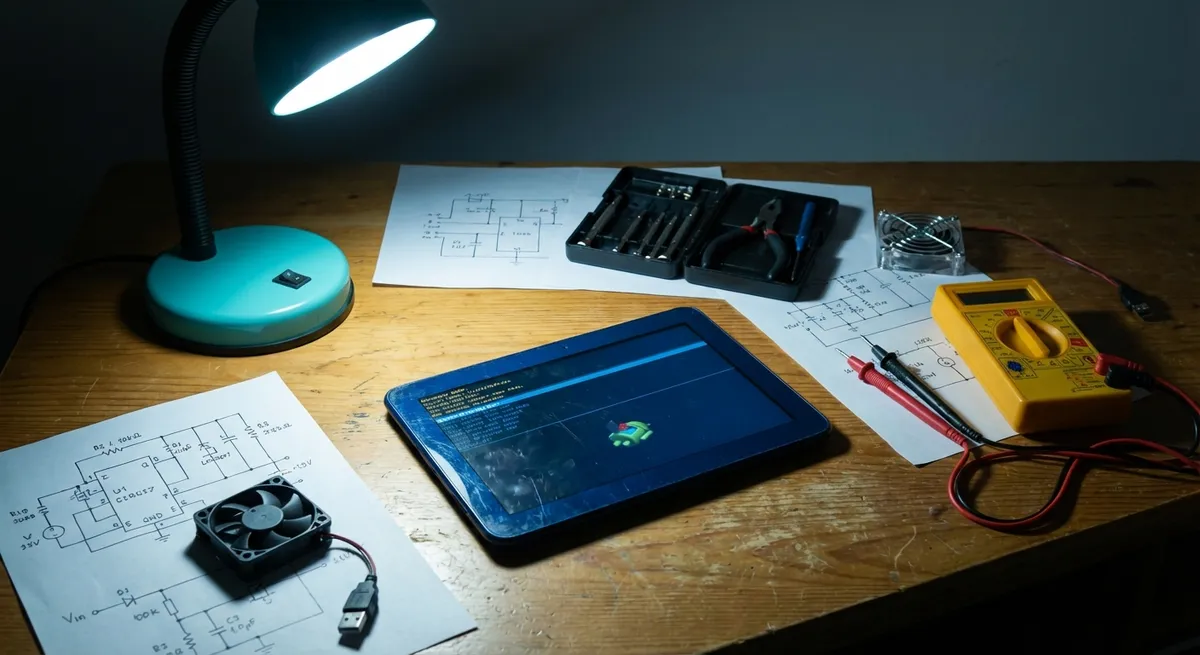
When a tablet starts freezing, draining battery, or refusing to charge, it’s usually a symptom, not the root cause. Under the glass, there’s an OS scheduler, power-management ICs, flash wear-leveling, and RF radios all competing for limited resources. This guide walks through five practical, technical troubleshooting paths that target common failure points—so you’re not just “trying things,” but making informed, reversible changes.
1. Unstable Performance: Freezes, Lag, and Random Reboots
Performance problems almost always trace back to resource contention (CPU, RAM, I/O) or thermal limits being exceeded. Instead of just “clearing cache,” you want to identify what’s saturating the system.
Technical checks and fixes:
Profile resource usage (Android):
- Open Settings > Battery (or Battery & performance), inspect which apps dominate CPU and background activity. - In Settings > Developer options (enable it via About tablet > Build number tapped 7 times), turn on: - Show CPU usage or Running services (varies by OEM). - Uninstall or disable apps that consistently sit at the top of CPU or RAM usage.
Check storage I/O headroom:
- Go to Settings > Storage and ensure at least 15–20% free space. - Flash controllers slow significantly when nearly full due to garbage collection and wear-leveling overhead. - Move media to cloud or SD card (if supported); uninstall large, rarely used games.
Clear app-level cache for heavy offenders:
- For browsers, social apps, and streaming apps: - Settings > Apps > [App] > Storage > Clear cache (avoid “Clear data” unless you accept logouts and local data loss). - This can reduce repeated disk access and background cache rebuilds.
Thermal management: detect throttling:
- If performance drops after 5–10 minutes of use, suspect thermal throttling. - Check for warmth near the SoC (usually central/back area). - Remove thick or insulated cases, lower brightness, and avoid use while charging if the back gets hot (charging + CPU load compounds heat).
System cache / Dalvik optimization (Android):
- For older or some custom ROM devices, boot into Recovery mode and use the Wipe cache partition option (NOT factory reset). - This forces regeneration of certain optimized files without deleting user data and can fix weird jitter after updates.
If issues persist:
Random reboots even in Safe Mode (with third-party apps disabled) often indicate a deeper OS corruption or marginal hardware: aging eMMC/UFS, faulty RAM, or a failing power-management IC. At that point, backup and consider a full OS reflash or professional diagnostics.
2. Charging Failures and Slow Charging Under Load
Charging problems often come down to resistance in the current path, negotiation failures (USB-PD/Quick Charge), or battery health. Treat the charging chain as a series: outlet → adapter → cable → connector → power IC → battery.
Technical checks and fixes:
Verify adapter and cable capabilities:
- Check the fine print on the adapter (e.g., 5V/2A, 9V/2A, USB-PD 18W).
- Use a known-good cable rated for high current (many cheap cables are limited to 0.5–1A).
- If available, use a USB power meter inline to see actual voltage and current; if current never exceeds ~0.5A on a tablet that expects 2A, suspect the cable or port resistance.
- Use a bright light to look for pocket lint or oxidation.
- Power off the device. Gently remove debris with a wooden or plastic toothpick—avoid metal tools.
- For mild oxidation, a small amount of 90%+ isopropyl alcohol on a lint-free swab, carefully applied, can help. Let dry completely before powering on.
- Plug the charger in and turn the screen off for 10–15 minutes.
- If the battery percentage rises normally while idle but not during use, the load is offsetting charge current.
- Restrict background apps and lower brightness. Heavy gaming while charging can exceed the adapter’s output.
- Occasionally, the fuel gauge (battery management IC + software) misreports actual state of charge.
- Once every few months:
- Charge to 100%, then use down to around 5–10% in one or two extended sessions.
- Then charge uninterrupted back to 100%.
- This helps the system recalibrate, especially after OS updates.
- Swelling (screen lifting, case separation, spongy feel on back panel).
- Sudden drops from, say, 30% to 0% under load.
- Severe heating during normal charging (too hot to comfortably hold).
- These are hardware-level concerns; stop using the tablet and seek professional service to avoid risk of thermal runaway.
Inspect and clean the charging port:
Check charging behavior with the screen off:
Calibrate charge reporting (battery stats):
Signs battery hardware is failing:
3. Wi‑Fi and Network Anomalies: Drops, Slowdowns, and DNS Issues
Network problems are often blamed on “bad Wi‑Fi,” but at a technical level, you’re dealing with RF conditions (signal and interference), driver stack behavior, and DNS/route configuration.
Technical checks and fixes:
Map signal strength and band usage:
- Use a Wi‑Fi analyzer app (e.g., from a reputable vendor) to check RSSI (signal strength) and which channels your router and neighbors use.
- If your tablet connects at 2.4 GHz in a congested environment, consider forcing 5 GHz on the router for that SSID.
- Go to Settings > Network & Internet > Wi‑Fi, tap your network, and Forget.
- Reconnect and re-enter the password.
- This forces a fresh negotiation of security parameters (WPA2/WPA3), DNS, and IP lease.
- Settings > Network & Internet > Advanced > Private DNS (path may vary).
- Set to Private DNS provider hostname and use a reputable provider like
dns.googleorone.one.one.one. - This can resolve issues where sites time out or certain apps fail despite good signal.
- Some tablets aggressively sleep Wi‑Fi radios to save battery.
- Under Wi‑Fi preferences or Advanced, look for options like Keep Wi‑Fi on during sleep and set to Always if you see disconnects when the screen is off.
- If available, disable “Wi‑Fi power saving mode” as a test.
- Log into your router’s admin page and:
- Check whether the tablet’s MAC address shows frequent deauths or re-associations.
- Try a different Wi‑Fi security mode (e.g., WPA2‑PSK vs WPA3) if the tablet is older.
- Update router firmware—buggy AP firmware can affect only certain client chipsets.
Forget and rebuild the network profile:
Switch DNS to a known-stable resolver (Android):
Check for power-saving interference:
Router‑side diagnostics:
If only your tablet misbehaves on multiple known‑good networks:
Suspect a driver or OS issue; test after a system update, or consider a factory reset (after backup). If even Safe Mode plus fresh networks fail, the Wi‑Fi radio module, antenna connector, or solder joints may be mechanically compromised.
4. Storage Corruption, App Crashes, and Update Failures
Persistent app crashes, failed OS updates, and random “app not responding” popups often point to storage I/O problems: corrupt sectors, failing flash, or a fragmented logical layout.
Technical checks and fixes:
Run built-in storage diagnostics (if available):
- Some OEMs (Samsung, Lenovo, etc.) provide a Device care or Diagnostics tool.
- Run storage checks; if the tool flags issues, treat the tablet as at-risk for complete failure and back up immediately.
- Apps that log constantly, torrent clients, some messaging platforms, and heavy cache users can accelerate flash wear.
- Uninstall or limit such apps; move their data to cloud storage when possible.
- Settings > Apps > Google Play Store > Storage > Clear cache.
- Settings > Apps > Google Play Services > Storage > Manage space > Clear all data (you may need to re‑log in).
- This often resolves update loops and install failures.
- A failing microSD card can mimic internal storage corruption, especially if used as adoptable storage.
- Power off, remove the SD card, then boot and test the device without it.
- If behavior improves, back up the card via a PC and replace it.
- Back up: photos, documents, app data (using cloud backup or a PC).
- Note accounts, 2FA methods, and any encryption keys.
- Perform a factory reset from Settings > System > Reset options.
- After reset, test the tablet before reinstalling all apps; add them gradually to see if one reintroduces instability.
Audit and reduce write-heavy apps:
Clear system and Play Store caches (Android):
Move or remove SD card (if present):
Prepare for and execute a clean reset (last resort):
If instability returns immediately on a fresh OS with minimal apps, the internal storage (eMMC/UFS) may be degrading at the hardware level—this usually requires board-level repair or replacement.
5. Display and Touch Anomalies: Ghost Taps, Dead Zones, and Artifacts
Touchscreens are layered subsystems: backlight, LCD/OLED matrix, digitizer, controller IC, and the OS input stack. Issues can be physical (pressure, cracks) or firmware/driver-level.
Technical checks and fixes:
Differentiate software vs hardware input problems:
- Boot into Safe Mode (varies by OEM—often by long-pressing Power off and selecting Safe Mode).
- In Safe Mode, test touch across the screen: draw continuous lines in a basic drawing app.
- If ghost taps or dead zones persist in Safe Mode, the issue is likely hardware.
- Inspect for slight bends, twists, or localized pressure (e.g., from tight cases or magnetic keyboard covers).
- Remove any case and test again.
- Micro‑cracks in the digitizer can cause phantom touches even when the glass looks mostly intact.
- Many OEMs include hidden diagnostic menus (e.g., Samsung’s
#0#dialer code on some models or a Diagnostic app). - Use built-in touch tests to map areas that don’t register input.
- Capacitive touch can be affected by moisture, conductive surfaces, and some chargers.
- Test on a non-metallic surface, disconnect from charger, and ensure the screen and hands are dry.
- If the issue appears only while plugged into a specific charger, suspect electrical noise from that power source.
- Install the latest OS and vendor-specific updates; these often include patches for touch controller firmware and timing settings.
- For some Android tablets, specific build numbers are known to fix touch jitter on certain panels—always read the OEM’s release notes when possible.
Check for physical stress and flex:
Run built-in display diagnostics (if available):
Eliminate environmental interference:
Check for firmware and driver updates:
If you see persistent vertical/horizontal lines, flickering at low brightness, or full sections of the display staying dark, those symptoms typically indicate panel, cable, or backlight driver faults—not something that can be fixed in software alone.
Conclusion
Stabilizing a misbehaving tablet is less about magic fixes and more about methodical isolation: determine whether the problem is load‑related, power‑related, RF‑related, storage‑related, or input‑related, then apply targeted changes. By checking resource use, validating the charging chain, cleaning up network profiles, managing storage health, and differentiating software vs hardware faults in the display stack, you can resolve many issues without guesswork.
When the behavior doesn’t change in Safe Mode, survives a clean factory reset, or worsens rapidly (e.g., swelling battery, severe overheating, or visual artifacts), treat that as a hardware red flag and move to professional service. The more structured your troubleshooting, the easier it is to decide when repair or replacement is the truly cost‑effective path.
Sources
- Android Help – Fix an Android device that won’t charge or turn on - Official Google guidance on diagnosing and resolving charging and power issues on Android devices
- Samsung Support – Optimizing your Galaxy device’s battery life - Detailed vendor documentation on power management, charging behavior, and battery health considerations
- Apple Support – If your iPad won’t charge or charges slowly - Technical steps from Apple for isolating adapter, cable, port, and software factors in tablet charging problems
- FCC – Interference with Wi‑Fi Networks - Explains radio-frequency interference sources and mitigation strategies relevant to Wi‑Fi instability
- NIST – Guidelines on Mobile Device Security (SP 800‑124 Rev. 2, Draft) - Provides background on mobile OS architecture, app behavior, and configuration practices that inform technical troubleshooting strategies
Key Takeaway
The most important thing to remember from this article is that this information can change how you think about Tablet Solutions.