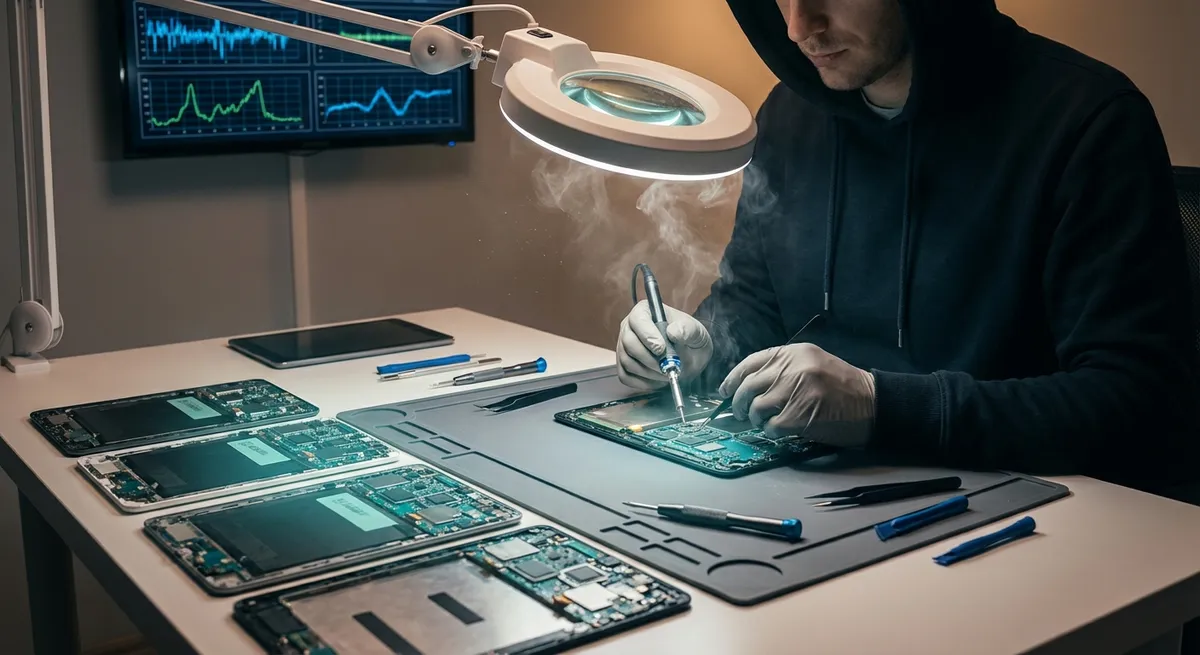
When a tablet starts acting up, it usually fails in predictable, diagnosable ways. Instead of guessing, you can walk through a structured set of technical checks that isolate the fault: power, storage, thermal, display, or software stack. This guide focuses on five of the most common tablet problems and shows you how to troubleshoot them methodically, using evidence instead of trial-and-error.
1. Tablet Won’t Power On or Randomly Shuts Down
Power faults usually trace back to one of three domains: power delivery (charger, cable, port), energy storage (battery), or power management (firmware, mainboard).
Step 1: Validate the power path
Use a known-good, standards-compliant charger and cable:
- For USB‑C tablets, use a USB‑IF compliant charger rated for at least the tablet’s specified wattage.
- For iPads with Lightning/USB‑C, use an Apple‑certified (MFi or original) cable.
Connect directly to a wall outlet (avoid surge strips temporarily), then leave the tablet connected for at least 30–45 minutes. Many deeply discharged lithium-ion batteries need a pre-charge phase before the device shows any image.
Step 2: Inspect the physical connectors
Under bright light:
- Check the charging port for lint, oxidation, or deformed pins.
- Use a plastic or wooden toothpick (never metal) to gently remove compacted dust.
- Look for movement or “play” when wiggling the connector; excessive movement can indicate a cracked solder joint on the charging daughterboard.
If a cable charges other devices reliably but not this tablet, and the port feels loose or intermittent, the likely fault is mechanical (port or small board) rather than battery.
Step 3: Force reboot and bootloader checks
Different platforms implement low-level restart methods:
- Android tablets: Hold Power for 20–30 seconds. If nothing, hold Power + Volume Down for 10–15 seconds to trigger bootloader/fastboot on some models.
- iPad / iPadOS (no Home button): Press Volume Up (quick), then Volume Down (quick), then hold Power until you see the Apple logo (can take 10–20 seconds).
- iPad with Home button: Hold Home + Power for ~10–15 seconds.
If the tablet shows a charging/battery icon but never progresses into the OS, suspect a failing battery or battery controller.
Step 4: Monitor for brownouts and thermal triggers
Once it powers on:
- Note if shutdowns only happen under load (gaming, streaming, video calls).
- Use the built-in battery health (where available) or a diagnostic app from the manufacturer to check cycle count and capacity.
- If the chassis gets hot before shutdown, thermal protection may be tripping due to a degraded thermal interface or blocked vents (for fanless devices, even dust in speaker grills can trap heat).
At this point:
- Stable with charger but unstable on battery → likely degraded battery.
- Sudden, clean shutdowns at random states → possible mainboard or power-management IC issue, typically needing professional service.
2. Charging Slowly or Not at All
Charging issues can be narrowed down by examining protocol negotiation, current draw, and the state of the battery and port.
Step 1: Verify charger specs and compatibility
Check the adapter label:
- Confirm voltage and current match or exceed the tablet’s recommended charger (e.g., 5V/3A, 9V/2A, 20W+ for newer tablets).
- Avoid very low-power phone chargers (e.g., 5W) for large tablets; these will charge extremely slowly or not at all if the tablet is running.
If possible, test with the original OEM charger and cable. Many fast-charge methods (USB Power Delivery, Quick Charge, proprietary protocols) require specific signaling that cheap third-party adapters lack.
Step 2: Measure effective charging behavior
If you have a USB power meter (inline USB tester):
- Insert it between charger and cable.
- Note voltage (should be stable near a defined level like 5V, 9V) and current (often 1–3A during fast charge).
- If voltage drops significantly under load (<4.75V) or current is near zero while the tablet is on, the charger or cable is suspect.
Without tools:
- With the screen off, leave the tablet charging for 15–20 minutes and check if the battery percentage rises predictably.
- If the tablet loses charge while plugged in during light use, the input power is insufficient or not being negotiated correctly.
Step 3: Inspect software-level charging constraints
Some OS-level behaviors can mimic charging faults:
- Battery optimization / protection modes:
- Samsung/Android and iPadOS may limit max charge to extend battery life (e.g., capped at 80%). This is normal but can confuse troubleshooting if you expect 100%.
- High-drain background tasks:
- Check battery usage settings for apps causing constant wake locks (e.g., video conferencing or games running in the background).
- Disable or uninstall unusually power-hungry apps and retest charging while the tablet is idle.
If the tablet charges normally when powered off (or in airplane mode), the problem is power draw, not the charger.
Step 4: Evaluate port and battery condition
Visible signs of wear:
- Burn marks or greenish corrosion inside the port → potential liquid damage.
- Need to hold the cable at a specific angle to charge → likely mechanical damage to the port.
Behavioral signs:
- Charges for a moment, then stops, repeatedly connecting/disconnecting → dirty contacts, failing cable, or failing charging IC.
- Battery jumps abruptly between percentages or shuts down at high reported charge (e.g., 40–60%) → internal battery cell degradation or calibration failure.
In these cases, board-level repair or battery replacement is typically required; do not attempt to open sealed tablets without proper ESD protection and tools.
3. Storage Full, Sluggish, or Freezing During Updates
Tablets with nearly full internal storage or degraded flash memory can become unstable, especially during OS updates, app installs, or heavy multitasking.
Step 1: Assess storage health and utilization
Check:
- Used vs. total storage in system settings. Aim to keep at least 15–20% free space to prevent severe slowdowns.
- On Android, look for breakdown by Apps, System, Media, Cache. On iPadOS, check “System Data” size; if it’s consuming a very large portion, the OS may be retaining logs or caches excessively.
Symptoms of storage-related problems:
- Apps take many seconds to open.
- Device freezes or reboots during updates or while installing large apps.
- The tablet becomes hot near the storage chip area (often on one side/back) under I/O load.
Step 2: Remove write-heavy and redundant data
Tactical cleanup:
- Uninstall rarely used apps, especially games with large asset packs.
- Clear app caches for media-heavy apps (browsers, streaming, social apps) via system settings (Android) or by offloading apps (iPadOS).
- Move photos and videos off-device using cloud sync or a computer; these are usually the largest data class.
Avoid “cleaner” apps that promise optimization but run continuously; most add overhead and sometimes cause instability.
Step 3: Use external or expandable storage intelligently
On tablets with microSD (Android/Windows variants):
- Prefer Portable storage mode over Adoptable/Internal storage unless you fully trust the card quality. Low-end cards used as internal storage often fail under constant writes.
- Use A2-rated microSD cards from reputable brands for app storage.
- Keep OS and critical apps on internal storage; move media and secondary apps to the SD card.
If the tablet supports USB‑C OTG:
- Offload media and archives to external drives or thumb drives.
- Use manufacturer-approved file management apps to prevent corruption.
Step 4: Suspect flash wear or filesystem corruption
If you’ve freed significant space but still see:
- Regular “App not responding” dialogs.
- Reboots during simple operations.
- Updates that fail repeatedly with different error codes.
Then:
- Backup critical data immediately.
- Run any built-in diagnostics (some OEMs provide hardware tests in boot menus or support apps).
- Consider a full factory reset after backup; if behavior persists on a clean system, the internal flash storage may be worn out and require board replacement.
4. Touchscreen Misalignment, Dead Zones, or Phantom Taps
Touch faults often result from digitizer damage, connector issues, or software calibration problems.
Step 1: Differentiate between panel and software issues
Perform basic checks:
- Rotate the screen; if the same physical region fails (e.g., the right edge in both portrait and landscape), that area of the digitizer is suspect.
- Boot into Safe Mode (Android) or a minimal environment to see if behavior persists. If phantom taps disappear in Safe Mode, a rogue app or gesture overlay is involved.
Safe Mode usually disables third-party apps and overlays, revealing whether software is responsible.
Step 2: Remove external interference
- Take off any case or screen protector to rule out pressure on the screen edges or low-quality tempered glass causing false touches.
- Clean the screen thoroughly with a microfiber cloth and a small amount of 70% isopropyl alcohol on the cloth (never poured directly). Oils and residue can affect capacitive sensing, especially with gloves or moisture.
Test again before reinstalling accessories.
Step 3: Run touch diagnostics
Some tablets include hardware diagnostics:
- Dialer codes (on some Android tablets with phone apps) or hidden settings may provide a touch test grid.
- Manufacturer diagnostic apps can show touch input in real time.
Observe:
- Dead zones where touches are never reported → likely digitizer damage or cable issue.
- Jittery or rapidly flickering touch points with no user input → noise, grounding issues, or moisture ingress.
Step 4: Firmware and kernel-level considerations
Update:
- System software and touchscreen firmware (bundled into OS updates for many devices).
- Any drivers (for Windows tablets) via OEM support tools.
In some cases, firmware corrects touch controller bugs, particularly after OS upgrades.
If touch is completely unresponsive:
- Connect a USB keyboard or mouse (via USB‑C OTG or USB hub) if supported, to backup data.
- If visible cracks cross the screen, especially spiderweb cracks, the digitizer is almost certainly damaged and requires glass/digitizer assembly replacement.
5. Wi‑Fi and Bluetooth Instability or No Connectivity
Connectivity failures generally involve RF hardware, antennas, firmware, or network configuration. Isolating the domain saves time.
Step 1: Define the failure pattern
Ask:
- Is Wi‑Fi failing on all networks or only one (home vs. public vs. hotspot)?
- Does Bluetooth also misbehave (e.g., constant disconnects, can’t find devices)?
- Does the problem only occur at certain distances from the router?
Patterns:
- Wi‑Fi + Bluetooth both unstable → possible shared radio or antenna fault.
- Only one network is problematic → likely router or configuration, not the tablet.
Step 2: Localize to network vs. tablet
Baseline tests:
- Try a different Wi‑Fi network (neighbor, mobile hotspot from a phone, office).
- Connect another device to the same network and compare behavior.
If other devices are fine but the tablet isn’t:
- Forget the problematic network on the tablet and re-add it manually.
- Disable MAC randomization/Private Address (temporarily) in network settings to test compatibility with older routers.
- Ensure the correct security mode (WPA2 or WPA3) is supported by both router and tablet; older tablets may not handle WPA3‑only networks.
Step 3: Examine channel and band usage
- Prefer 5 GHz (or 6 GHz on Wi‑Fi 6E capable tablets) for higher throughput and less interference; 2.4 GHz is more crowded and susceptible to noise from microwaves, Bluetooth, and cordless phones.
- In router settings, try changing the 2.4 GHz channel to 1, 6, or 11 and the 5 GHz channel away from heavily used defaults.
On the tablet:
- Force connection to a specific band if the OS allows (e.g., separate SSIDs for 2.4 and 5 GHz).
- Turn off battery saver modes that aggressively disable background Wi‑Fi.
Step 4: Update radio firmware and reset network stacks
- Install the latest OS updates; Wi‑Fi/Bluetooth firmware is often bundled into them.
- Reset network settings on the tablet (this will remove saved networks and Bluetooth pairings but can clear corrupted stacks).
- On the router, ensure the firmware is current and reboot it after changes.
If Bluetooth specifically is failing:
- Remove and re-pair problematic devices.
- Check for too many simultaneously paired or active Bluetooth connections; some chips have limits that, when exceeded, result in unstable connections.
Step 5: Consider hardware antenna and board issues
Physical clues:
- Tablet dropped or bent near an antenna region (often along edges or behind plastic sections) right before issues started.
- Wi‑Fi signal icon never reaches full strength even when standing next to the router, while other devices do.
If other troubleshooting steps fail and there’s a clear physical event, there may be:
- A cracked antenna trace or dislodged antenna cable.
- Damage to the Wi‑Fi/Bluetooth combo chip on the board.
These require professional diagnosis and board-level or antenna repair.
Conclusion
Most tablet issues come down to a handful of technical domains: power, storage, input, radio, and the software stack that ties them together. By treating faults like a small lab investigation—verifying power sources, measuring behavior under load, isolating hardware from software, and validating against known-good networks and accessories—you can turn chaotic symptoms into a clear diagnosis path. Document each change you make, test after every major adjustment, and when the evidence points to physical damage or component wear, prioritize data backup and professional repair over repeated software tweaks. This methodical approach not only fixes the current problem but also makes future troubleshooting faster and more predictable.
Sources
- Apple Support – If your iPad won't turn on or is frozen - Official Apple guidance on power and restart procedures for iPadOS devices
- Samsung – Galaxy phone or tablet battery charging tips - OEM documentation on diagnosing slow or failed charging for Android-based tablets
- Google Android Help – Fix an Android device that freezes or won't respond - Explains safe-mode, restart, and basic software isolation steps for Android devices
- FCC – Interference with Wi-Fi networks - Background on wireless interference, channels, and RF behavior relevant to Wi‑Fi troubleshooting
- Battery University – BU-808: How to Prolong Lithium-based Batteries - Technical discussion of lithium-ion behavior, degradation, and usage patterns that affect tablets
Key Takeaway
The most important thing to remember from this article is that this information can change how you think about Tablet Solutions.