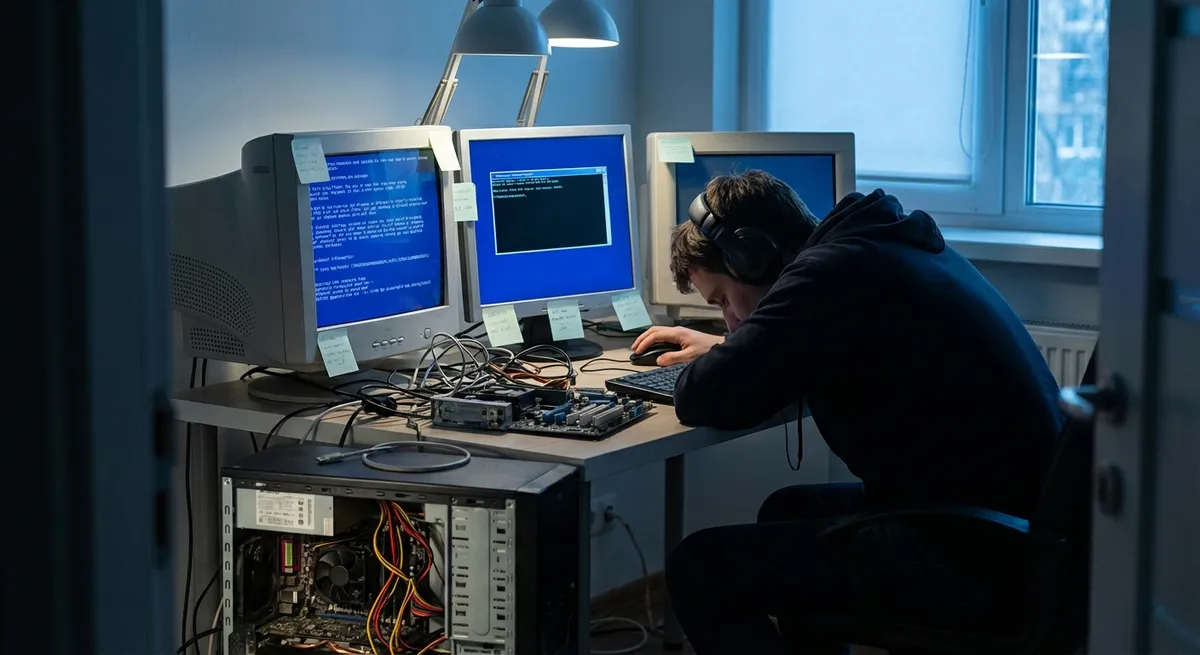
When a Windows PC starts freezing, throwing errors, or randomly rebooting, it can feel like the whole system is collapsing at once. Under the hood, though, most visible problems map back to a handful of technical failure patterns: resource exhaustion, corrupt system files, unstable drivers, thermal issues, or faulty updates. This guide walks through five structured troubleshooting solutions that target those patterns directly, so you can isolate the real cause instead of just rebooting and hoping for the best.
Stabilize an Overloaded System (High CPU, RAM, or Disk Usage)
When your PC becomes unresponsive, the underlying issue is often resource saturation. Windows Task Manager gives you a live, low-level snapshot of what’s consuming CPU, memory, and disk I/O.
Open Task Manager with Ctrl + Shift + Esc, then switch to the Processes and Performance tabs. If CPU or memory stays above ~90% for more than a minute under light workload, you’re likely dealing with a runaway process, memory leak, or background service storm. Sort by CPU, Memory, or Disk and identify processes at the top of the list that stay high, not just spike briefly.
For normal user apps (browsers, game launchers, etc.), try closing them cleanly; if they don’t respond, right-click and select End task. For unknown or system-sounding processes, right-click and choose Search online (on some builds) or manually copy the process name into a web search before you terminate it; killing critical system processes can force an immediate restart. If Antimalware Service Executable or similar security processes are pegging disk or CPU, schedule scans for off-hours and exclude large, frequently accessed directories (like development environments) if appropriate and safe.
In Performance → Open Resource Monitor, drill down into disk and memory usage. Consistent 100% disk usage often ties to Windows Search indexing, Superfetch/SysMain, or an aging HDD. You can temporarily disable Windows Search and SysMain from services.msc for testing. If the system stabilizes, consider leaving them off on HDD-based systems or replacing the drive with an SSD for a long-term fix.
Repair Corrupted System Files and Windows Components
Glitches like random app crashes, missing UI elements, or features that refuse to open (Settings, Start Menu, etc.) frequently trace back to damaged system files or component store corruption. Microsoft ships a built-in toolkit for exactly this, but you need to run it with elevated privileges.
Open Command Prompt (Admin) or Windows Terminal (Admin) and execute:
sfc /scannow
System File Checker (SFC) compares protected system files against a known-good cache and replaces invalid copies. Let it complete to 100% without interruption; closing the laptop lid or hibernating mid-scan can cause misleading results. After it finishes, read the summary. If it reports it found and repaired issues, reboot and re-test the problem.
If SFC reports that it found corrupt files but couldn’t fix some of them, run Deployment Image Servicing and Management (DISM) to repair the underlying component store:
DISM /Online /Cleanup-Image /RestoreHealth
This command can take a while, particularly if it needs to download replacement files from Windows Update, so ensure you have a stable internet connection. Once DISM completes, run sfc /scannow again. The correct sequence is DISM first (when needed), then SFC, then restart.
For systems that are heavily broken (Settings won’t open, Start Menu doesn’t respond, built-in apps missing), consider an in-place upgrade repair using the official Windows installation media from Microsoft. This keeps programs and files while reinstalling core system components, providing a deeper reset than SFC/DISM without a full wipe.
Contain Driver and Hardware-Related Instability
Blue screens (BSODs), sudden reboots under load, or device-specific failures (e.g., no audio, erratic GPU behavior) strongly suggest driver or hardware problems. Windows Device Manager and event logs give you a structured way to approach these.
Open Device Manager (devmgmt.msc) and look for devices with yellow exclamation marks. These typically indicate missing, incompatible, or malfunctioning drivers. Right-click the affected device, select Properties → General to view the status, then Driver → Roll Back Driver if a recent update coincides with the instability. Rolling back is safer than uninstalling when the previous driver was stable.
For GPUs, network adapters, and audio devices, avoid generic third-party driver tools. Instead, go directly to the vendor’s site (e.g., NVIDIA, AMD, Intel, Realtek, or your system OEM). Download the latest WHQL driver appropriate for your exact model and Windows version. Use a clean install option where available for graphics drivers to remove old profiles and settings that may cause conflicts.
If BSODs persist, open Event Viewer (eventvwr.msc) and check Windows Logs → System for Error and Critical events around the time of crashes. Bugcheck codes can be looked up on Microsoft’s documentation to identify patterns: memory corruption, storage failures, or specific driver modules. For suspected RAM issues, run Windows Memory Diagnostic (mdsched.exe). For storage, use the drive manufacturer’s diagnostic utility in addition to checking SMART status.
When instability only appears under heavy load (gaming, 3D rendering, large builds), consider thermal or power limitations: insufficient PSU wattage, inadequate cooling, or dust-choked heatsinks. Monitor temperatures with tools like HWMonitor or vendor utilities, and verify that CPU and GPU temperatures stay within safe ranges (often < 85–90°C under sustained load for many consumer chips). If throttling occurs, clean dust, reapply thermal paste when appropriate, or improve system airflow.
Roll Back Problematic Windows Updates Safely
Feature updates and even some cumulative patches can introduce regressions: broken printing, network drops, or new application crashes. Rather than disabling updates globally (a security risk), a targeted rollback lets you recover stability while keeping the system mostly current.
Go to Settings → Windows Update → Update history to see recently installed updates. If a specific KB patch or feature update aligns with the start of the issue, select Uninstall updates (or Uninstall latest quality/feature update on some builds). Choose the suspected update and remove it. The system may restart and appear to hang longer than usual during first boot; this is expected.
For major feature updates (e.g., going from one Windows build to another), Windows typically offers a limited rollback window (often 10 days). During that window, you can go to Settings → System → Recovery → Go back to restore the previous version without wiping files. If the rollback option is greyed out, the old build’s files have been removed, and you’ll need an alternative approach (like an in-place repair or full reinstall from media).
To prevent a known-bad update from immediately reinstalling, you can use the Show or hide updates troubleshooter package from Microsoft (for older builds) or policies in Local Group Policy Editor (gpedit.msc) on Pro/Enterprise editions to defer or pause specific classes of updates temporarily. The idea is not to block updates indefinitely, but to buy time until Microsoft or your OEM ships a fixed patch.
In managed or domain environments, coordinate with your IT or WSUS/SCCM admin before manually rolling back or deferring updates to avoid conflicts with centrally enforced policies.
Harden the System Against Recurring Failures
Once you’ve stabilized a misbehaving PC, the goal is to reduce the probability of falling back into the same failure modes. That means implementing structural safeguards rather than only ad-hoc fixes.
Configure System Restore so it creates periodic snapshots and restore points before major changes. In System Properties → System Protection, ensure protection is turned on for your system drive and allocate sufficient disk space (5–10 GB is often reasonable). This allows you to quickly revert driver installs, registry changes, or updates that destabilize the machine.
Enable Controlled folder access, SmartScreen, and reputable antivirus/EDR tools to reduce the risk of malware-induced instability. Malware frequently manifests as persistent high CPU/disk usage, broken services, or disabled security components. Keep Windows Defender or your chosen security suite updated automatically; running two real-time AV engines simultaneously can cause performance and compatibility issues.
Implement a disciplined backup strategy: use File History, OneDrive, or third-party backup tools to maintain versioned copies of critical data on an external or cloud location. This doesn’t directly prevent technical faults, but it dramatically lowers the risk of data loss during hardware failures or when a full OS reinstall becomes the most efficient fix.
Finally, maintain a minimal baseline of installed software and drivers. Remove OEM bloatware and unused utilities that hook deeply into the system (overlays, “optimizer” tools, registry cleaners). The more low-level code runs at startup, the larger the attack surface for bugs, driver conflicts, and resource leaks. A lean, well-patched system with verified drivers and regular integrity checks is far less likely to degrade into recurring, hard-to-diagnose failures.
Conclusion
Most Windows desktop problems aren’t random—they’re symptoms of a few fundamental failure patterns. By systematically checking resource usage, verifying system file integrity, isolating drivers and hardware, managing updates intelligently, and hardening the system after you fix issues, you can turn chaotic troubleshooting into a repeatable technical process. Over time, this approach not only resolves current crashes, freezes, and slowdowns but also builds a more resilient environment that’s far less likely to break in the first place.
Sources
- Microsoft: Use the System File Checker tool to repair missing or corrupted system files - Official documentation on SFC usage and interpretation of results
- Microsoft: Repair a Windows Image (DISM) - Technical guidance on DISM and servicing the Windows component store
- Microsoft: Update Windows - Details on Windows Update behavior, feature updates, and rollback options
- NVIDIA: How to perform a clean installation of your NVIDIA drivers - Vendor-specific best practices for stable graphics driver installs
- National Institute of Standards and Technology (NIST): Guide to General Server Security (SP 800-123) - Broader security and hardening principles applicable to Windows systems and desktop environments
Key Takeaway
The most important thing to remember from this article is that this information can change how you think about Computer Problems.